
- The Calls Screen
- Active Calls
- Call Options (Hang up | Transfer | Hold | Mute | Keypad | Record)
- Conference Call
- Video Doorphone Calls
The Calls Screen
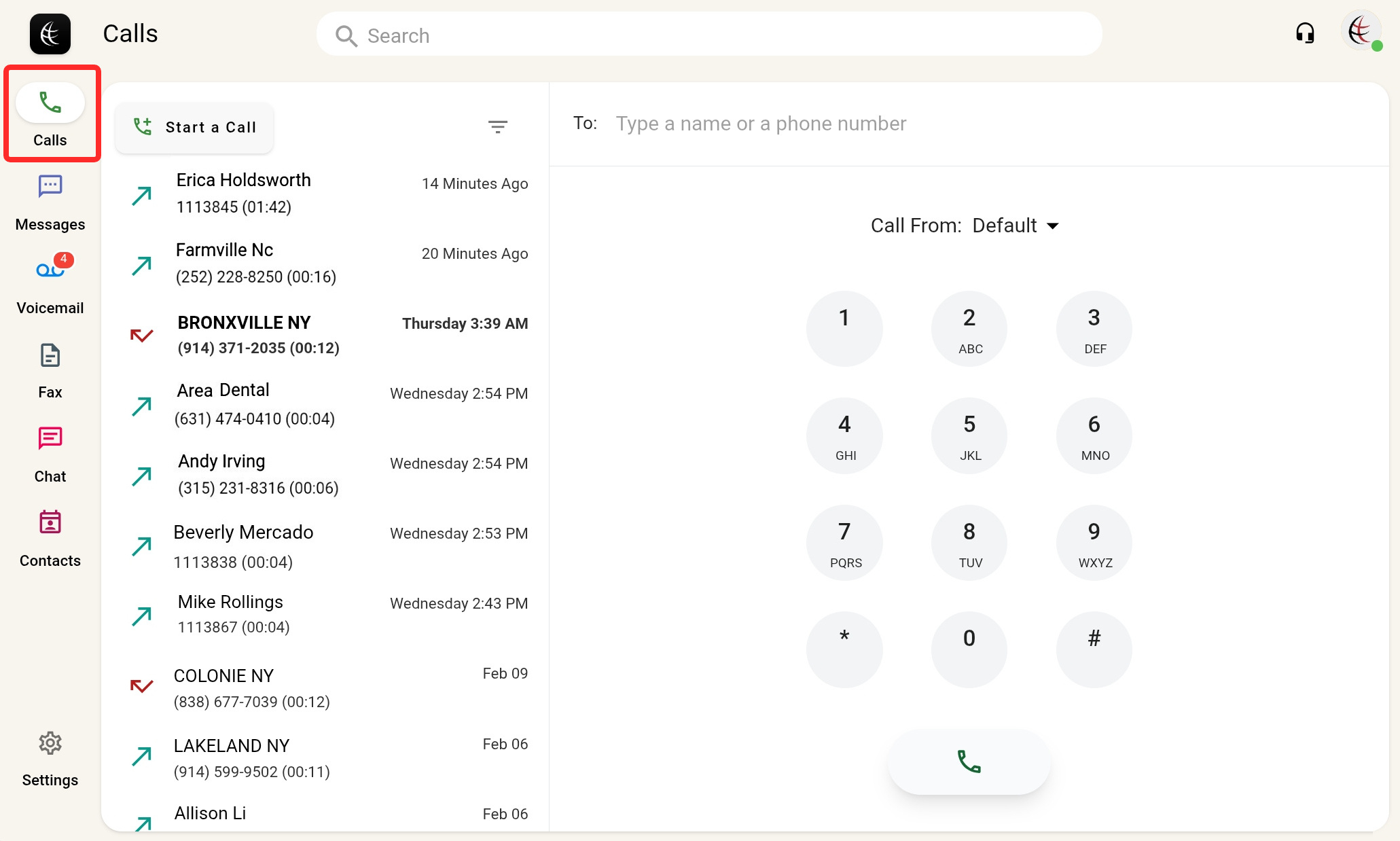
Click  on the side navigation column or press control+D on your keyboard to access the Calls Screen.
The screen has two panels:
- The left panel displays a Calls Log with your calling history. It has options to filter calls and block unwanted callers. See this article for more details.
- The right panel displays either a keypad to make calls or call/conference options (discussed below) for dialed and received calls. It may also display integration options, if your account is enrolled in any.
Making and receiving calls, as well as using integrations, is further explained in this article.
Active Calls
A list of active calls (dialed, received, or ringing) is pinned to the top of the calls log area. When you switch between calls, the other calls are automatically placed on hold.
Select  to hang up active calls or decline incoming (ringing) calls. Answer incoming calls with
  .
.

For conference calls, a conference tab is shown instead of the list of active calls. Use the conference split option to see the conference participants.

The active calls button ( ) is displayed next to the Account Menu and is available on all TeleConsole screens for easy access. Click it and select the name or icon of a caller to switch to this call.
You can also hang up active calls or answer or decline ringing calls with  or
or  .
.

Call Options
To show call options, tap or click any active call (but don't click , or the call will hang up).
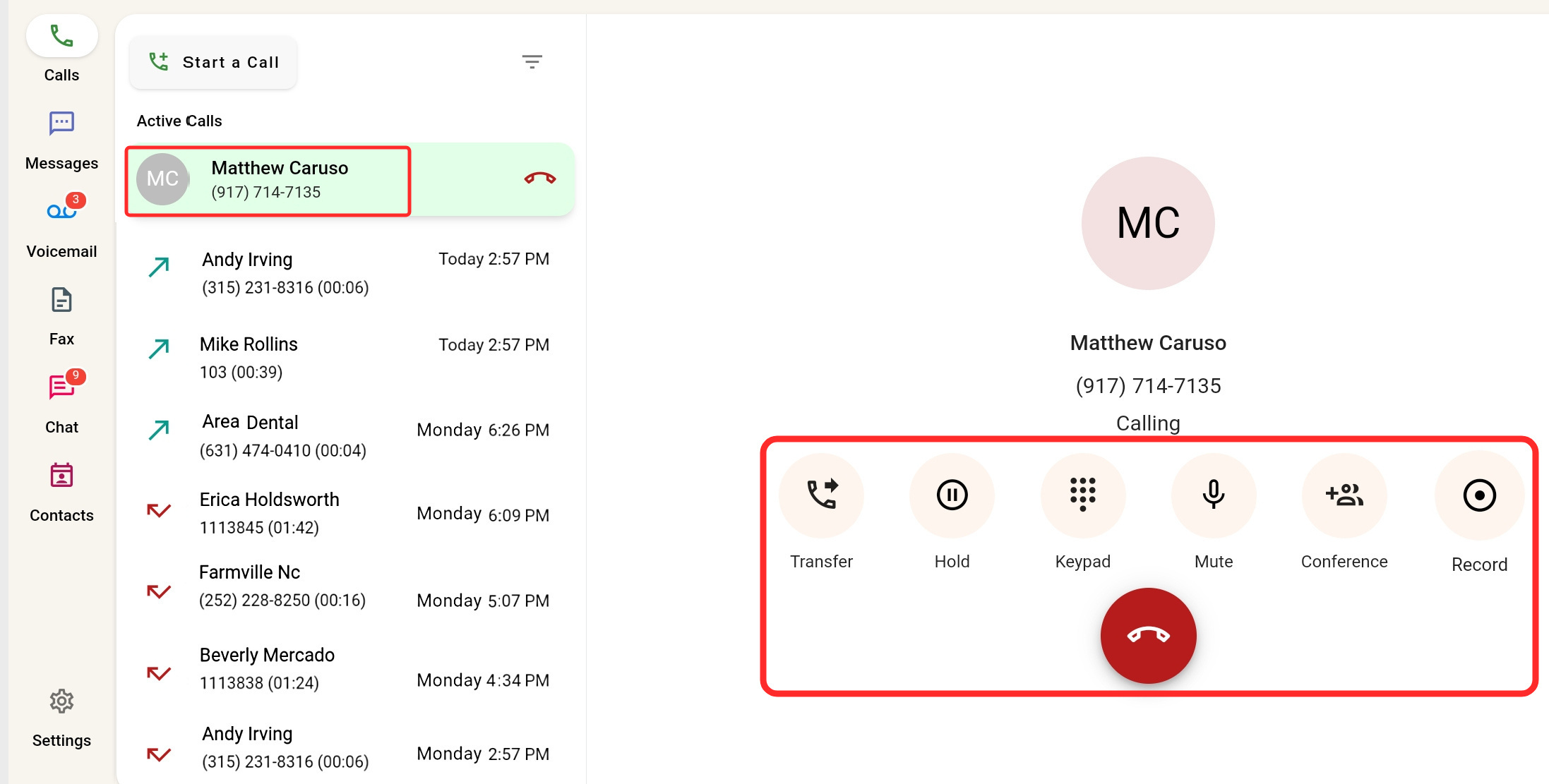
Hang Up – 
If you have an active call and a call on hold, only the active call will end and the held call will become active.
You can also hang up the call by pressing Control+E on your keyboard.
Transfer –
You can also transfer a call by pressing Control+T on your keyboard.
You will be prompted to enter a name or a phone number in the To: field or select one from the available contacts. Company contacts are listed first, followed by your personal contacts.
The  icon indicates the user is already on a call. You can still transfer a call to them, but the user may not be available to accept the call for a Smart Transfer.
Select Transfer Blind to transfer the call immediately. The call will hang up on your line and will start ringing on the recipient's line.
Select Transfer Smart to be connected to the intended recipient first and confirm if they are willing to receive the call (the caller is temporarily placed on hold while you speak to the intended recipient). You can then select TRANSFER to complete the transfer or TRANSFER CANCEL to resume your conversation with the caller.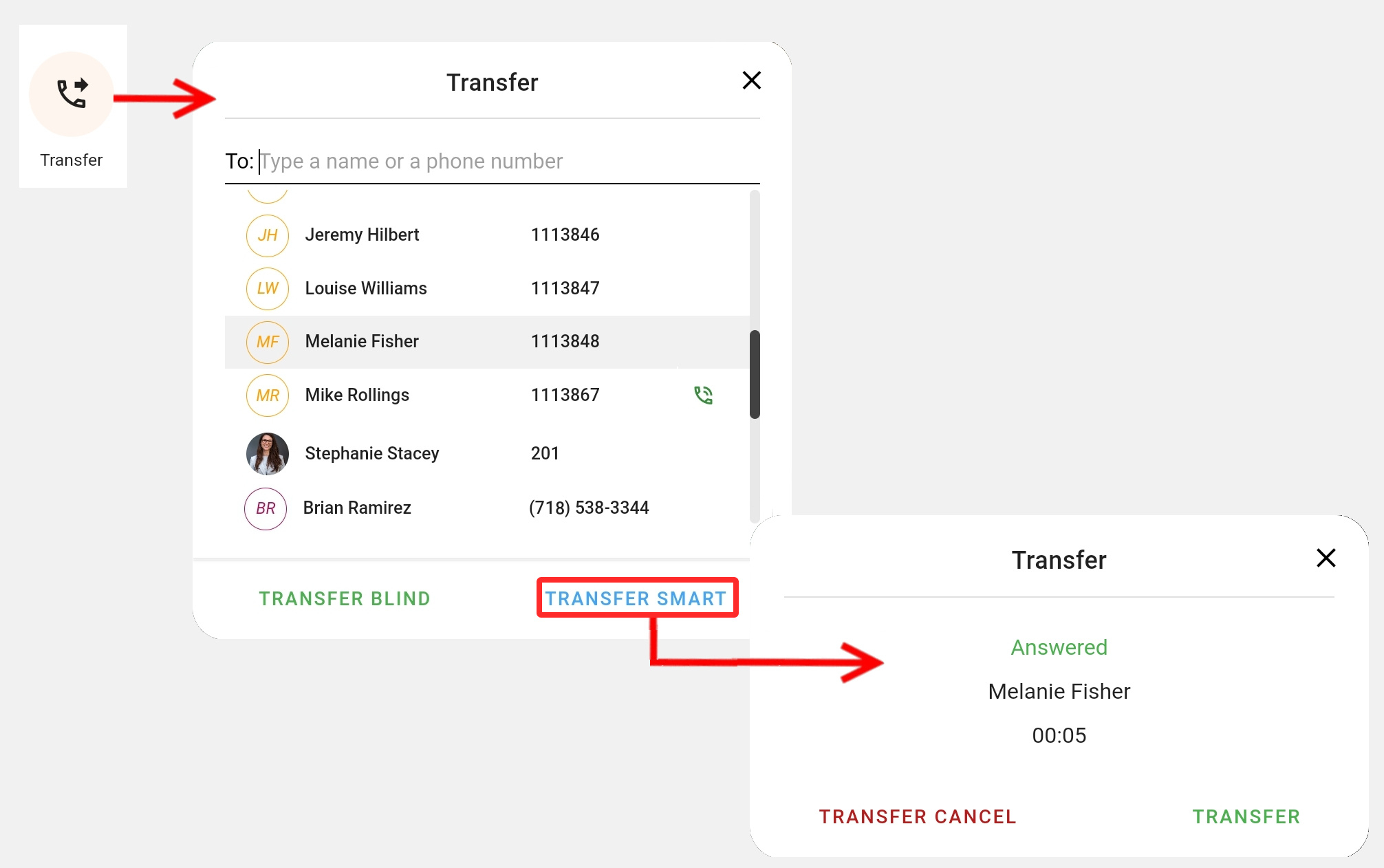
Hold –
The call will be listed as "On hold" in the active calls area and the hold button will change to  . Select the button again to resume the call. You can also hold/resume the call by pressing Control+E on your keyboard.
After you place a call on hold you can use the keypad option to call another person.
While on hold, the party you are talking with may hear either a hold tone or music as selected by your phone system administrator.
Mute – 
The button will change to  . You will still hear the other party, but they will not hear you. Click the button again to unmute the call.
Keypad –
Use the DTMF keypad to make selections from interactive voice menus or to call another party when you have placed a call on hold.
Record –
Records the selected active call or conference. The record button will change to  and you will be prompted that the location of the recording file on your device is Documents/Teleconsole/Recordings.
Check the Do not show again box to prevent the notification from showing when you perform future recordings.
In the web version, recordings will be saved to the Downloads folder.
Conference Call
During a call, you can select  to create a conference. You will be prompted to enter a name or phone number in the To: field or select a contact to join the conference ( icon indicates the contact is already busy with another call.) If you already have active or held calls, they can also be selected to join the conference.
Click CONFERENCE to initiate the conference. A conference tab will appear at the top of the calls log area. Clicking will end the conference and hang up all the participating calls! If you don't want to hang up on the participants, use the conference split option.
The limit of how many participants you can add to a conference depends on your subscription plan and system settings. By default, you can create a conference with three participants, including yourself.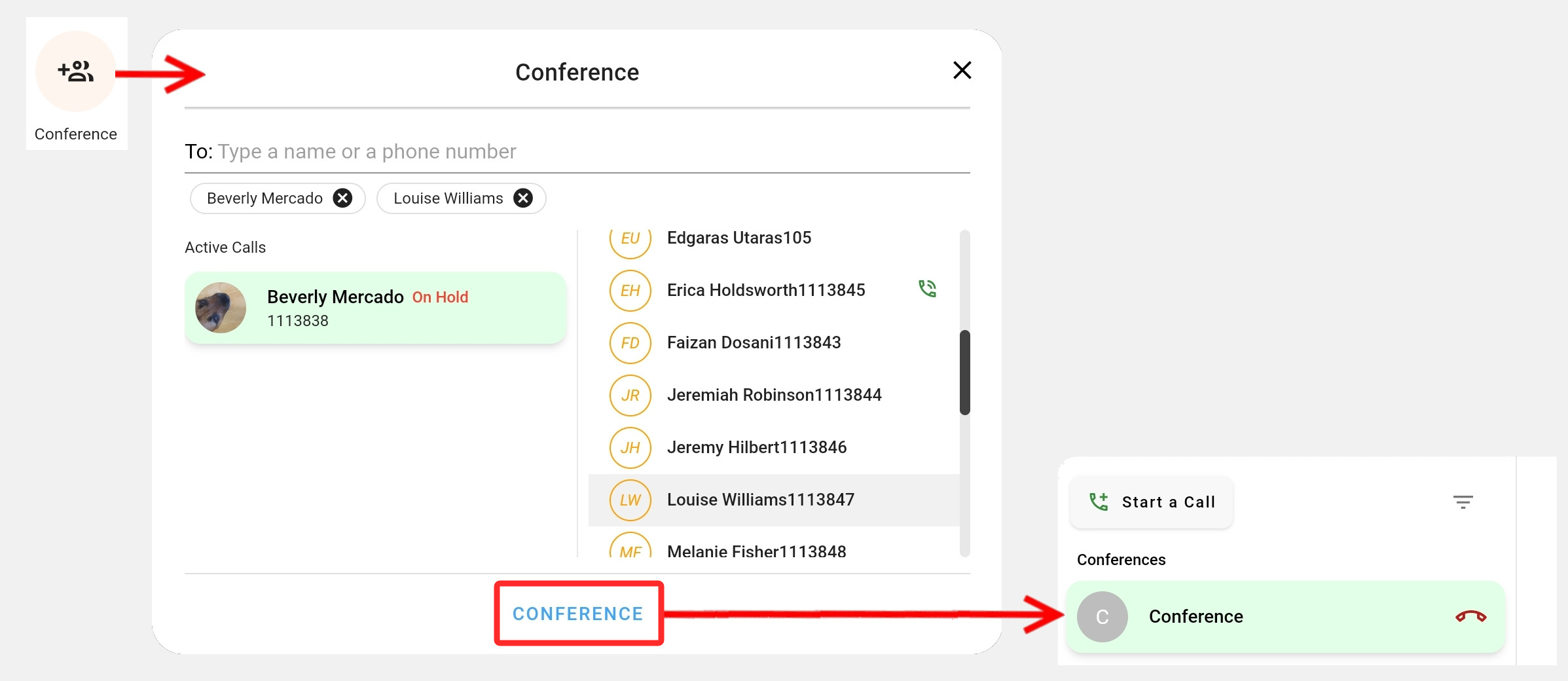
Splitting a Conference
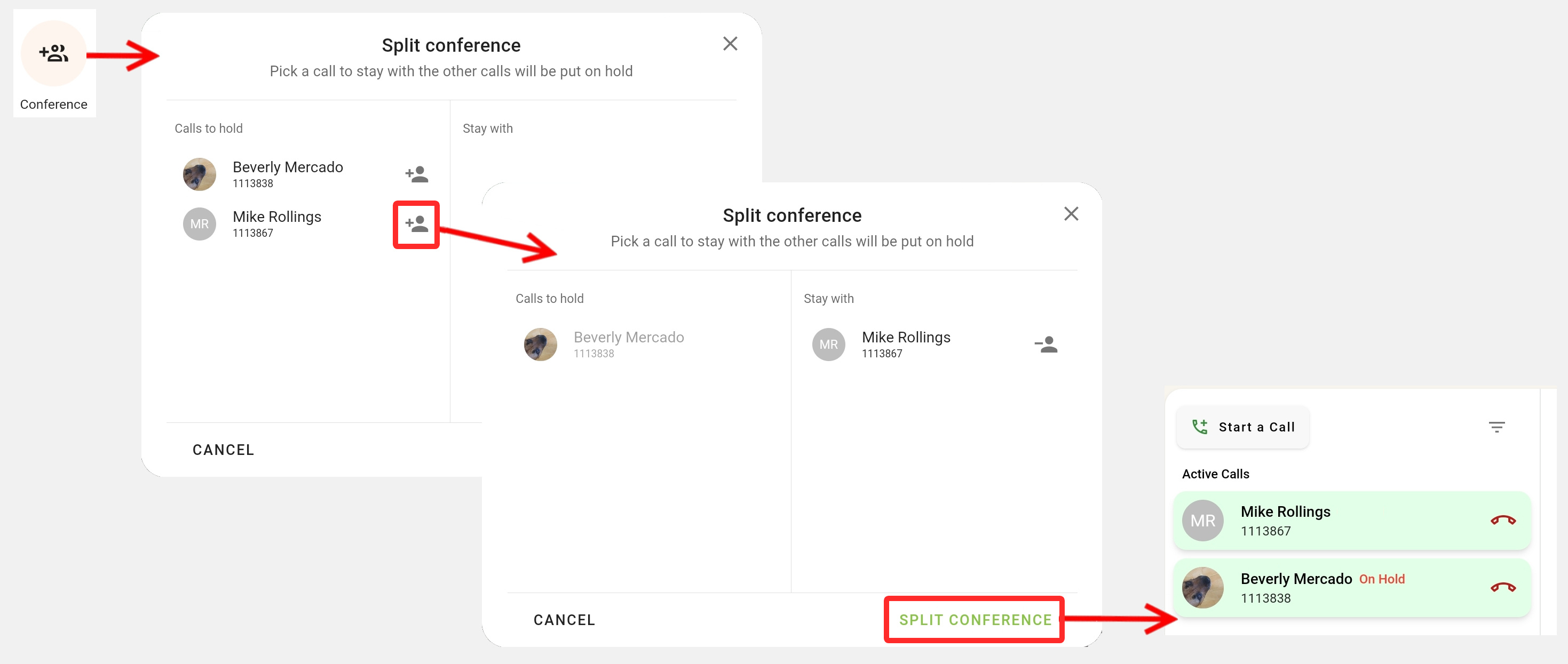
During a conference, the conference button changes to a split-conference button – . Clicking it lets you split the conference into held and active calls.
All the calls in the conference initially appear under the Calls to hold column. Click  next to any call to move it to the Stay with column. Click
  to move it back to the Calls to hold column. Click SPLIT CONFERENCE to proceed.
Video Doorphone Calls
When you dial or receive a call from your doorphone, the call screen will automatically display the live video image from the doorphone and let you buzz in guests with the  button.
For this to work, you need to ask your phone system administrator for the doorbell DTFM code and enter it in the TeleConsole Calls Settings.
Click the Stop Video button if you prefer to have an audio-only communication. Doing so will switch the view to the regular calls screen options that include the keypad and call record options.
