
Usage
The ACD dashboard is intended for call center administrators, focusing on call queues and incoming calls. It allows administrators to assign calls to agents, participate in calls, and log agents in and out of queues.
If you need to manage both incoming and outgoing calls, use the Active Calls Switchboard instead.
Access the ACD Dashboard from the side navigation menu under Live Dashboards>ACD Dashboard.
Columns and Tiles Views
The dashboard has four columns – Queues, Agents, Answered Calls, and Holding Calls. You can hold and drag columns to arrange their order.
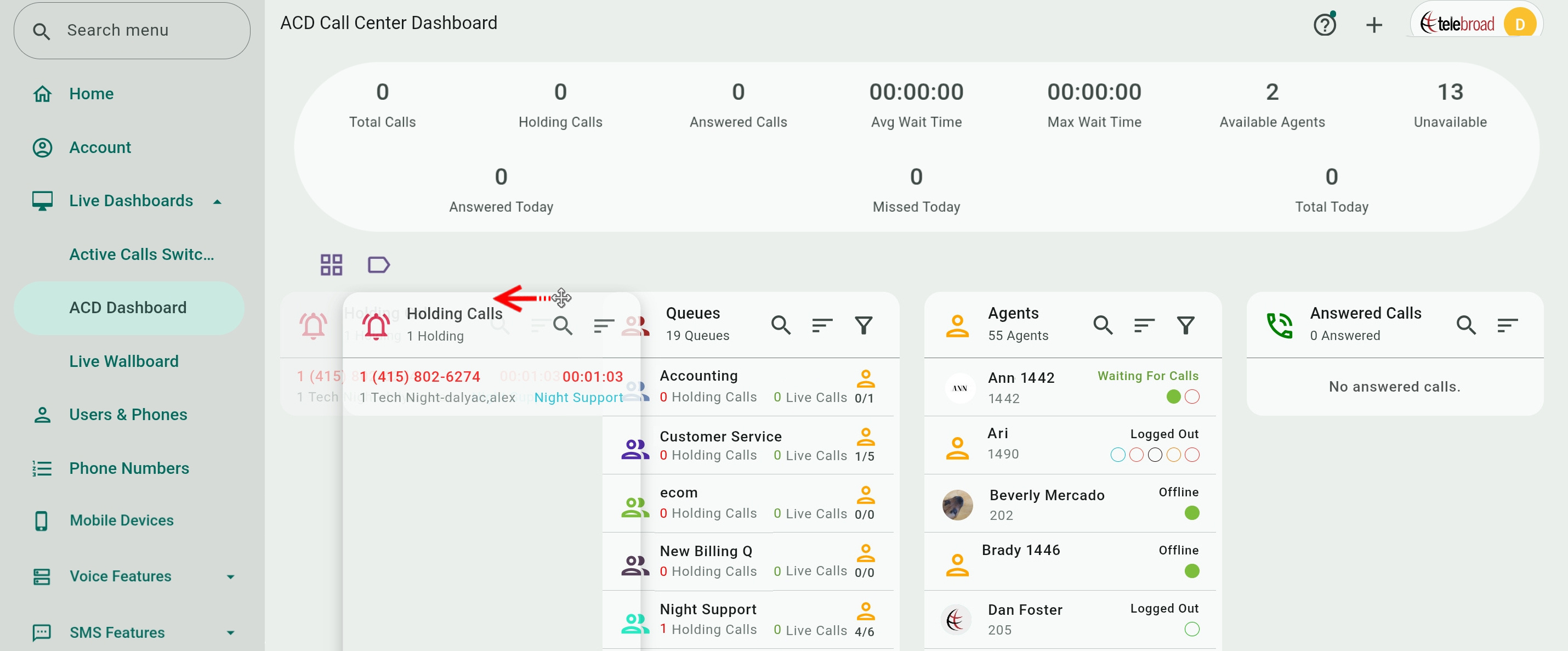
Click  to switch from Columns View (
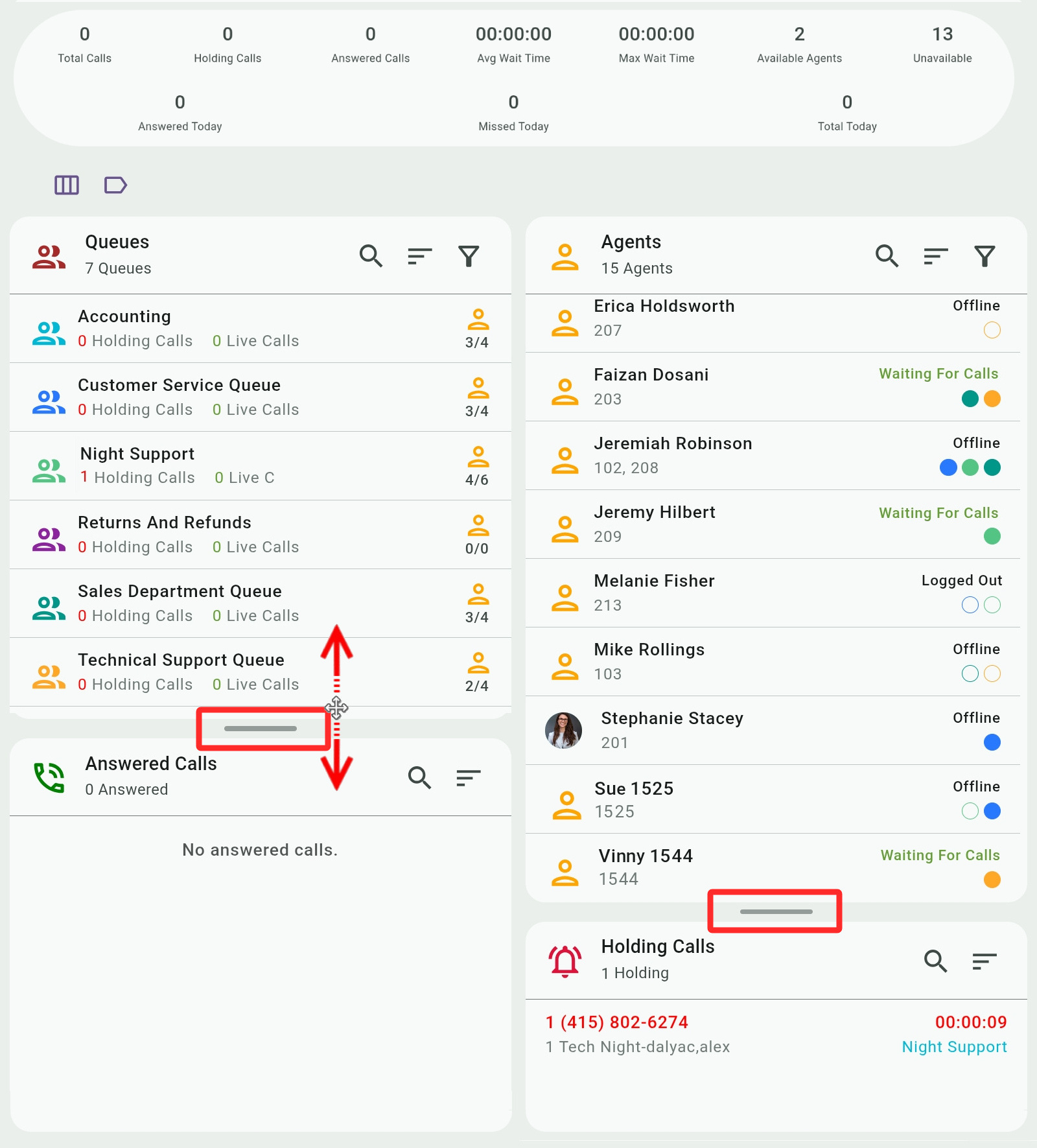
 ) to Tiles View. Switching also happens automatically when you turn your device from landscape to portrait orientation and vice versa.
In Tiles View you can hold and drag the handles to resize the tiles.
Calls Center Stats
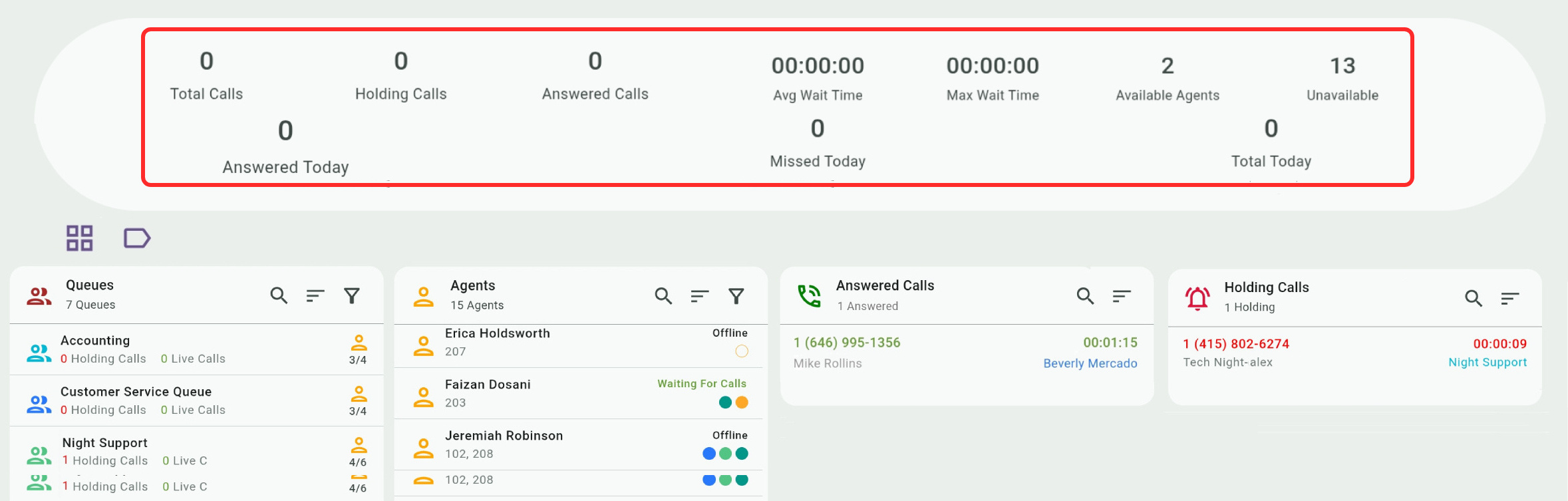
The call stats at the top of the page are given for the entire call center. The Available Agents and Unavailable (agents) reflect when agents sign in and sign out.
Values for calls are updated continuously. When there aren't any ongoing calls, these values will all be zeroed out.
Answered Today, Missed Today, and Total Today (answered+missed) count the daily total for all queues. Their values are zeroed out at midnight. Missed calls here also include exit calls, when callers dial * to exit the queue or when certain queue conditions occur.
Average wait time is the sum of holding time for all holding calls divided by the number of holding calls (it is rounded up in the example shown here).
Queues and Agents KPIs
Click  to hide or show KPIs statistics counting the daily total Answered Calls, Missed Calls, and Total Calls (answered+missed) for each queue and agent. Couting is zeroed out at midnight.
For logged-in agents, there is also a KPI showing the time they have been logged in today.
I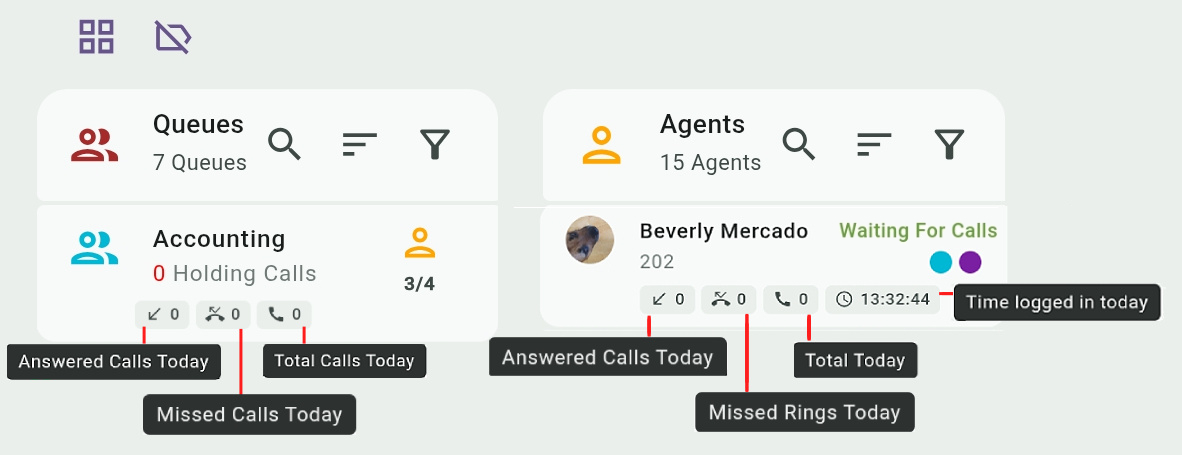
Queues
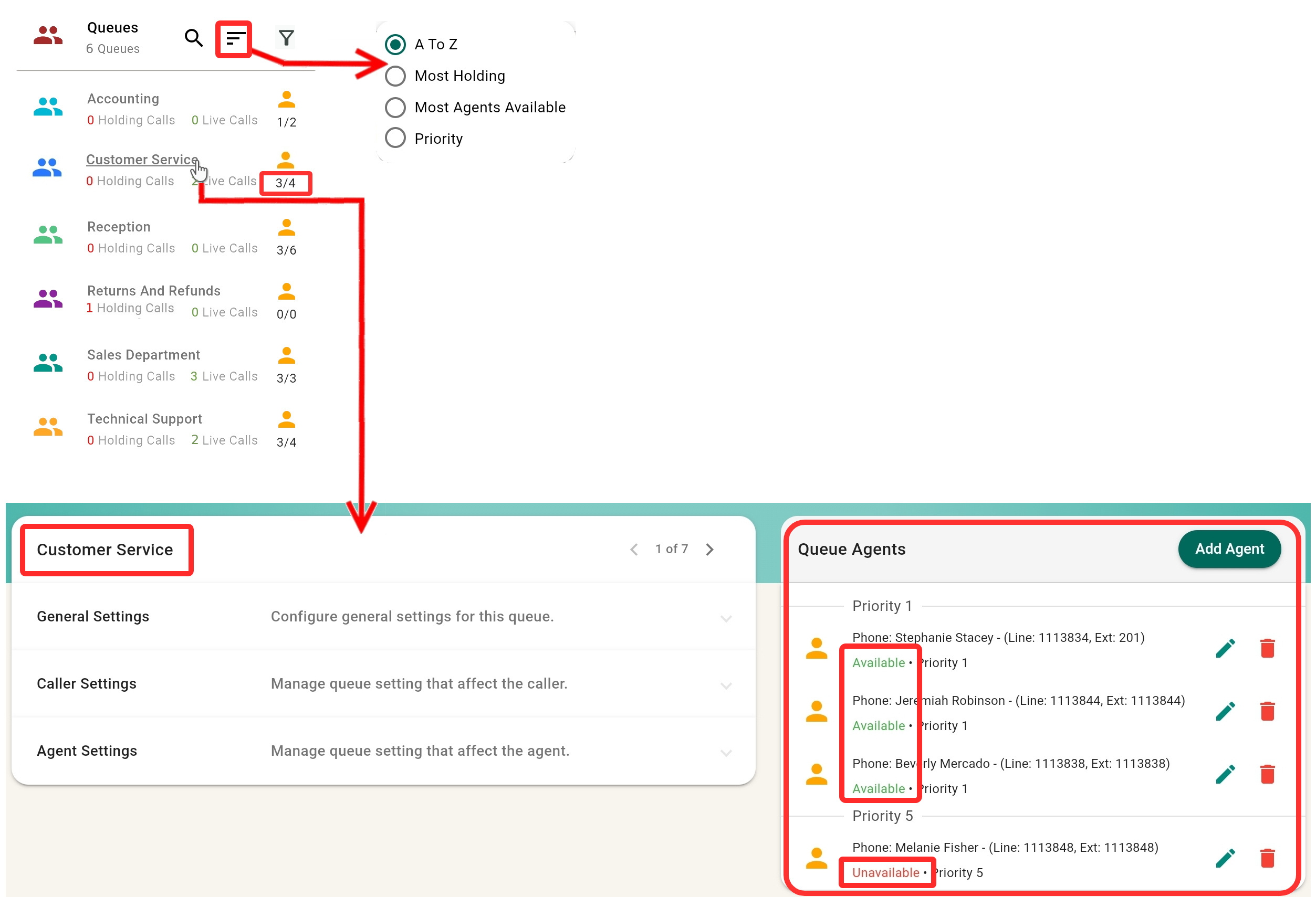
The Queues panel lists the call center queues, showing the number of agents and the number of holding and live calls in each queue.
The number of agents on the right is the total number of agents assigned to the queue, while the one on the left is the number of agents available to accept calls, based on the queue's settings.
An agent who is assigned to a queue but is offline (has signed out of his account) or has DND enabled is still counted as available. Agents' availability is controlled in the Queue Agents options.

Clicking a queue's name lets you edit its settings and assigned agents. Queues cannot be directly removed from the panel. Instead, you need to go to the Call Queues page under Voice Features.
You can search ( ) for a queue by name. The results will not include departments that are filtered out (see next). Sort (
 ) queues alphabetically (A to Z), by the number of holding calls (Most Holding), by Most Available Agents, or by the queue Priority (queue and agent priorities determine how calls are distributed. See more details here.)
Queues Filters
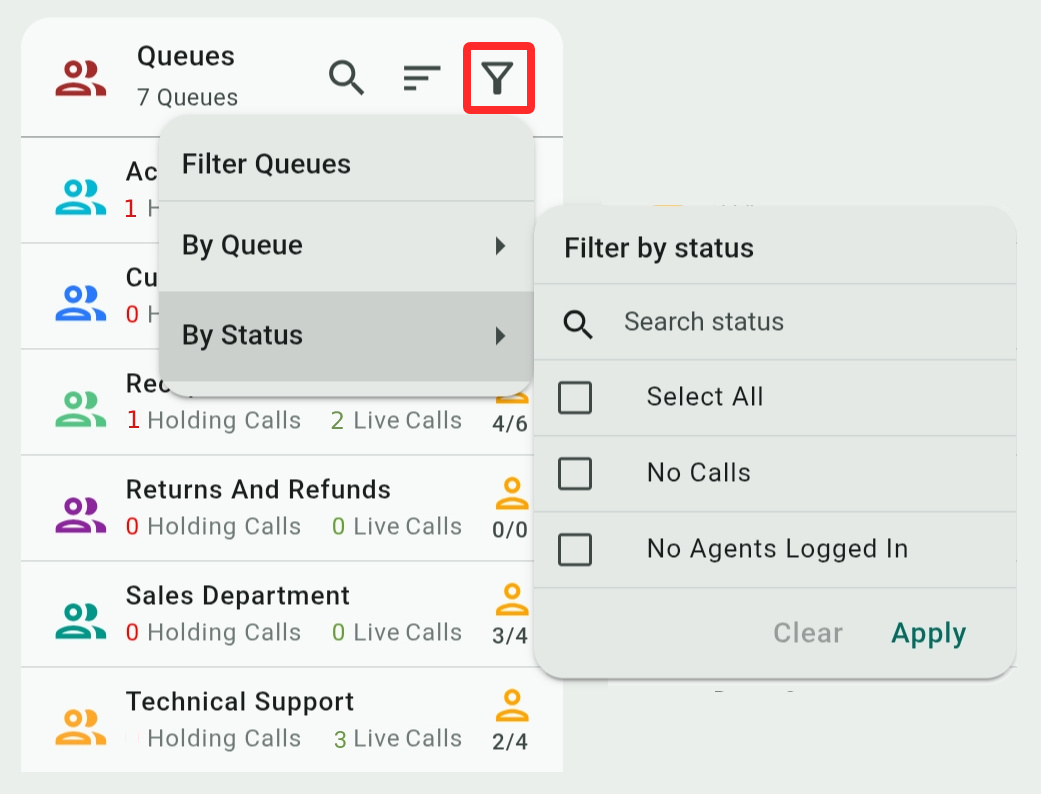
The filter button ( ) has two menus to hide or show queues:
- By Queue: Check the departments you want to display. Unchecked departments will be hidden. Select Clear or Select All to show all departments.
- By Status: Check to show queues by their status – No (holding or active) Calls in the queue, or the queue has No Agents Logged In it.
You can select and combine any number of filters. When filters are applied, the filter button is displayed as  to remind you that some queues may be hidden. Filtered queues will not show in search results.
Agents
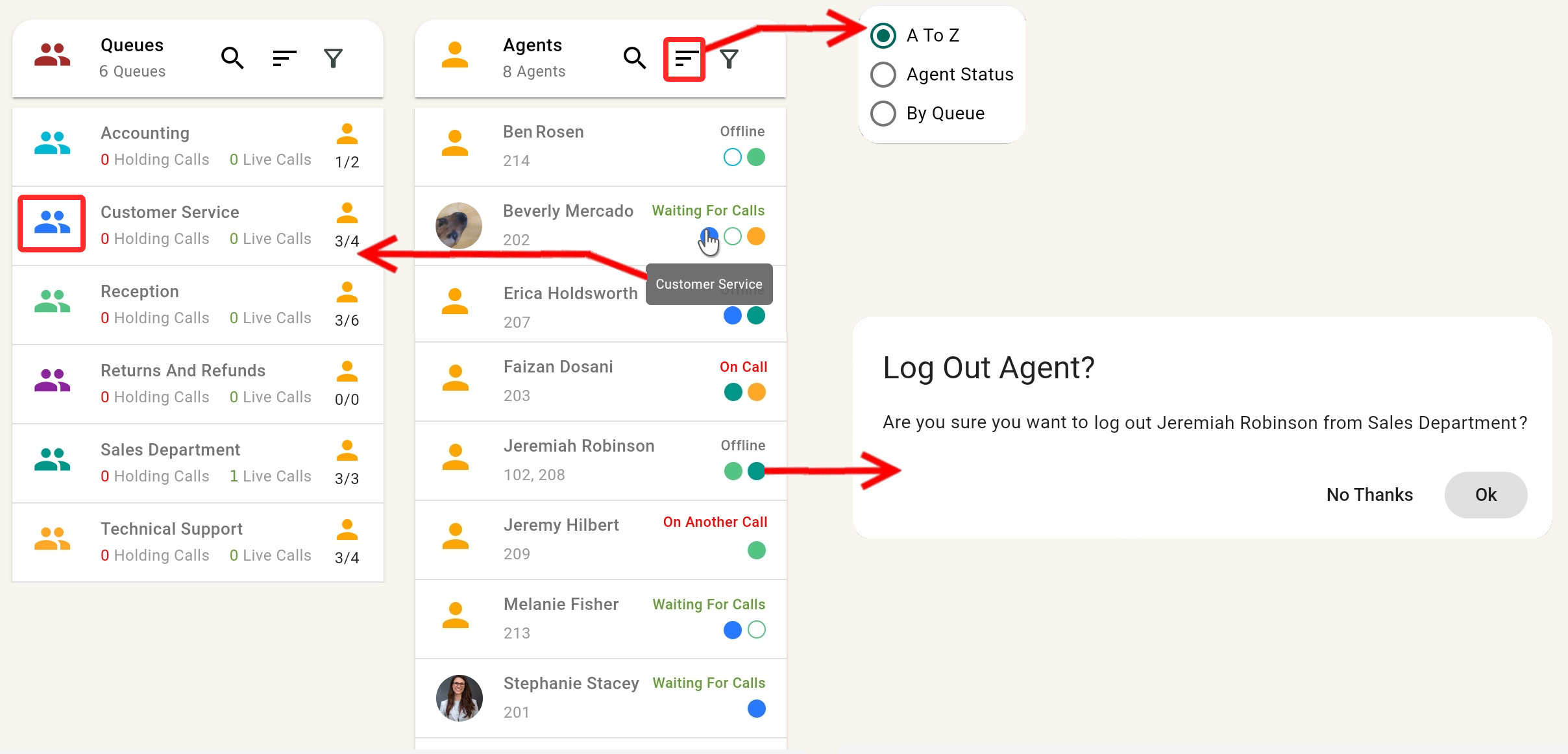
Agents are system users who are assigned to call queues. The Agents panel lists all the available agents for all queues, their extension, their status, and the queues they belong to.
Phone system users who are not assigned to any queue will not show here, but you may still transfer calls to them (see call actions).
You can search ( ) for an agent by name. The results will not include agents that are filtered out (see next). Sort (
 ) agents alphabetically (A to Z), by Agent Status, or by Queue. The latter will arrange the agents by the number of queues they belong to in descending order. Agents who have the same number of queues are further sorted alphabetically.
You can click an agent's name to edit settings relating to their account. Users cannot be directly removed from the panel. Instead, you need to go to the Admin Center Users and Phones page.
Logging Agents In and Out of Queues
The colored discs under an agent's status match queue colors, indicating the queues the agent is assigned to.
- Hover your mouse over a disc to display the queue's name.
- Click a full disc and confirm the prompt to log an agent out of the queue indicated by the disc.
- Click an empty disc to log an agent back into the queue.
Agents Filters
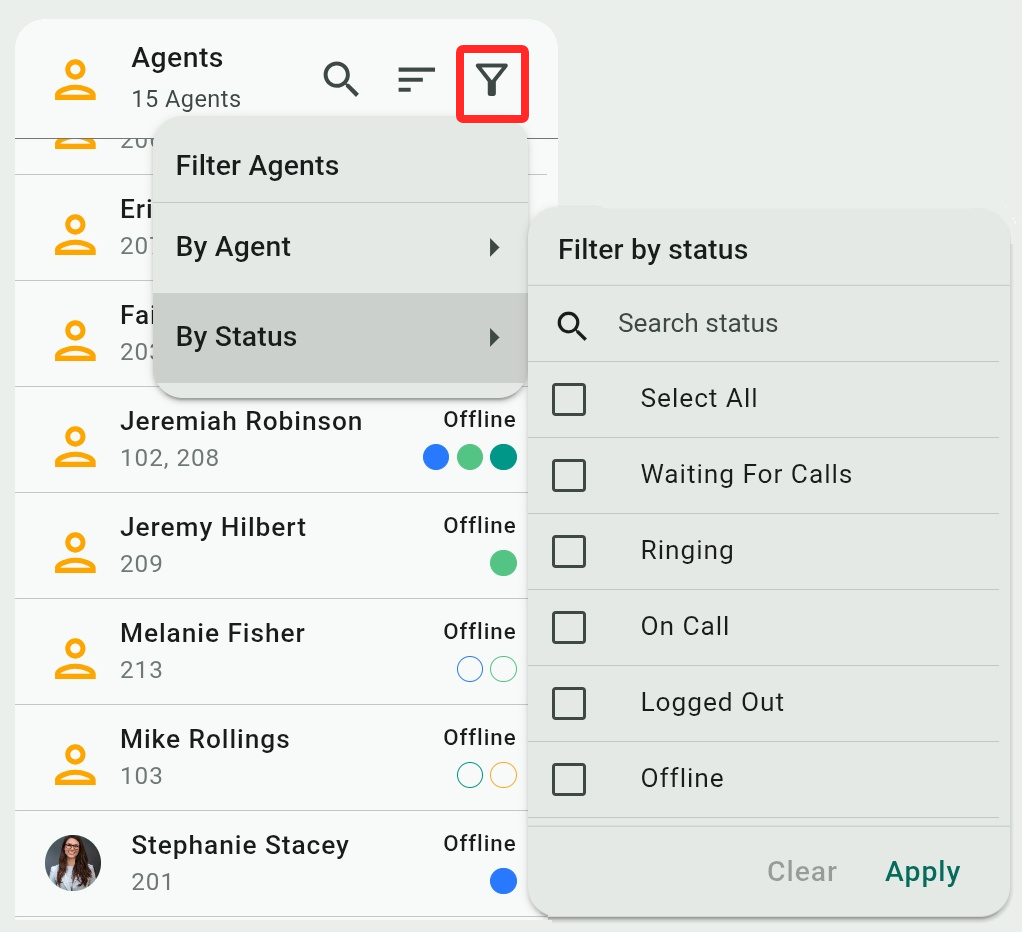
The filter button ( ) has two menus to hide or show agents:
- By Users: Check users you want to show. Unchecked users will be hidden. Select Clear or Select All to show all users.
- By Status: Check to show users by their line and call status – the agent is available and Waiting For Calls, On Call already, their line is Ringing, have Logged Out from all queues, or have signed out and are therefore Offline. See more about statuses in the next section.
You can select and combine any number of filters. When filters are applied, the filter button is displayed as  to remind you that some agents may be hidden. Filtered users will not show in search results.
Agent Status
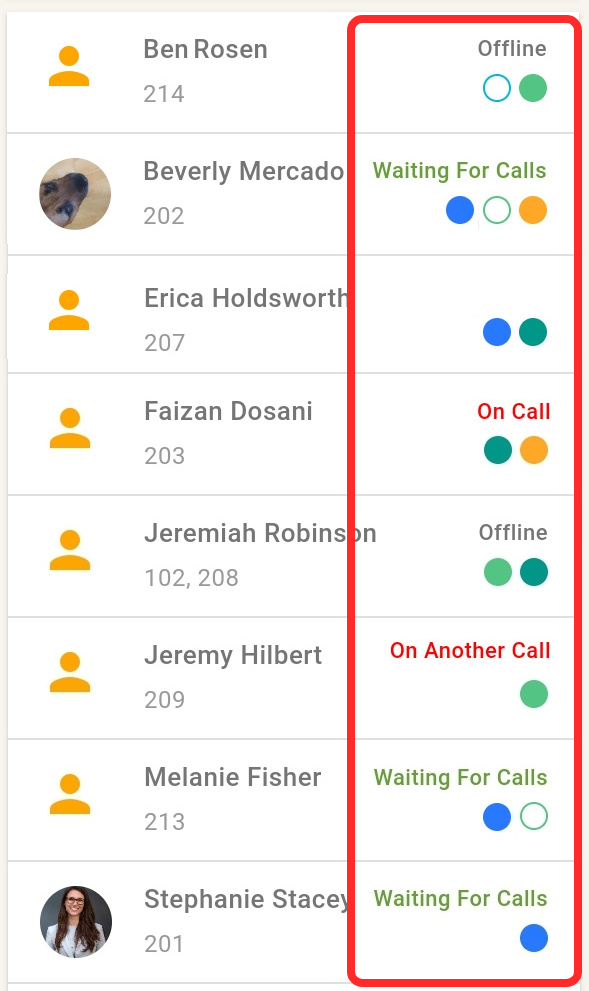 Waiting For Calls: The agent is logged in and is available to take calls directly on his line or from queues.
Logged Out: The agent is logged out of all the queues he belongs to. They will not get any calls distributed by the system to queues, but you can still route calls to them directly.
Offline: The agent is signed out of his account or is without internet access.
Note that the agent must be signed out of every TeleConsole app or telephone where he is using his account or another status will apply.
On Call: The agent is on a call (live or ringing) that was routed to him by the system from one of the queues.
On Another Call: The agent is on a call (live or ringing) that they either placed or received directly.
Do Not Disturb: The agent has activated the Do Not Disturb feature on his TeleConsole app or physical phone. Calls routed to him will be directed to voicemail.
Holding Calls and Answered Calls
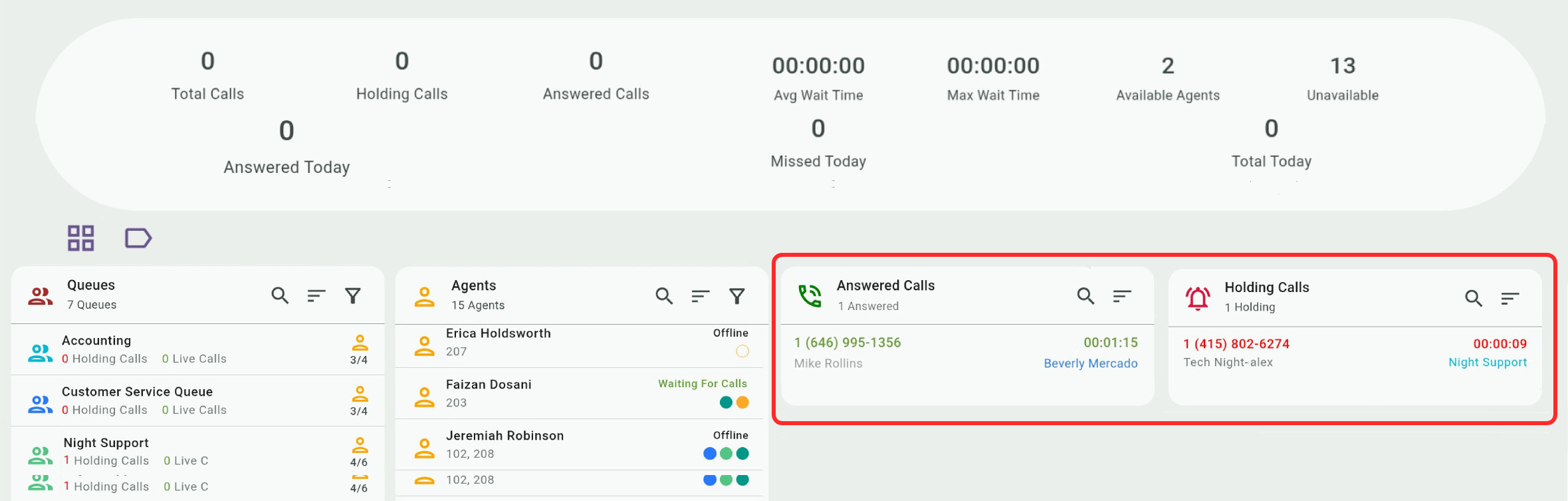
Held and answered calls in the ACD Dashboard are calls that were routed to call queues (usually from an IVR menu). Calls dialed directly to agent lines or direct numbers are not shown here, but can be managed in the Active Calls Switchboard.
The name and number of the caller are shown on the left side of the call box. The call duration and the (intended) recipient are shown on the right. Call durations are counted separately for held and answered calls.
Recipient names are color-coded by queues. For example, a call answered by Beverly Mercado in the blue Customer Service queue...

Or a call answered by Bervely Mercado in the orange Technical Support queue.

Automatic Call Distribution
Holding calls are dynamically managed by Automatic Call Distribution, as the system keeps ringing agents in the queue the call was routed to. The system will cycle a call between agents based on the queue's distribution strategy and may move the call to another queue based on exit rules.
Call Actions
Click an answered or holding call box to display and use the following call actions:
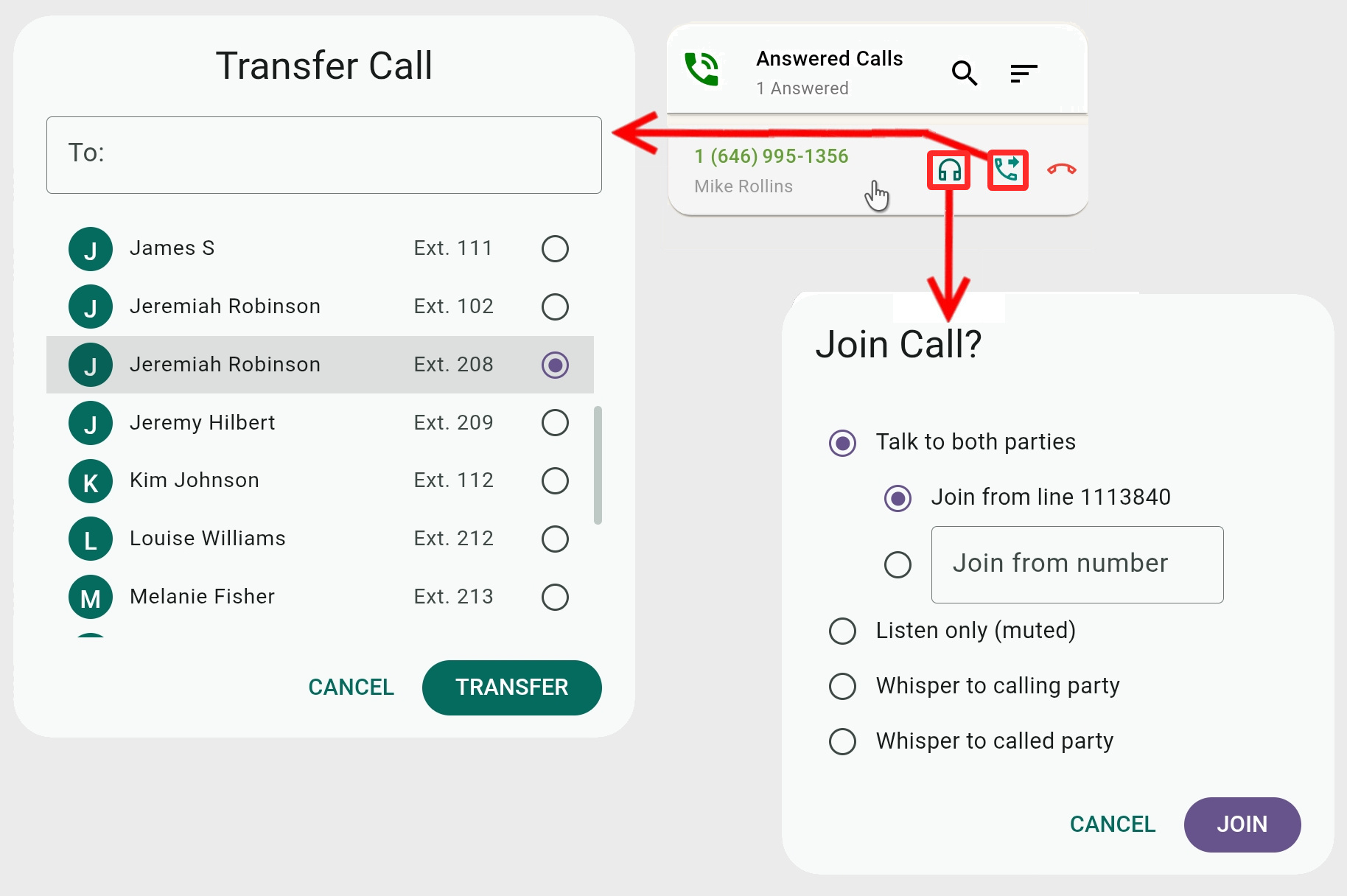
- The Join Call (
 ) action allows you to listen to or talk to the call parties. You can join from your default line or enter a different number, leaving your own line free to receive calls.
The Join action has four options –- Talk to both parties: This is like a conference call where you can talk and listen to the other parties and vice versa.
- Listen only (muted): You can hear both call parties, but they cannot hear you. This is useful if you don't want them to know you are listening on the call or don't want the caller to hear background conversations on your end.
- Whisper to calling party: You can hear both call parties, but only the caller can hear you.
- Whisper to called party: You can hear both call parties, but only the recipient of the call can hear you.
- Talk to both parties: This is like a conference call where you can talk and listen to the other parties and vice versa.
- Transfer Call (
 ): You can transfer calls to all users on the phone system, but if you transfer a call to regular users (who are not agents and don't belong to any queue), the call will disappear from the ACD Dashboard and you will have to go to the Active Calls Switchboard to see it.
If an agent doesn't pick up a transferred call, the system will ring the other agents in the queue according to the call distribution strategy.
Calls can also be transferred by dragging and dropping them over an agent or queue box.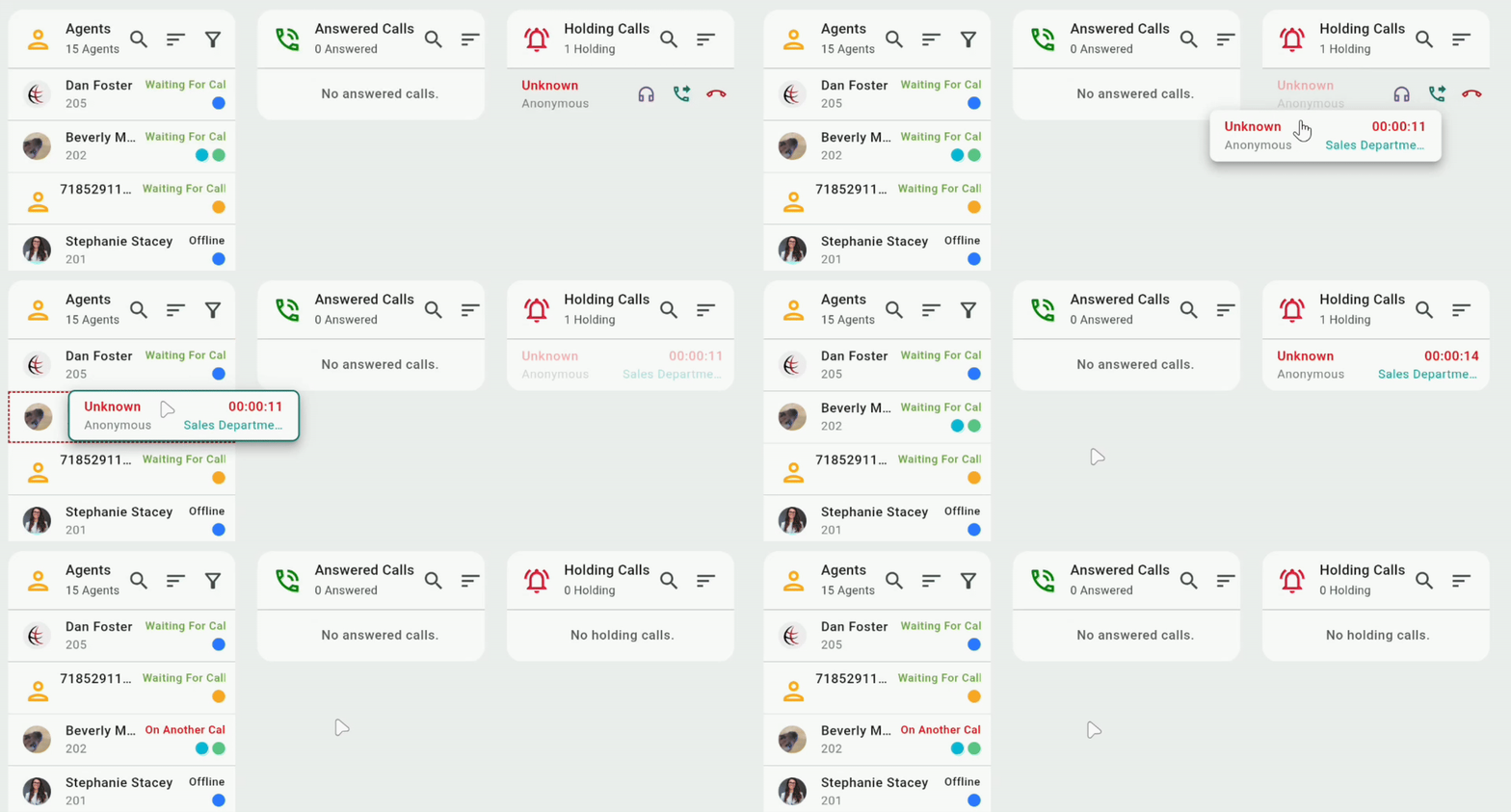
- Hang up Call: (
 ): Self-explanatory. You will be asked to confirm this action to avoid an accidental hang-up.