
Usage
The Admin Center has over 60 destinations and features for call routing or utilizing various phone system functions. These help administrators design the phone system, let external callers navigate it, and provide users with access to phone system components and remote account management.
Where applicable, we linked the relevant support article. However, some items are legacy features that are selectable but have limited or no application.
Many destinations and features will only properly work for certain use cases or only with certain other system features. IVR Menu features will obviously only work with an IVR Menu, but other features only work when dialed from a user's line to an extension to which the feature is applied (as explained next).
Destination Type and Destination Selection
Destinations and features are selected and applied in four different ways.
The Destination Type is required for all four, but the Destination itself is only required for the Full and Dialing Source types.

1) For a full destination, you select a destination type (like a "Mailbox") and the destination or feature itself (the mailbox number).
2) For an endpoint destination type (like "Busy tone" or "Echo Test"), a destination is not required because there is no further routing, or the destination type already has a pre-defined routing or function (like "Dial by name menu").
3) A prompt destination type asks the caller to dial or enter the destination phone number or an account number and sometimes a security PIN.
4) For some phone line or phone number features, the system will get the destination details from the dialing source phone line or phone number.
In the example discussed next, we have an extension that routes to the "Do not disturb toggle" feature. Do Not Disturb will be enabled or disabled for a user's line that dials this extension.
Using Extensions with System Features and Functions
To use certain features and phone functions, especially those associated with user lines, you will need to assign them to an extension.
Using the Do Not Disturb example, we configure extension *50 to let users quickly toggle DND on or off on their physical phones or the TeleConsole app.
We do this by simply creating a new extension and selecting the Do not disturb toggle as the destination type (no destination is required).
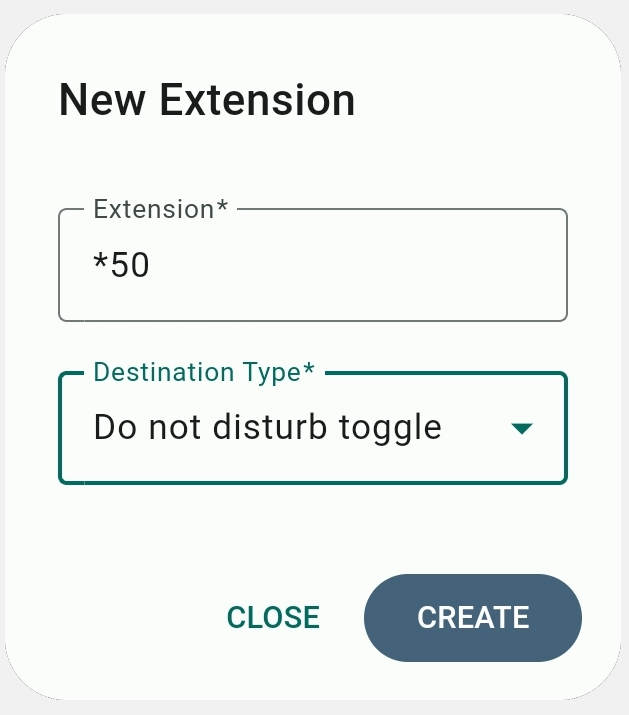
Now, whenever a user dials *50, the system will recognize their phone line and activate DND on that line. They can dial *50 again to disable DND on his line.
On the web version of the TeleConsole, users may need to refresh their web browser to see the effect of some features.
For some features, like those that let users manage and access options remotely, you would want to set up an extension PIN (see more details here) for added security. IVR menus have their own security PIN.
IVR Menu Features
These are features that can only be applied to IVR menus and relate to their functionality. To actually route to an IVR menu, see the next section. IVR menus are further explained here.
- Ignore key press (endpoint): When configuring an IVR menu key press options, apply this option to any key that is not relevant to the IVR and can be ignored when a caller presses it.
- IVR setup menu (endpoint): This feature allows you to make changes to the IVR greeting over the phone. You can protect access to the setup menu by creating a PIN in the IVR General Settings.
- Replay IVR menu (endpoint): This will replay the audio greeting of the IVR so the caller can relisten to the IVR introduction and navigation instructions. You can assign this to any IVR key, but usually it is assigned to the Time Out action (the last option on the Key Press Options) so the audio file is automatically replayed.
Voice Features
- Extension (full): Directs a call or assigns a system feature to an extension. Extensions are optional on Telebroad phone systems. If one is not configured, the internal phone number is used instead.
- IVR menu (full): Directs a call or assigns a system feature to an IVR menu. IVR stands for Interactive Voice Response, and it lets callers or users navigate your phone system with key presses.
- Hunt group (full): Directs a call or assigns a system feature to a hunt group. Hunt Groups are a voice feature for automatically routing incoming calls to agents based on a distribution strategy and agent priority levels.
- Queue (full): Directs a call or assigns a system feature to a call queue. Call queues are similar to hunt groups but also allow callers to wait in the queue for an agent to become available and get notifications about their queue position.
- Phone (full): Directs a call or assigns a system feature to an internal phone line. Internal lines are created and managed from the Lines & Devices screen.
- Mailbox (full): Directs a call or assigns a system feature to a mailbox for callers to leave a voicemail message on it.
- Page group (full):Directs a call or assigns a system feature to a page group. Page groups allow you to deliver voice announcements to multiple users. You would usually make page groups accessible to users using an IVR menu or an extension.
- Ask web URL (full): A feature that dynamically routes calls by consulting an external web address. Based on parameters passed by the system, the Web URL server responds with a destination, and the system routes the call accordingly. The external server can also be notified when a call is answered or ends.
You can also create Predefined Web URLs that route calls instantly to a predefined destination (without consulting an external server). These also offer automation of agent notifications, SMS replies, and other system functions. - Conference, administrator (full): Connects a caller to a conference as a conference administrator.
- Conference, ask for PIN (full): Connects a caller to a secure conference, requiring them to first enter the conference PIN.
- Conference, listen (full): Connects the caller to a regular conference as a listen-only participant (other participants will not be able to hear them talking).
- Conference, talk (full): Connects the caller to a regular conference as a full participant (they can talk and listen to other participants).
- Fax to mailbox (full): This converts an incoming fax transmission to a PDF file and delivers it to the email address associated with a user's mailbox.
If you need to enter a specific email address for delivery of the fax, use the "Fax to email" option (explained in the next section).
Telebroad offers several additional faxing solutions, like eFax (email to fax) and Print2Fax, that are discussed here. - Pattern menu (full): A pattern menu allows you to route calls automatically based on number patterns. A pattern menu can have multiple patterns, and you can assign priorities to each.
The matched patterns can be a sequence of digits the caller is prompted to enter, the number they dialed, or their own phone number. You can match an exact pattern or a partial one for a few digits (like an area code). More complex matching using regular expressions is also supported. - Plugin (full): Plugins are external scripts that communicate with the Telebroad system and can be written in any programming language. Plugins can enhance existing phone system features, add new features, offer more complex call routing, and even handle database integration. Please contact us if you need to add new plugins to your account.
- Voicemail, specific mailbox with PIN (full): Asks the caller for PIN to access a selected voice mailbox so they can listen to messages or access the mailbox options. See this map of mailbox voice prompts for managing your mailbox.
- Voicemail, specific mailbox without PIN (full): Provides the caller with access to a selected voice mailbox so they can listen to messages or access the mailbox options. See this map of mailbox voice prompts to help you manage your mailbox.
External Destinations
- Forward to number (full): Forwards the current call to the line, number, or extension provided in the destination field.
- Call back (full): When calling this feature, the system will hang up and place a new call to the number provided in the destination field, connecting it to the phone system and prompting it to dial a number or extension.
- Fax to email (full): This converts an incoming fax transmission to a PDF file and delivers it to the email address provided in the destination field.
You can also use the "Fax to mailbox" feature to deliver a fax to an email address associated with a user's mailbox (see Voice Features above).
Telebroad offers several additional faxing solutions, like eFax (email to fax) and Print2Fax, that are discussed here. - Number at peer (full): In the destinations field, enter the phone number and select the SIP domain from the drop-down list. Contact us to add new SIP domains to the list or use the "SIP URI" destination instead (see next) to specify a domain.
Peers in VoIP communication are endpoints or devices that can send or receive communication, including users, phones, gateways, VoIP clients or apps, and VoIP servers.
"Number at peer" lets you reach or route calls directly to phone lines or numbers based on a SIP domain of the peer, even if the peer doesn't have a direct number. For example, you could route a call to an internal line on another PBX system, which is otherwise only reachable to users of that system.
A SIP domain is similar to an email domain but is used to identify and deliver communication to SIP peers rather than email users. The format is also similar – sip:1113840@push2.telebroad.com.
- SIP URI (Universal Resource Identifier) (full): Directs the call to a phone number at a SIP URI location. SIP URI is a protocol for delivering communication to specific users or phones. They are formatted similarly to email addresses with a phone number and a domain name – phonenumber@SIP-URL-Address (for example, 1423844@push2.telebroad.com).
You can also use the "Number at peer" destination (see previous) to select the domain from an existing list.
Predefined Features
- Auto-attendant (prompt): The system prompts the caller to enter a telephone line or an extension followed by #, and then routes the call accordingly.
- Auto-attendant, no announcement (prompt): The system waits for the caller to enter a telephone line or an extension followed by #, and then routes the call accordingly.
Since no announcement is provided, you should include a notice about what callers need to do (for example, in the IVR menu greeting, include an instruction to "select 5 and enter a phone line followed by the pound key"). - Busy tone (endpoint): Plays a busy tone to the caller until they hang up.
- Calling card login (prompt): Calling cards are a feature that carries a balance for making calls. Callers are prompted to enter a calling card number and a destination. The system will connect the caller to the destination if the balance on the card is sufficient. Commonly, this is implemented with the calling card accessed by a local number that lets users make long-distance or international calls, using the balance on the card, while still being charged only for a local phone rate.
A calling card is not assigned to any specific user. Its details are given to anyone an administrator would like to provide calling capabilities to. Calling cards can be configured with expiry date, calling rate, tax charges, and more.
Please contact Telebroad customer support if you need to set up calling cards on your account.
A similar feature that allows external individuals to utilize the system for calls, but does not have a balance function, is the Remote Access Menu . - Cancel call forwarding (dialing source): When a user accesses this feature from a telephone line, it will cancel call forwarding on the line they called from.
- Conference login (full): Prompts the user to enter a conference login code followed by a PIN to gain access to the relevant conference. The user participation role (speaking or just listening) depends on the PIN. IN oher words, the same conference login code can have different PINs to allow different participation roles.
- Congestion tone (full): Plays a congestion tone to the caller until they hang up.
- Dial by name menu (endpoint): Prompts the caller to use the keypad to enter the first few letters of the first or last name of a phone user they want to be transferred to, followed by the # key.
The name entry uses the multi-tap system, where each number on the keypad is associated with three letters: 2 – ABC, 3 – DEF, etc. The 7 key has 4 letters – PQRS, and the 9 key also has 4 letters – WXYZ. Pressing the same key repeatedly will cycle through the letters and pausing will select the letter.
If the system detects multiple matches, it will play each name with a number that the caller can select. If more than ten matches are found, the system will prompt the caller to enter additional letters to help it narrow down the search. When considering matches, the system gives priority to users with active mailboxes over users who only have telephone lines.
There are two global options to control the menu. Both are found in the Account Settings of the Admin Center Account page:- Include in Directory: This is a toggle that needs to be enabled (by selecting Yes) to include all users in the "Dial by name menu" feature.
- Dial by name order: This lets you select how to prompt callers to enter user names – starting with the first name or starting with the last name.
- Include in Directory: This is a toggle that needs to be enabled (by selecting Yes) to include all users in the "Dial by name menu" feature.
- Do not disturb toggle (dialing source): When dialed from a phone line or a number, this will toggle the Do Not Disturb mode for the line or phone number, and the system will announce the DND status (enabled or disabled). When enabled, calls do not ring but instead are immediatly get sent to voicemail.
- Do not disturb toggle, no answer (dialing source): This works as the "Do not disturb toggle" except that the call is not considered as answered and therefore is not immediately sent to voicemail. Instead, after a set number of rings, the call is routed to other users or agents, to a forwarding destination, or based on a calling queue "On no answer" exit rule. If none of these apply, the call may still be routed to voicemail.
- DTMF test (endpoint): Dual tone multi frequency (DTMF), also known as Touch-Tone, is a telephone technology for recognising telephone keypad presses by a specific audio signal.
The DTMF test will say the keypad numbers or symbols as you press them. - Echo test (endpoint): Provides an audio quality test of how the recipient will hear the caller by instantly repeating whatever the caller is saying.
- Go back, if possible (endpoint): Will direct the call or caller to the previous destination or IVR option where it was routed from. With IVRs, this is useful for giving callers an option to return to the main menu.
- Hang up call (endpoint): Self-explanatory. This can be useful when blocking calls (see Call Routing Based on Caller ID) or during off-hours when you want to ask the caller to call back during office hours and hang up the call.
- Log in to all huntgroups (dialing source): Under the TeleConsole Account menu, users can toggle their hunt groups' availability, one at a time. But using this feature, you can let them quickly log into (make them available to recieve calls) all the hunt groups they belong to.
- Log in to all queues (dialing source): Under the TeleConsole Account menu, users can toggle their call queues' availability, one at a time. But using this feature, you can let them quickly log into (make them available to receive calls) all the hunt groups they belong to.
- Log out from all huntgroups (dialing source):When users call this feature from their telephone line, the system will log them out of (make them unavailable to receive calls) all the hunt groups he belongs to.
- Log out from all queues (dialing source): When users call this feature from their telephone line, the system will log them out of (make them unavailable to receive calls) all the call queues they belong to.
- Mailbox of RDNIS (endpoint): RDNIS stands for Redirected Dialed Number Information Service. It is a feature that handles setups where an external phone system forwards calls to the phone system for voicemail delivery.
The external system sends the original called number, as an RDNIS variable, along with the call, and the system delivers it to the correct mailbox accordingly.
For this to work, there needs to be a mailbox with a number that exactly matches the RDNIS digits received, otherwise the system will notify the caller with an error “The number you dialled does not exist or has not been allocated”.
RDNIS is not commonly used in normal user configurations. Rather, it is aimed mainly for carriers or systems that host voicemail for multiple numbers through a single inbound path. - Music (endpoint): Plays the default system music to the caller until they hang up. The default music can be selected from Account>Account Settings. Because this destination in an endpoint, the call cannot be further routed. To be able to keep routing a call, use the "Music on hold" feature of hunt groups or call queues instead.
- Number menu (prompt): The system will prompt the caller for an extension number and will allow them to remotely change its routing (by activating the extension's Temporary Forwarding option) or change the announcement played before routing is carried out.
For security, the system will also ask for a PIN to access the extension. To enter or change the PIN of an extension, go to its General Settings. - Park call (endpoint): When a user parks a call, by transferring it to an extension with the parking feature, it is placed on hold in a system-wide "parking area". The call is assigned to a virtual extension that acts as a parking slot (see next feature) and can be retrieved from any internal line (but not from external phones) by dialling that extension.
Parking is useful when a user wants to transfer a call to an unattended phone (for example, a phone in another office or conference room) or to a person who is not at their desk. The user can accept the call, park it, and use the office overhead paging system to make an announcement to the person about the extension the call is waiting for them at.
When creating an extension for the parking feature, avoid using the * or # symbols and just use a regular extension number. Otherwise, when users try to transfer to this extension they will get an invalid number error. - Parking slot (endpoint): Setting the routing of an extension with this feature will assign the extension as a shared parking slot. When a user parks a call, the system will park it in the lowest available slot number.
- Play balance (dialing source): Plays the current balance for the account associated with the routing line or phone number. As Telebroad only offers subscription-based accounts, this legacy feature is not applicable, and the system will just play a "Your balance is $0" message.
- Play last callerid (dialing source): Allows a user to hear the caller ID of the last call that dialled the phone line they are using. The system also prompts the user to "To call this number, press 1" so the user can easily get back to the caller.
- Record sound (prompt): The system prompts a user to record a message and press #. The audio file of the message can be used in the Admin Center for IVRs, mailboxes, announcements, etc. To access the recorded file, navigate to Voice Features>Audio Files.
- Redial last called number (dialing source): When you call the extension this feature is applied to, the system will call to the last number that you dialed from your line or extension, basically allowing you to quickly redial a phone number.
- Redirect message to number (full): Use this feature to update callers about phone number changes. You need to enter the updated number as the destination, but the feature doesn't perform any routing. Instead, the system will inform the caller that "The number you have dialled has changed" and will ask him to hang up and dial the number provided as the destination.
- Remote access menu (prompt): A feature that allows users to utilize the system externally for making phone calls, letting them harness the VoIP range of the system and caller ID. Users who dial the Remote Access menu are asked to provide a remote access account number and a security PIN. If entered correctly, they will get a dial tone and can place their call.
Another option for external individuals to utilize the system for placing calls is the Calling Card feature. The difference is that calling cards have a balance and expiration date restrictions. - Return call: With this feature, the system identifies the last number that called your phone number or line. When you call the extension the feature is applied to, the system will forward your call to that last number, essentially letting you get back to the caller.
- Toggle availability in all hunt groups (dialing source): When a user accesses this feature from their telephone line, the system will change their logged-in status (make them available or unavailable to receive calls) in all the hunt groups they belong to.
- Toggle availability in all queues (dialing source): When a user accesses this feature from their telephone line, the system will change their logged-in status (make them available or unavailable to receive calls) in all the call queues they belong to.
- Virtual telephone login (prompt): A virtual telephone line is a line that exists in the cloud rather than as a physical line. Technically speaking, all of Telebroad's lines are virtual, but they can be used with physical SIP phones (see our Telephone Buying Guides). The phone system administrator will usually configure a physical phone with at least one user line.
The virtual telephone login feature allows several users to use and share the same physical phone. This is called Hot Desking and it lets users move freely around the office and use any physical phone with their own assigned phone line.
The feature is PIN-protected to prevent unauthorized access. To select a PIN and enable virtual telephone login, navigate to Users & Phones, expand the Lines & Devices category and edit the desired line, expand the Advanced options and enter a PIN for remote login. See more details here.
To log out from a virtual line, users just need to access the feature again and enter their line number. - Voicemail, ask for mailbox and PIN (prompt): Gives a user access to voicemail for any line on the phone system, by prompting them to enter the voicemail number and its mailbox PIN.
Once in the mailbox menu, the user can manage it with voice prompts that follow this menu map. - Voicemail, automatic mailbox with PIN (prompt): Gives a user access to voicemail, on the line they are dialing from, prompting them to enter the mailbox PIN for it.
- Voicemail, automatic mailbox without PIN (dialing source): Gives a user access to voicemail, on the line he is dialing from, without prompting for PIN.
- Voucher topup menu (prompt): Allows users to add usage credit to pre-paid balance-carrying services such as calling cards. The system will prompt for the account number to top-up and for the voucher serial number. If entered correctly, the account will be topped up with the dollar amount of the voucher.
Update Number Routing
- Set routing to default destination only (prompt): Changes the routing of a user's extension or phone number to the default routing configured for the line or number – temporary forwarding, schedule routing, and caller ID routing will be ignored.
- Set routing to normal routing (prompt): Changes the routing of a user's extension or phone number to the normal routing set for the line or number – including temporary forwarding, schedule routing, and caller ID routing.
- Set routing to Schedule (full): Changes the routing of a user's line or phone number to a selected routing schedule. Unlike the two other routing features that do not require a destination, you do need to provide the schedule when configuring the feature, which is different than schedules already selected in the extension or phone number settings.
To stop the scheduled routing, the user needs to access either of the other routing features.