The top toolbar of the Admin Center is available on any page and has three menus – Accounts to manage the signed-in accounts and change your profile icon, Voice Features Quick Menu for fast addition of voice features, and Help & Training for accessing support articles in the Admin Center. It also has a Global Search box.

Accounts Menu
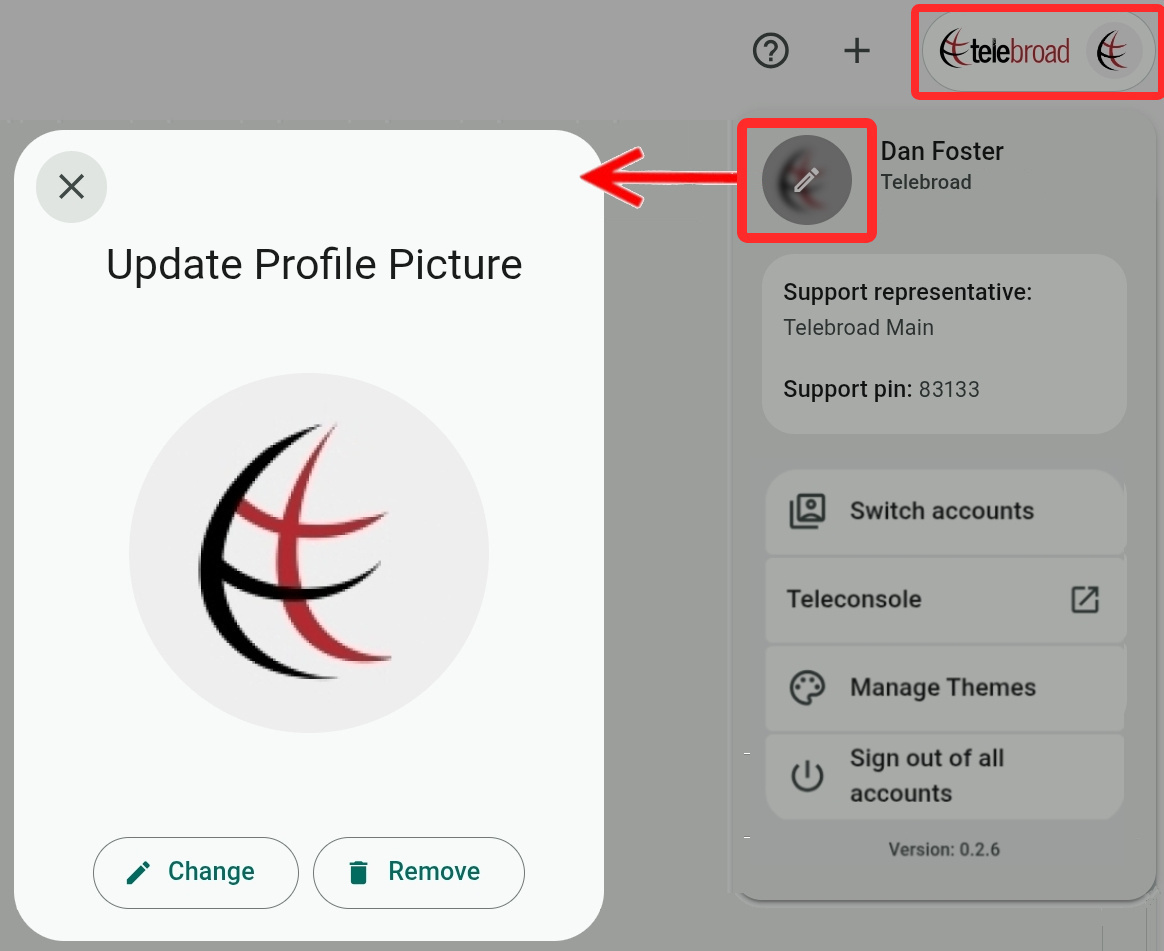
The Admin Center Accounts Menu is accessed by clicking your profile or company image (the Telebroad logo in the example figure below). It lets you manage your signed-in accounts, change your profile image, see your support details, and change the Admin Center color theme.
Multiple Admin Center accounts, of any role, can be signed in using the same Admin Center web client. If you use a different browser or use the same browser in incognito mode, it would be necessary for you to sign in again.
You can select to Sign out of the account, but if more than one account is signed in, this option changes to Sign out of all accounts (you can still sign out of individual accounts from the Switch accounts menu).
Profile and Company Pictures
The Profile Picture appears next to the name of the user currently signed in.
Click the profile picture twice to edit it and select to Change or Remove it. Removing the image will change it to Telebroad's logo. Your profile picture applies to both the Admin Center and the TeleConsole.
Changing the Organization Name and Picture
If you want to change the Organization Name (appearing under the name of the signed-in user) or the company picture (appearing on the top next to the profile picture, "Telebroad" in the example figure above), use the side navigation menu to open the Account page.
On the Settings tab, click your company logo to change it or select Add logo to replace the default Telebroad logo. The organization name can be changed in the Account Profile options on the same page. This is explained in more detail here.
Support Details
Under your profile, you will see your support representative and support PIN. You can use these when contacting our support team to identify your account faster.
Support details are only displayed for users with an Account Owner role!
Switching Accounts
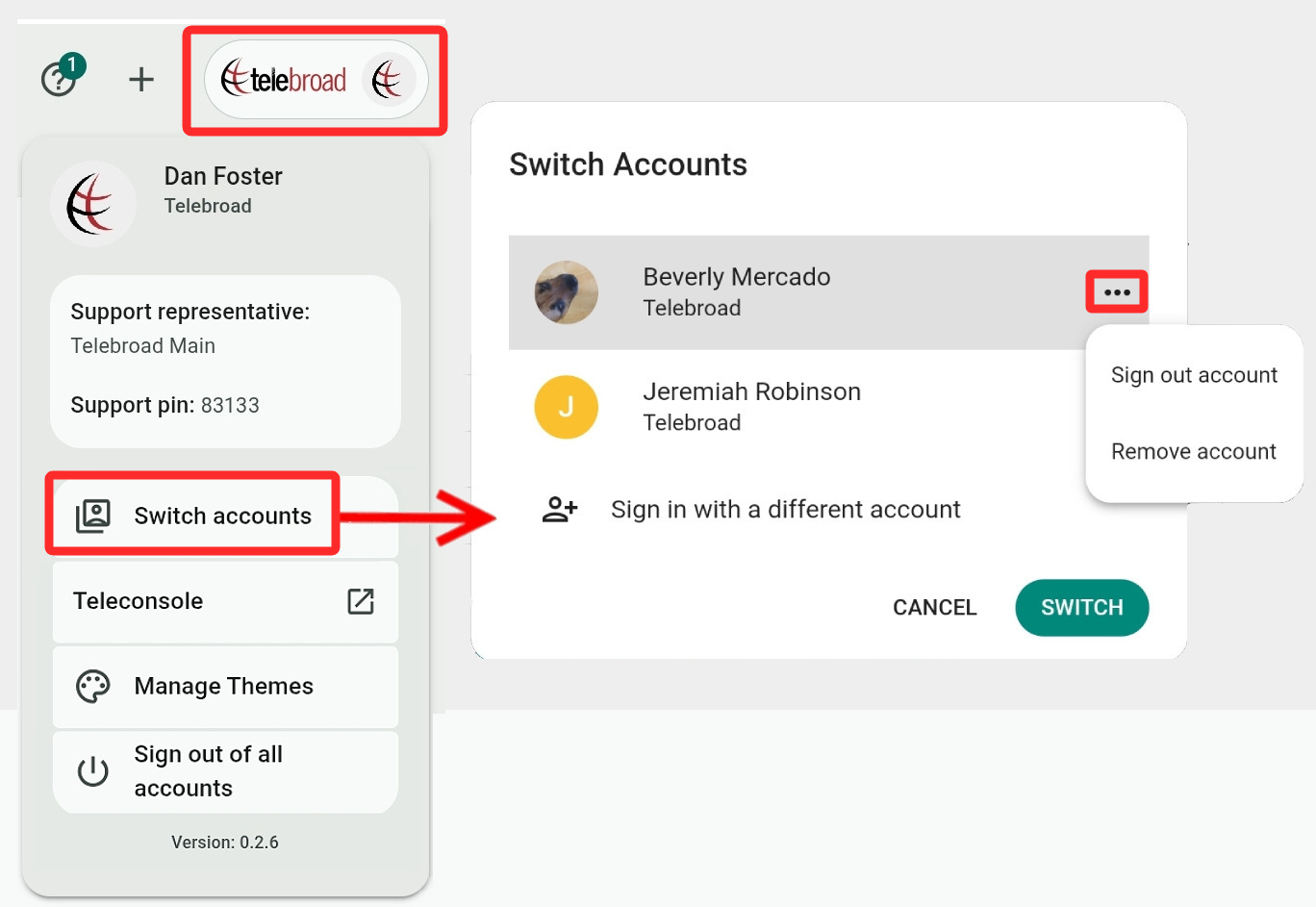
Select Switch accounts to see and manage a list of signed-in accounts.
Click an already signed-in account to switch to it or select Sign in with a different account to access a sign-in screen where you can use Telebroad, Google, or Microsoft credentials for access. The sign-in screen 2FA authentication and password resetting are explained here.
Select  next to the account name to Remove the account from the list or Sign out of the account.
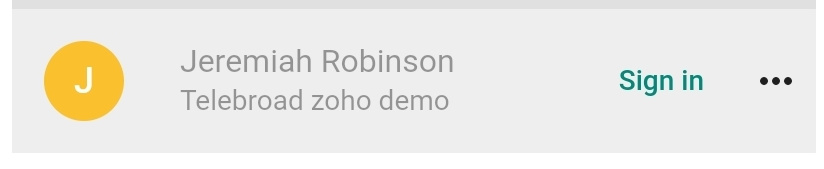
Signed-out accounts on the list are greyed out and have the option to Sign in.
Manage Themes
Here you can change the appearance of the Admin Center to a Dark Mode ( ), Light Mode (
 ), or to have a light or dark mode Auto selected based on your device's setting (
 ). You can also select from various color themes to suit your personal preference.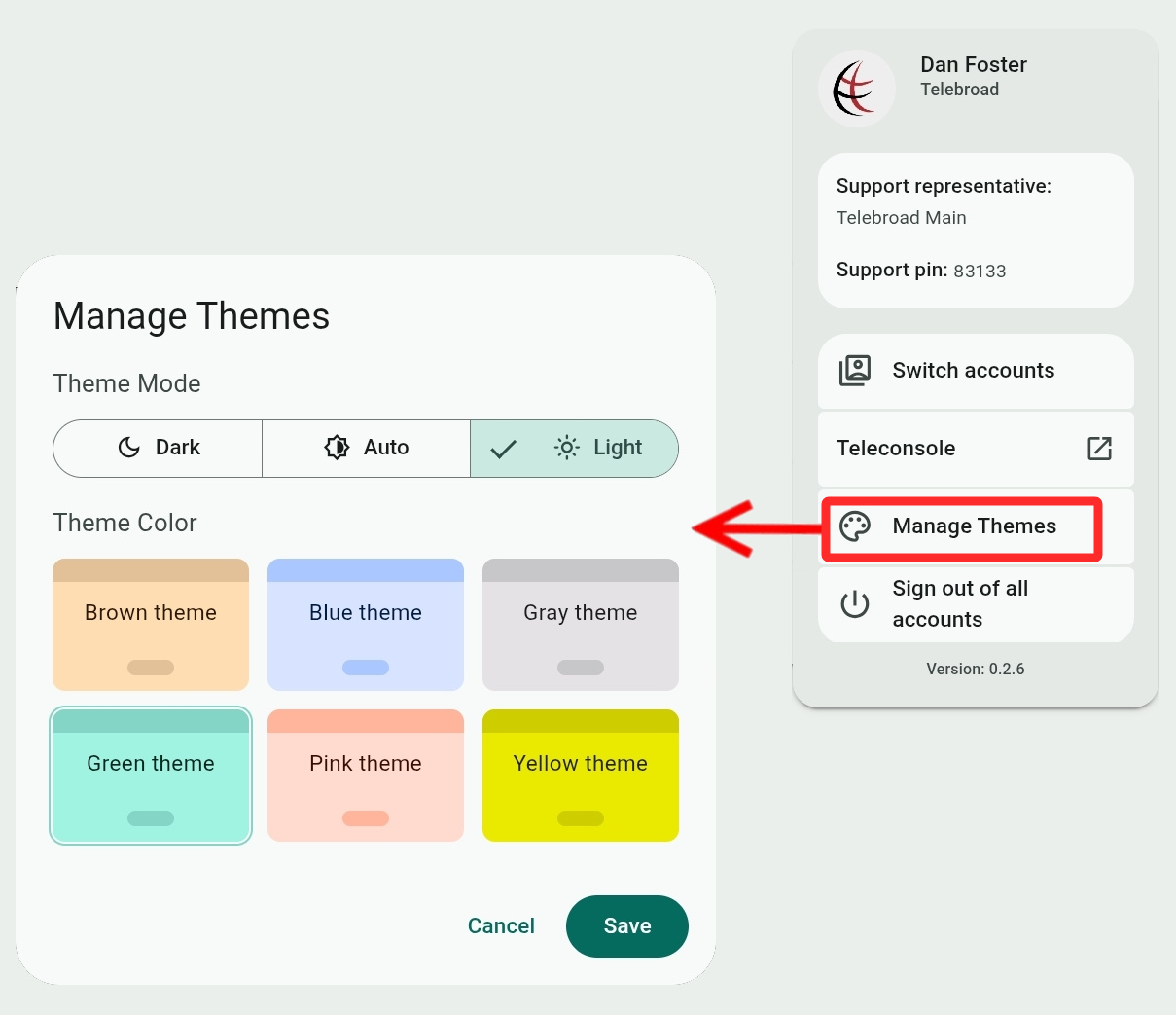
Admin Center Version Updates
When a new Admin Center version is available, the Account Menu will be marked with a green dot. Merely refreshing your browser may not suffice to apply the new version. Instead, you just need to click the Update button.
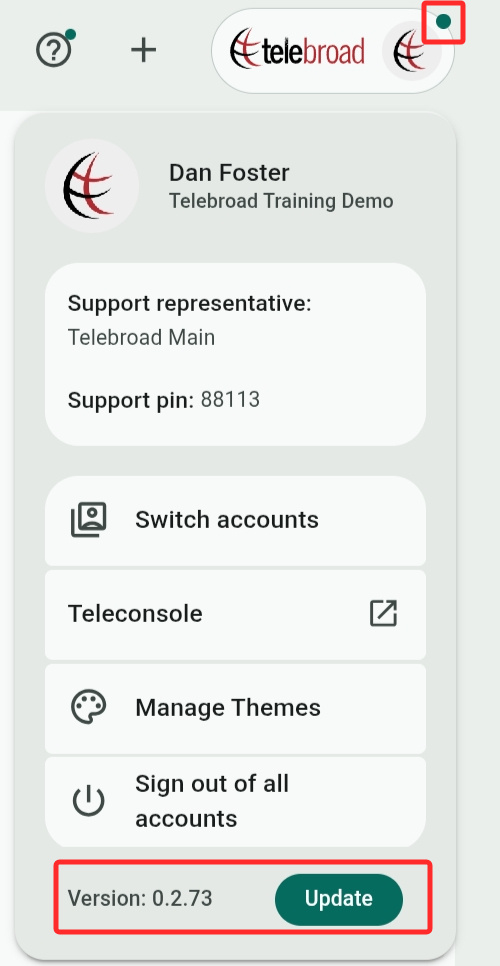
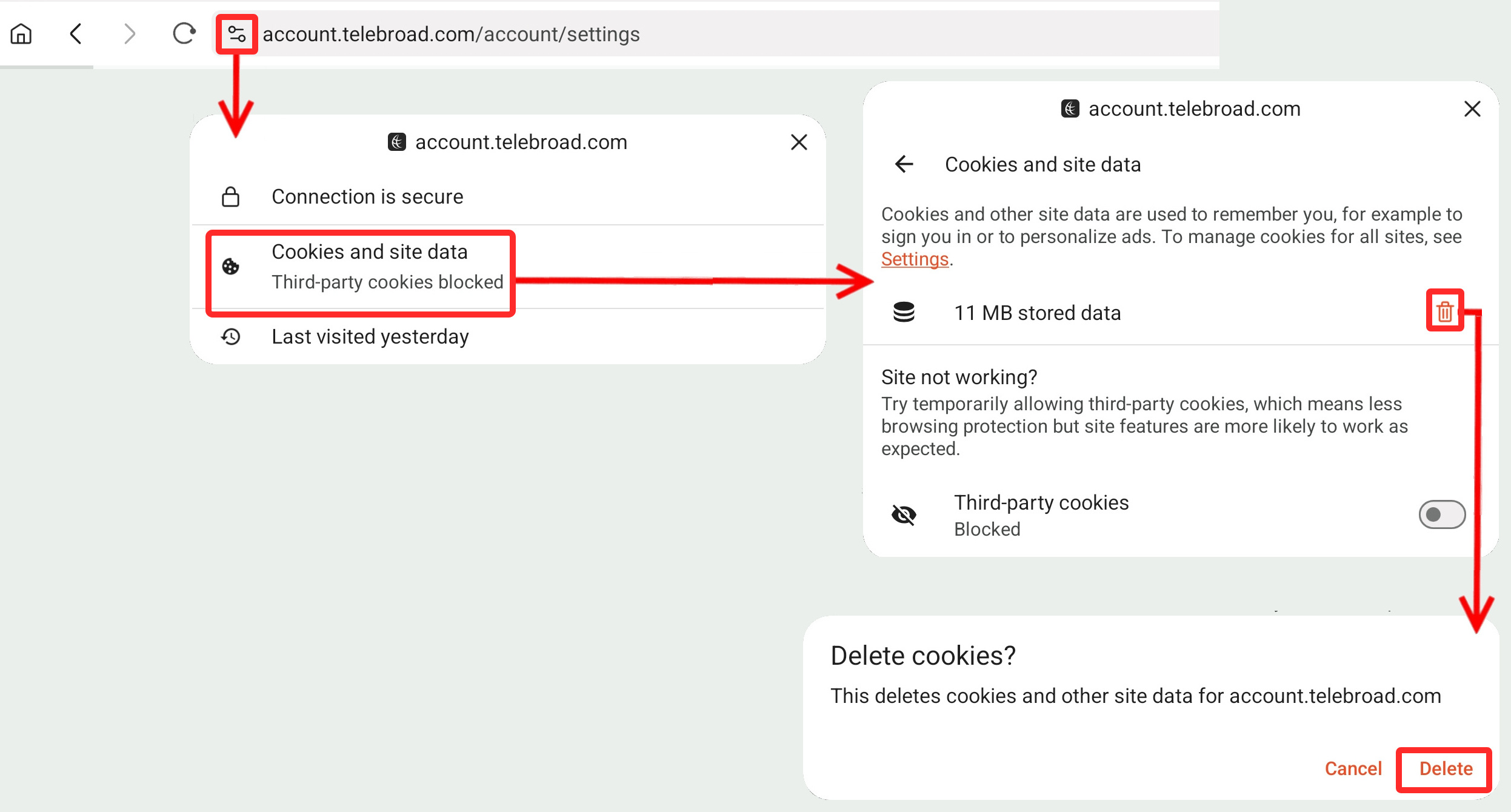
If the Update button doesn't work, you need to clear the web cookies for the Admin Center by clicking the Site Information icon on the address bar ( ), selecting Cookies and site data, clicking
 , and confirming the prompt.
The figure shows the process for Chromium browsers. This may work slightly differently on other types of browsers. The Site Information icon may also look different (commonly a padlock  ).
).
Voice Features are accessed from the side navigation menu, where you can view and manage all voice features. User guides are found here.
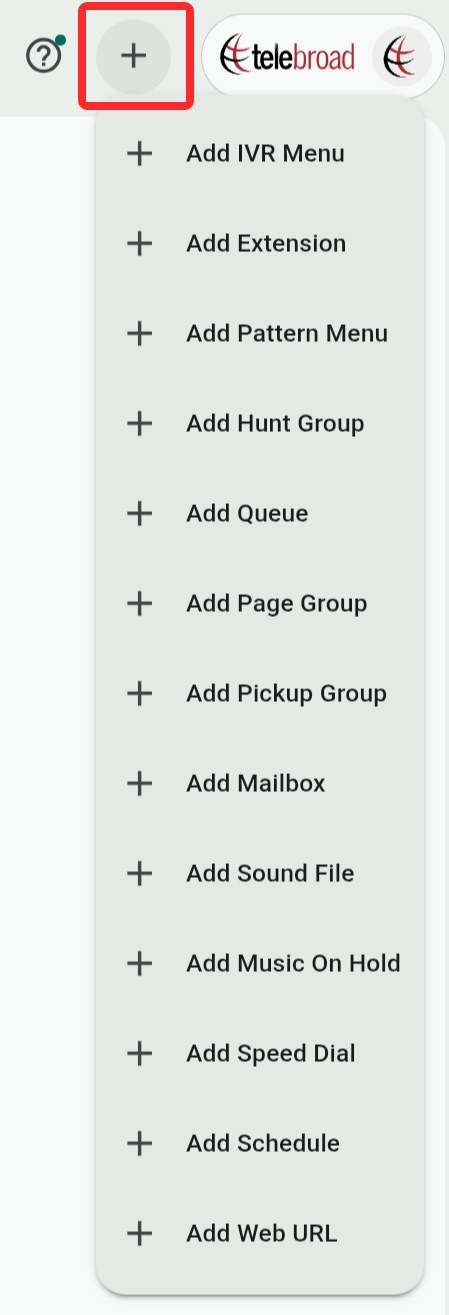
The voice features quick add menu saves you time (especially when building a phone system) with one-click links for adding new voice features.
Click the
 button to open the Training and Support menu. The button may be marked with a badge counting the number of new features added to the Admin Center since the last update. These can be reviewed by selecting New Features.
Select Help & Training to open a floating window with Admin Center support articles. You can also press F1 on your keyboard from any Admin Center page to open this window.
If you are on the Admin Center Home page, the floating window will display an articles index; otherwise, a support article for the current feature you are using is displayed. On any article, click
 to show the index.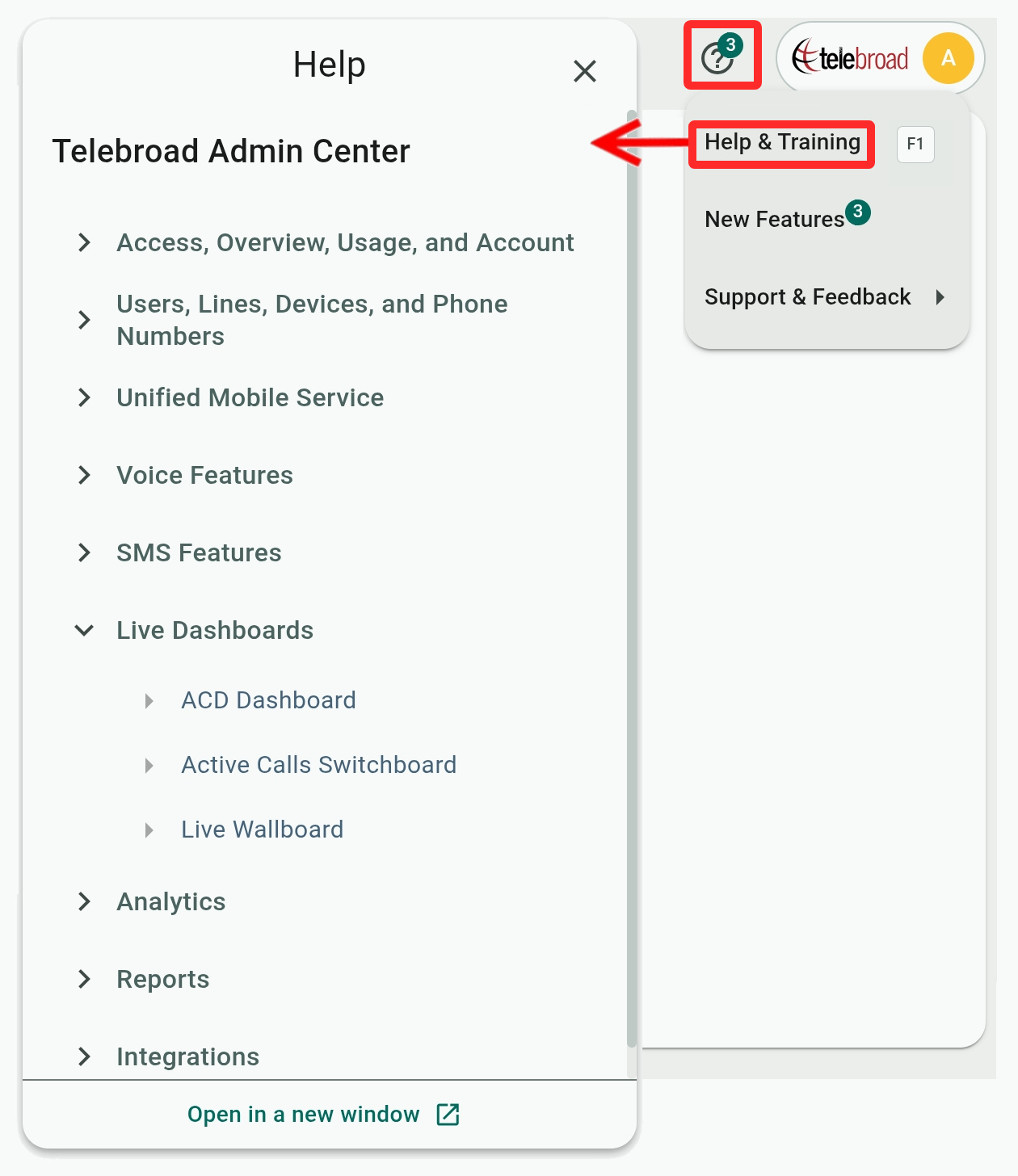
Global Search
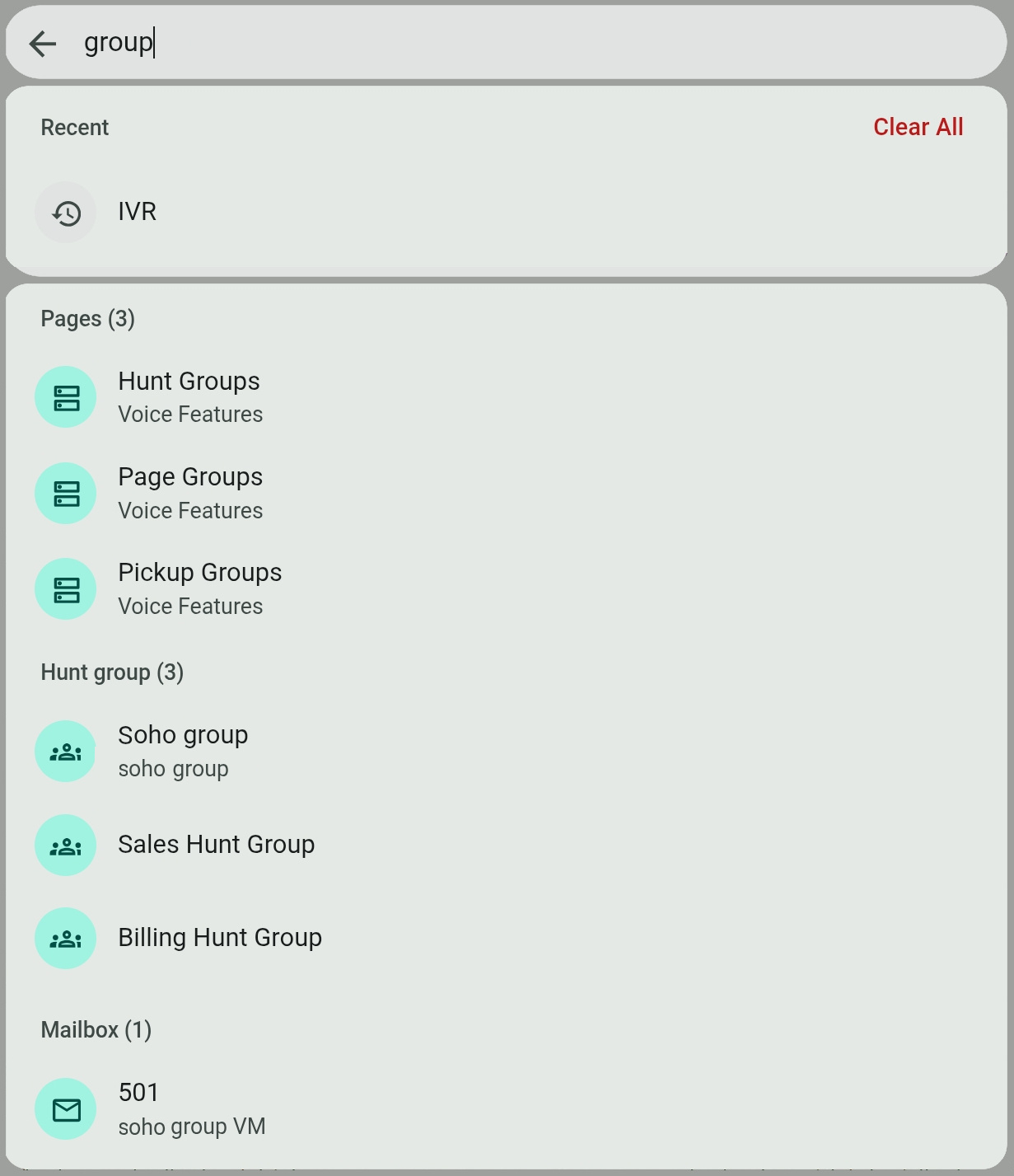
The Global Search box lets you search everything in the Admin Center. It requires at least three characters for input and remembers your recent searches for repeat access.
Global searching can find specific items as well as features and pages. As seen in the figure, searching for "group" will show the three different group pages and any items with group in their titles.
All search results are clickable and will take you to the page, feature, or item. Keyboard control is supported with Control + K to access Global Search from anywhere, arrow keys to make a selection, and Enter to jump to the result.
Note that Global Search can find users' phone numbers and lines, but not the phone numbers of external contacts. To search for these, use the search box on the Call History Report page!