Usage and Access
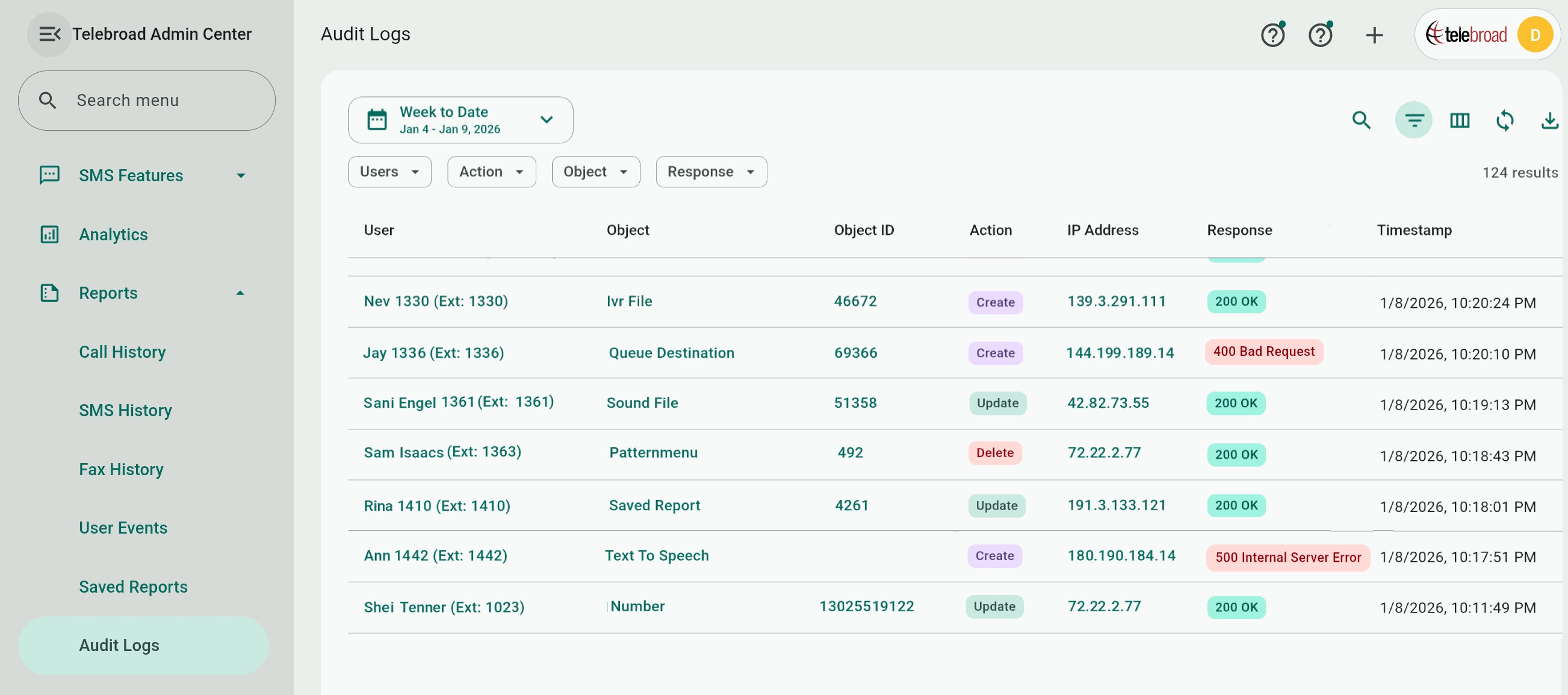
The Audit Logs report is a compliance and security tool that lets you track and monitor all actions and user activity on the Admin center and across the phone system. It lists all creation, updating, and deletion operations, including voicemail deletions, user modifications, and configuration changes.
Admin Center actions are carried out by API requests and these are logged for each operation, making this audit logs useful for developers who can learn firsthand about the format and parameters of Admin Center APIs.
The Audit Logs page is accessed from the side navigation menu under Reports>Audit Logs. To access the page, a user needs to be an Account Owner or have a role with Audit Logs view permissions (roles are explained here).
Exporting Logs
Use the  button to export a CSV file of the audit log for the selected date range. All columns (including the ones you did not select) are included in the file. Each log is given a unique ID and the Timestamp column also shows a time zone (in the range of -12 to +14). The account time zone can be modified from the Account>Account Settings page.
Date Range and Managing Columns
Date Range
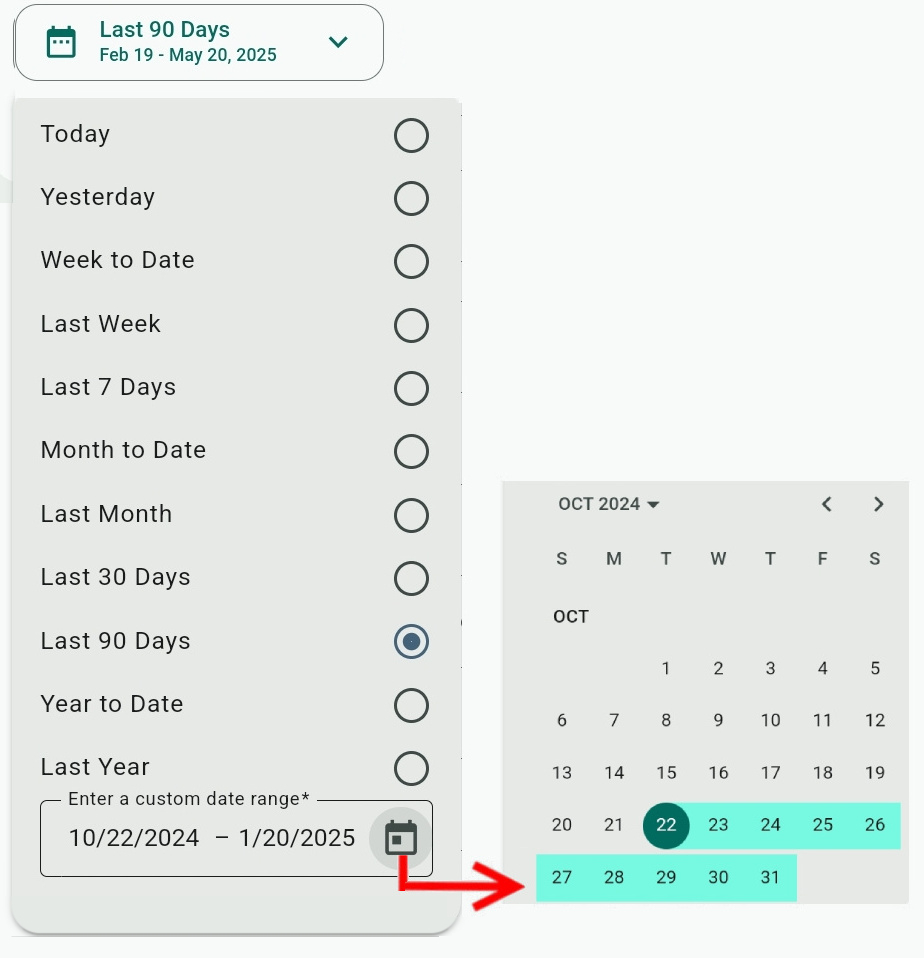
You can select predefined dates from the Date range field – Today, Yesterday, Last Week, etc.
You can also use the Enter a custom date range field to select a date range of your choice. Click the date to enter the date manually with your keyboard or click  to set the start and end date from a calendar.
Managing Columns
Use the  button to show or hide Audit Logs columns. Clicking Reset will bring back the default column choices (which include all columns except the path).
The Available columns are:
- User: The name and extension of the user who performed the Admin Center action.
If configured on your account, you may see a user marked with icon, indicating the action was performed by a member of the support team.
- Object: The Admin Center feature or component that the user has performed an action on.
The object is also included in the API request path.
- Object ID: A unique ID assigned to the same Admin Center action or component. Some objects, like the "Text to Speech" feature, do not have object IDs.
The object ID is also included in the API request path.
- Action: What action did the user perform on the object. Create a new object, Update an existing one, or Delete the object.
The Create action is equivalent to a POST API request. The Update action is equivalent to a PUT API request. The Delete action is equivalent to a DELETE API request. - IP Address: The IP address of the device/browser from where the user performed the action.
- Response: The response from the server for the API request of the action perfromed.
A "200 OK" response is a standard HTTP status response for a successful request. If an action is unsuccesful, the response may be "400 Bad Request", "500 Internal Server Error", "401 Unauthorized", or other responses. - Timestamp: Date and time when the action was performed.
- Path: The path is a portion of the API request URL containing its resources and paramteres.
For Admin Center Audit Logs, it identifies the feature or component on which the action was performed. These are the same as the Object and Object ID, but additional phone numbers or relating features may also be identified.
As shown in the sample figure, the path has the Object (Huntgroup Destination) and its ID (113366), and also indicates that this object is a component of Huntgroup 16206.
You can click and hold a path value to see a bubble with the full path details.
Filtering and Sorting
You can use one or more filters to narrow down or refine the report's results.
The filter toolbar can be shown or hidden with the  button. If the filter bar is hidden, the filter button is marked as
 when filters are applied to remind you that some report results are being filtered out.
Select  on the title of an active filter or Clear when opening the filter to clear your selections or remove all filters by selecting Clear all.
The filter toolbar has four filters – Users, Actions (Create, Update, or Delete), Object, or Response. The Users filters has all the available users on the system. The Object and Response filers will only have choices based on values that are already found in the audit logs.
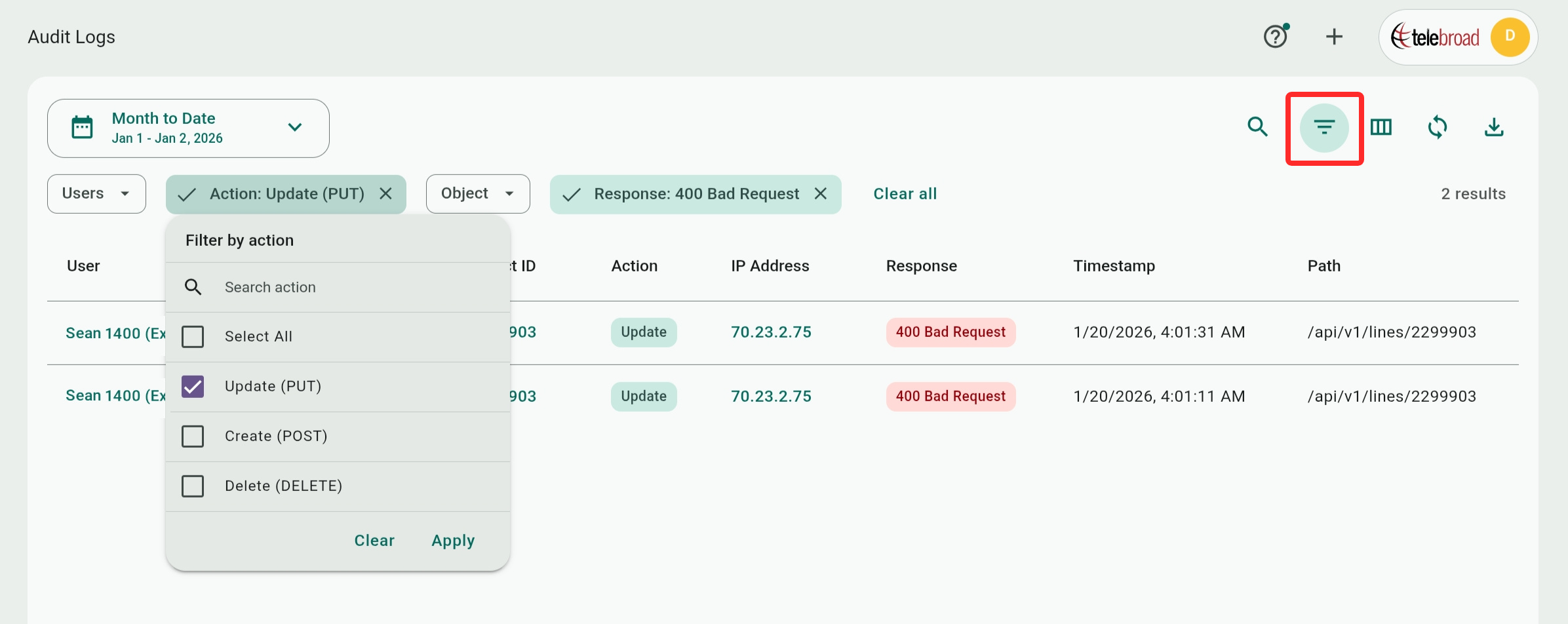
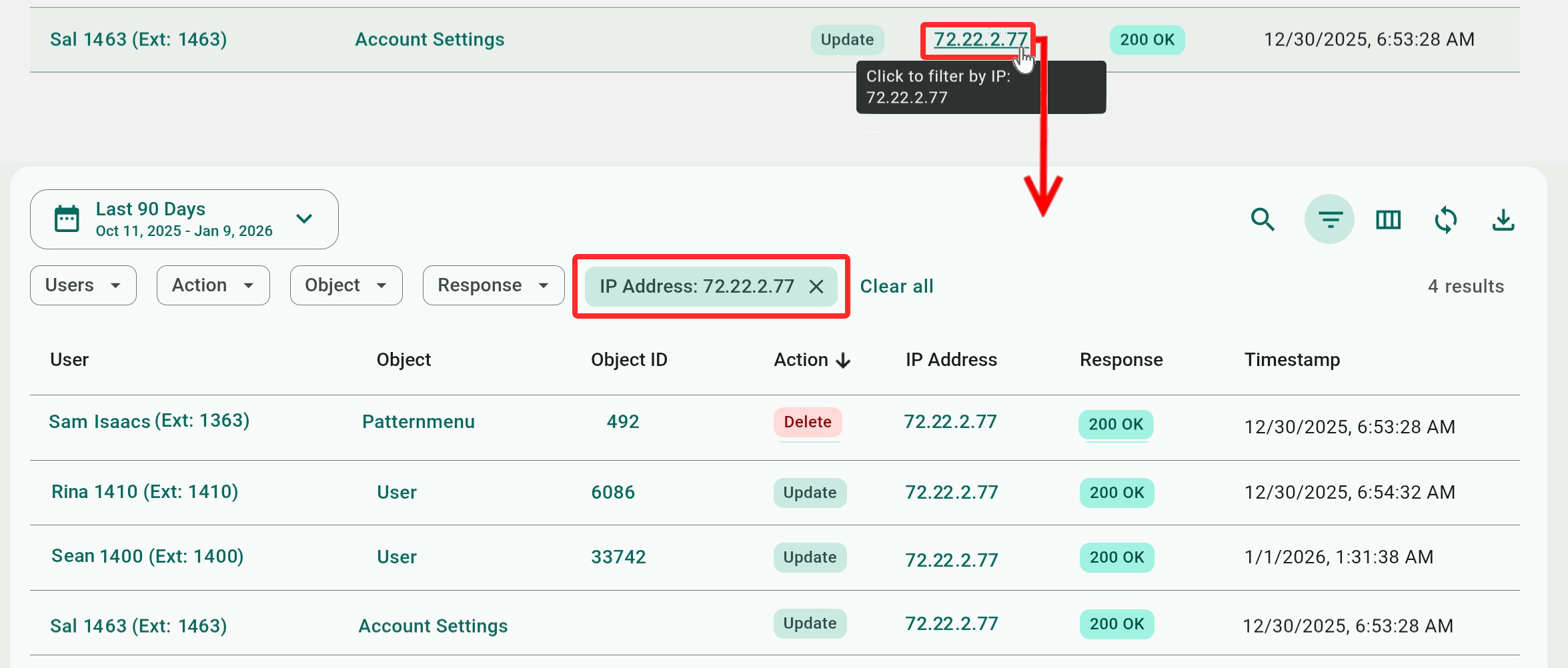
You can also apply filters by directly clicking any value except for Timestamp, Path, or Response. As shown in the fugure, clicking an IP address will display all the records associated with this IP address.
Sorting the Report
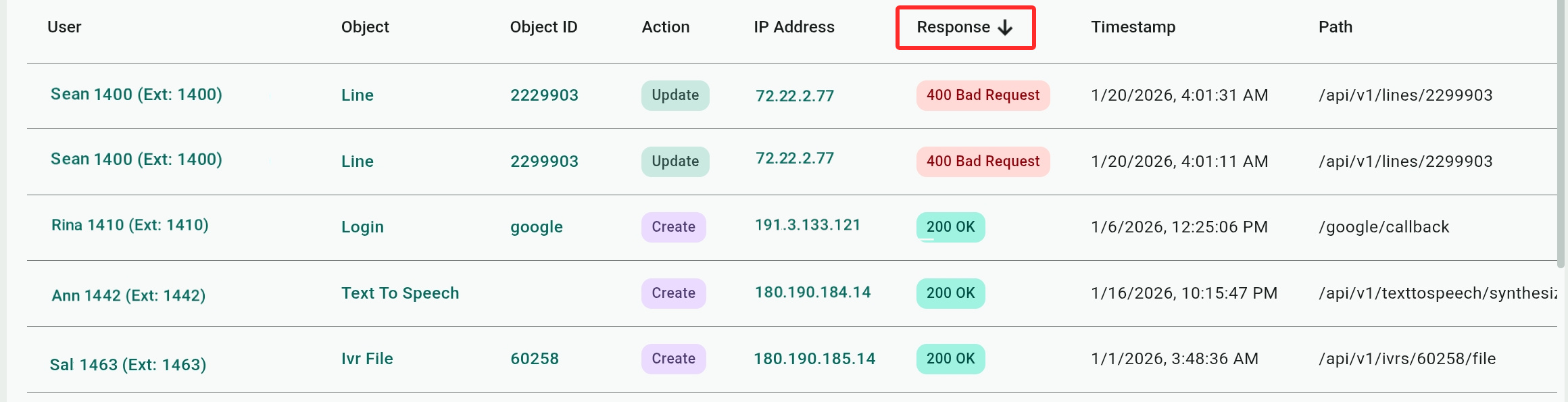
To sort the report, click any column title. Click once to sort in ascending order ( ) and click again to sort in descending order (
 ).
).
Log Viewer
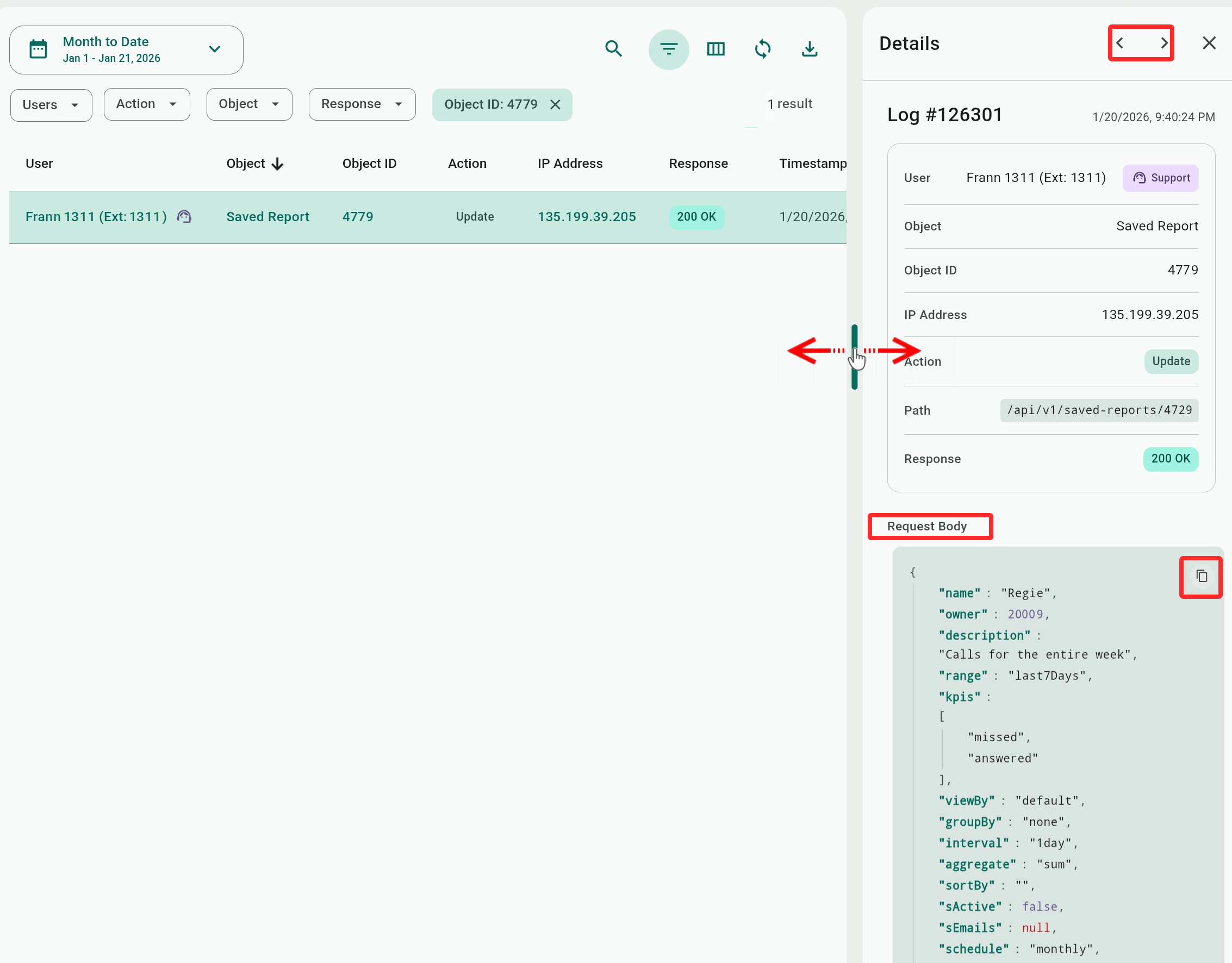
Click an audit log record to open it in a log viewer (you need to click an empty space between values or click a Timestamp, Response, or Path value, otherwise the system will filter by the value you clicked).
In addition to values from the report columns, the viewer also displays the API Request Body which includes the data and parameters sent to the Telebroad server to process the action, making it educational for developers incorporating Telebroad services into their products.
Click anywhere in the request body box to show a Copy button ( ) and click the button to copy the Re code.
Click the arrow buttons to move to the previous or next record.