Usage
The Alerts page lets you set up SMS, email, SFTP, or webhook notifications that are triggered by different system events.
Types of Alerts
- Call History: Triggers notifications for call events such as missed, transferred, or voicemail calls. Triggers can be applied to specific hunt groups, queues, phone numbers, lines, etc. See trigger details here.
- AI Deep Call Intelligence: Available only if AI Call Intelligence is enabled on your account (see Account Settings). It works similarly to Call History alerts, but triggers alerts based on additional AI Call Intelligence filters. See trigger details here.
- SIP Registration: Triggers notifications for users' phone line registration events – phone going online, offline, or renewing its registration with the server. See trigger details here.
- SMS (currently still in development): Sends notifications for users' SMS activity. See trigger details here.
- Queue/Hunt Group Activity: Triggers a notification for agents signing in or out or for the number of agents falling below a threshold. See trigger details here.
Alerts Ownership and Role Permission Access
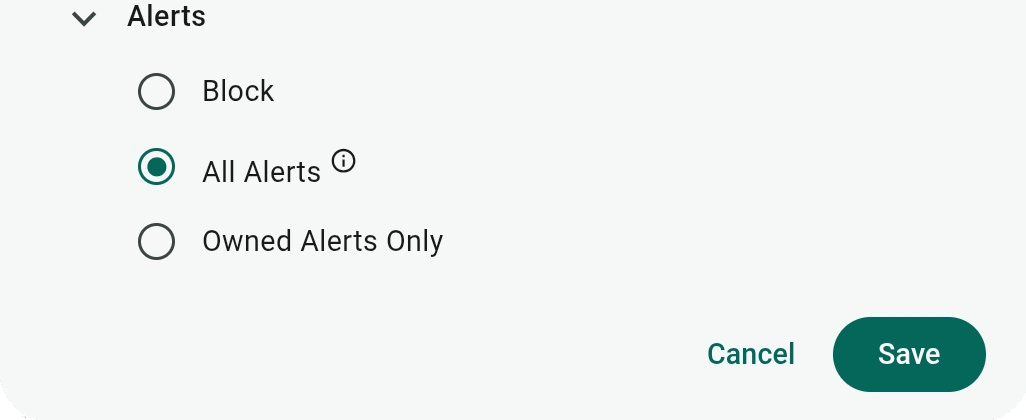
The page shows your Owned Alerts (alerts you created or assigned to you) and All Alerts (alerts assigned to or created by other users).
Alert ownership can be changed with the Switch Ownership option of an alert's menu or in the Owner field of the Alert's settings.
An alert's menu also has options to Edit the alert (you can also edit by selecting the alert), View history (discussed below), Copy to duplicate the alert, and Test Alert to test real-time notification delivery.

Viewing and deleting alerts in the All Alerts list is available to Account Owners or users who have a role with Alerts>All Alerts view permissions. To also edit alerts, such a user must also have full Data Permissions (All Users, Phone Numbers, Hunt Groups, and Call Queues). Roles are set on the Account page and are explained here.
Adding Alerts and Alert Settings
Click Add Alert, provide the alert's Name and Description (optional), and select Call History, SMS, or SIP Registration for the alert Type (explained above)
For the alert's Owner, selecting yourself will place the alert in your Owned Alerts list, while selecting any other user will place it in the All Alerts list.
Once you click Create Alert, the Alert Type cannot be modified. To change it, delete the alert and add it again.

Alert Notifications
Create or select an existing alert to configure the notifications it will send for triggered events.
You can send alert notifications using different communication channels as set in the Type field – Email, SMS, Webhook, and SFTP Upload.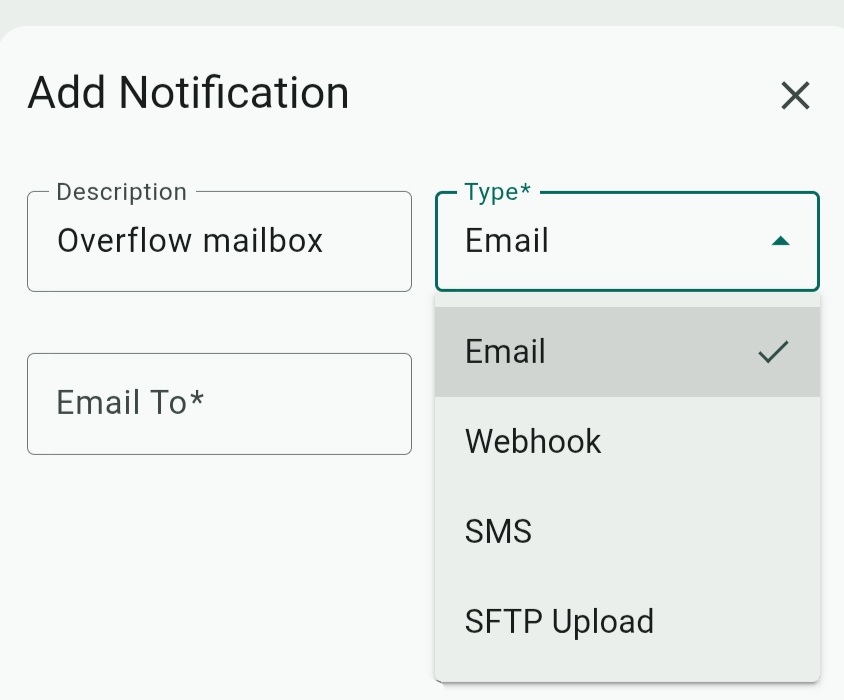
When adding a new notification, you cannot change its type after saving it, but can only delete it ( ) or disable it by toggling off its Enabled option.
Testing Notifications
Once a notification is saved, you can click  to run a real-time test of its selected communication channel.
An actual notification is sent (even if the notification is disabled), allowing you to ensure proper configuration and delivery and also see delivery speed.

Email Notifications
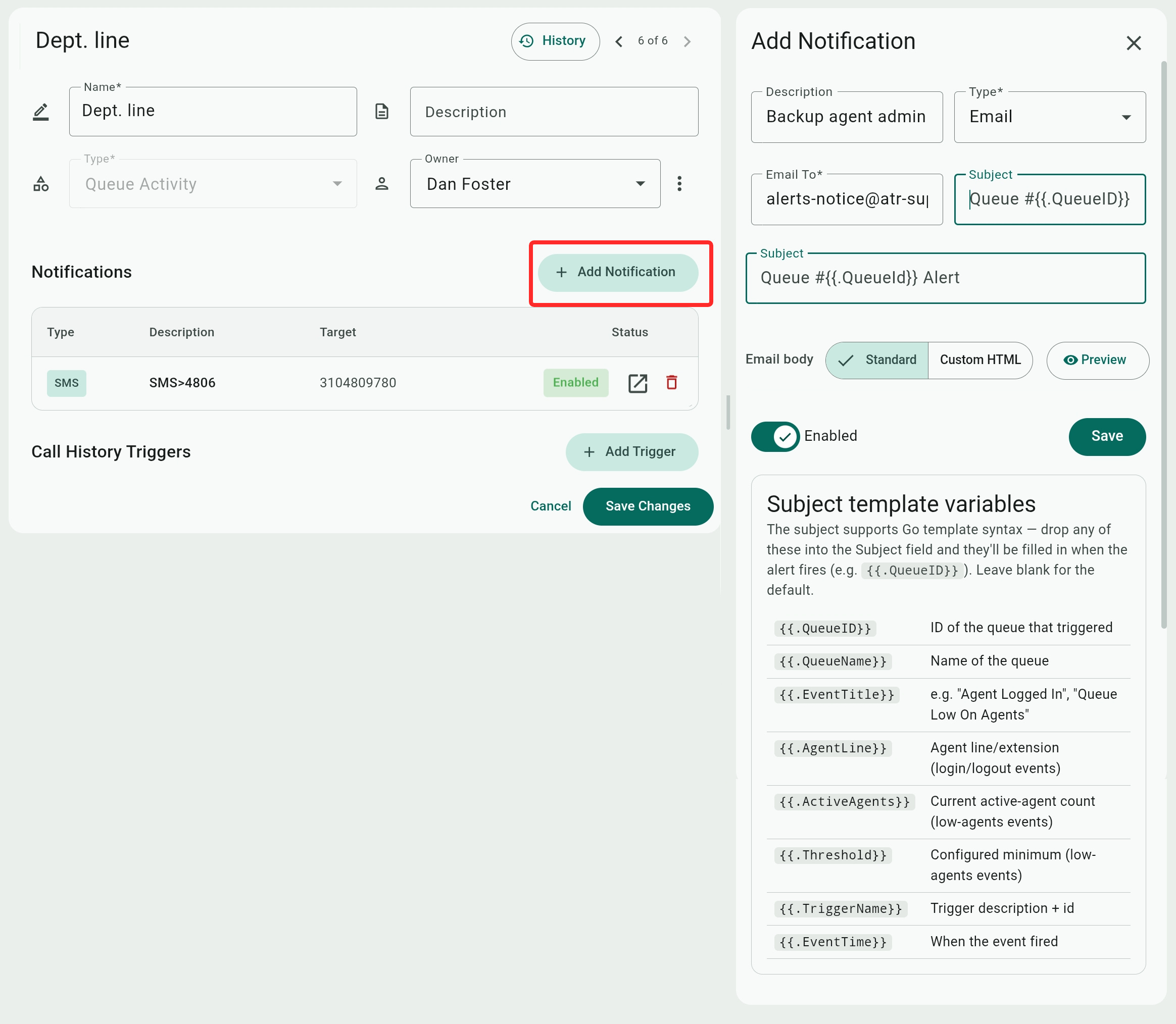
For email notifications, you need to provide the recipient's address ("Email to") and the subject field. You can also choose a standard or custom email body.
Don't confuse SMS notifications with SMS triggers. You can use both, and send SMS notifications for events triggered by SMS activity.
Subject Field Variables
The subject field supports Go template variables that are dynamically replaced by relevant content. These variables are enclosed in double curly brackets and typing {{ will show the list of variables for the trigger (see specific triggers below for details of their available variables).
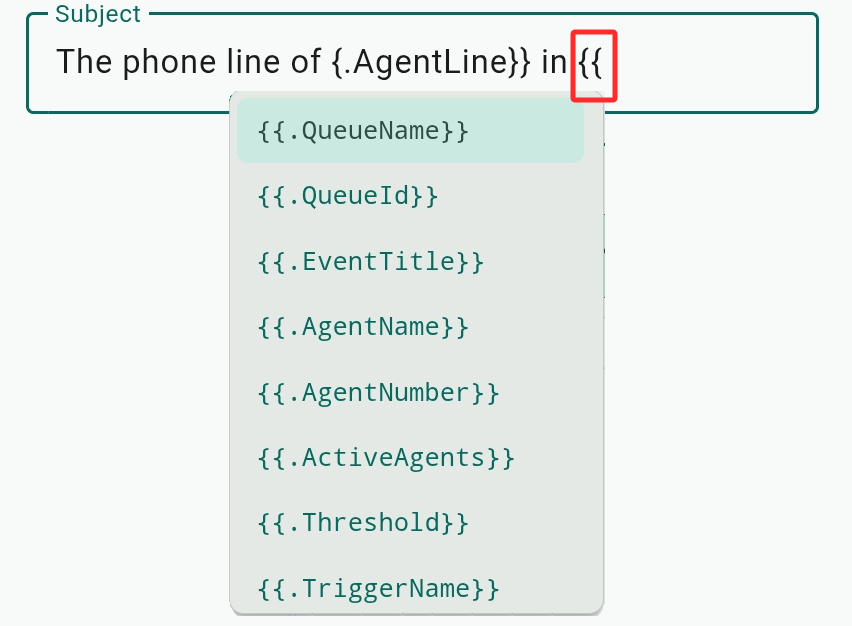
For example, with a Queue activity trigger, a subject line "The phone line of {.AgentLine}} in {.QueueName}} has logged out at {.EvenTime}}" allows you to send details of the time when a user's line and the queue they belong to have logged out.
If you leave the subject field empty, the default template and variable will be used for the subject.

Email body
For the body of the email, you can select the Standard Telebroad template or make your own Custom HTML template.
Click the Preview button to see a sample of either template in Desktop or Mobile view.
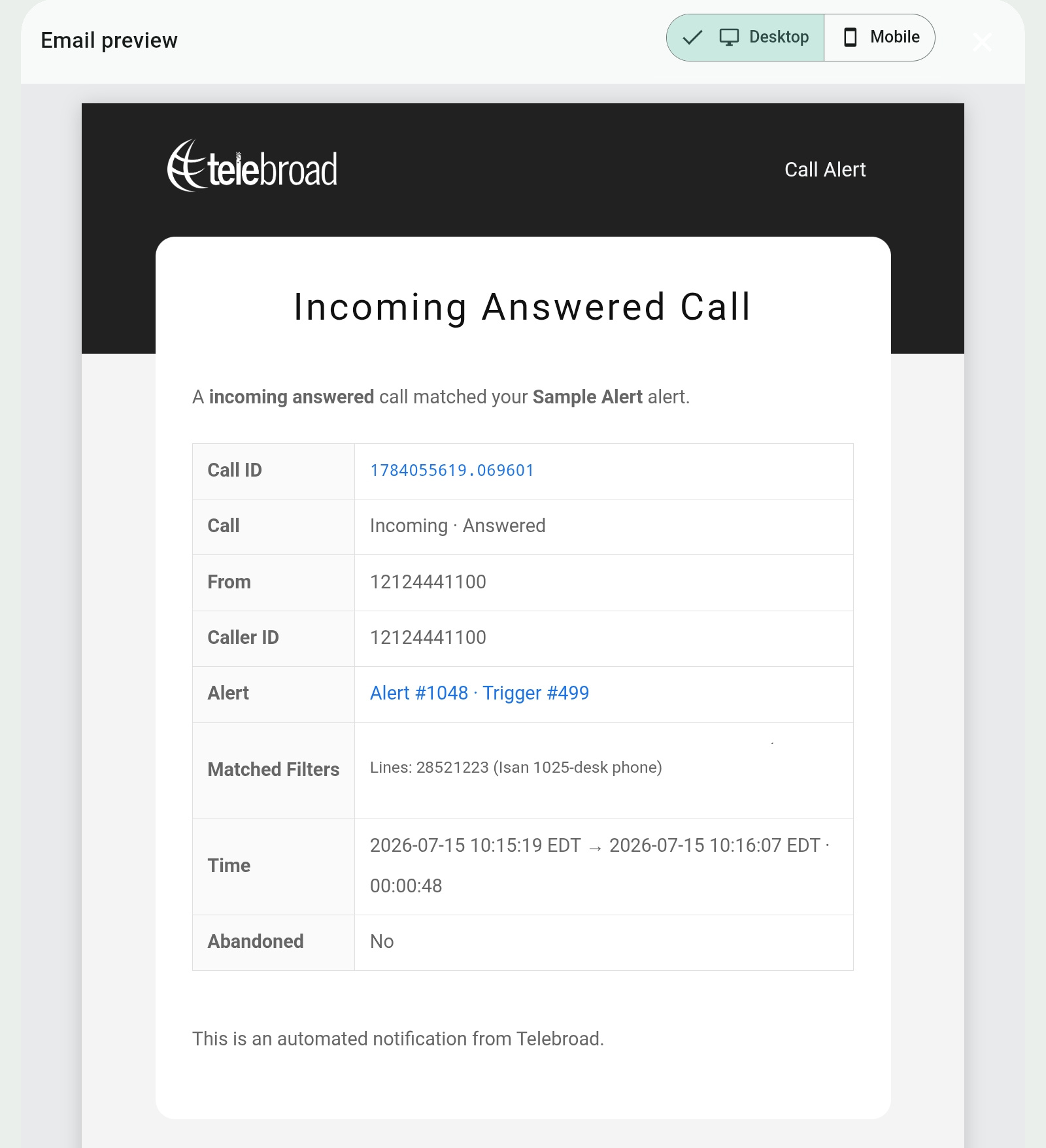
The custom template will get you started with the default template for the trigger, and you can always click Reset to default to bring it back if you make undesired changes or delete it.
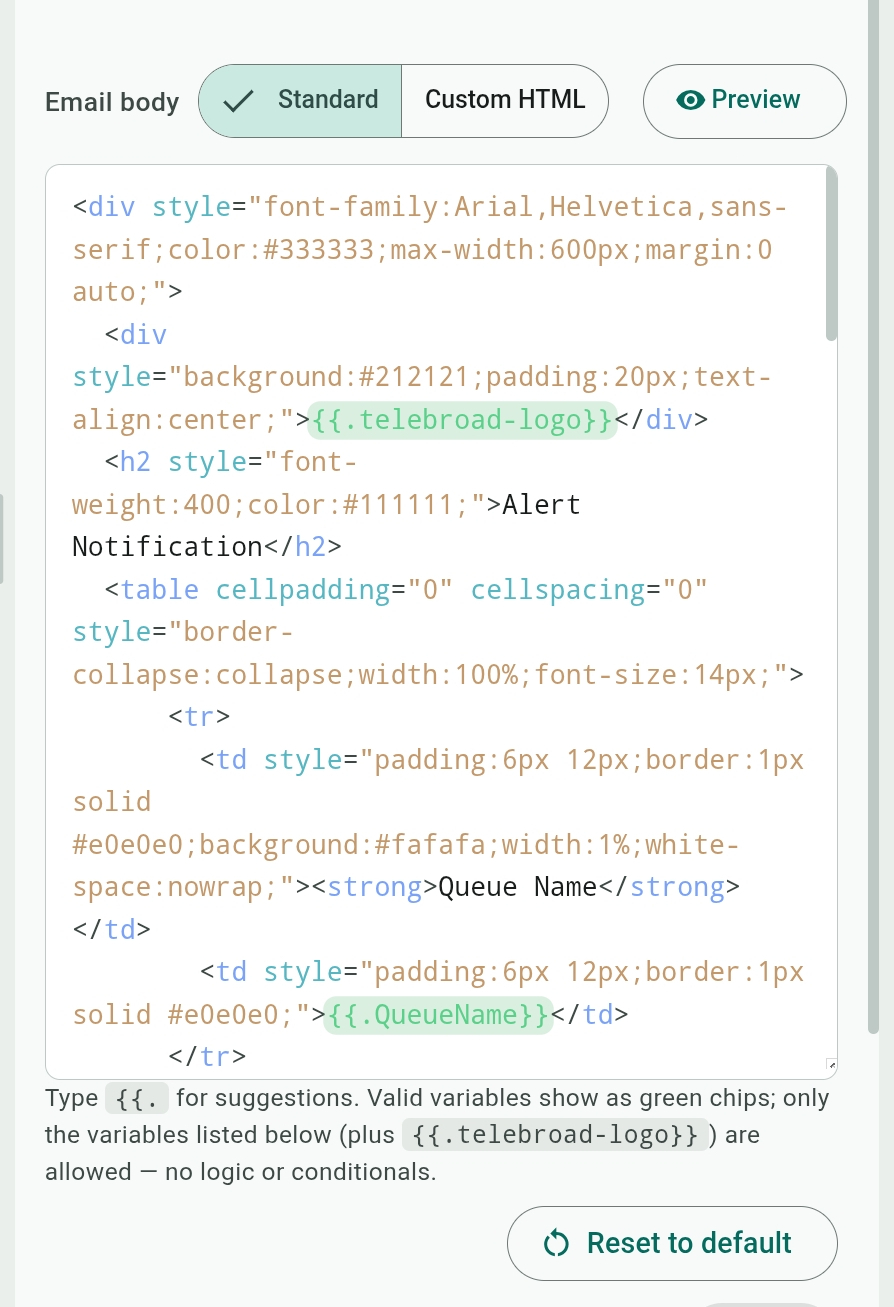
The custom template can contain variables that are dynamically replaced by relevant details of the call or triggered event. These variables are enclosed in double curly brackets, and typing {{ will show the list of variables available for the trigger (see specific triggers below for details of their available variables).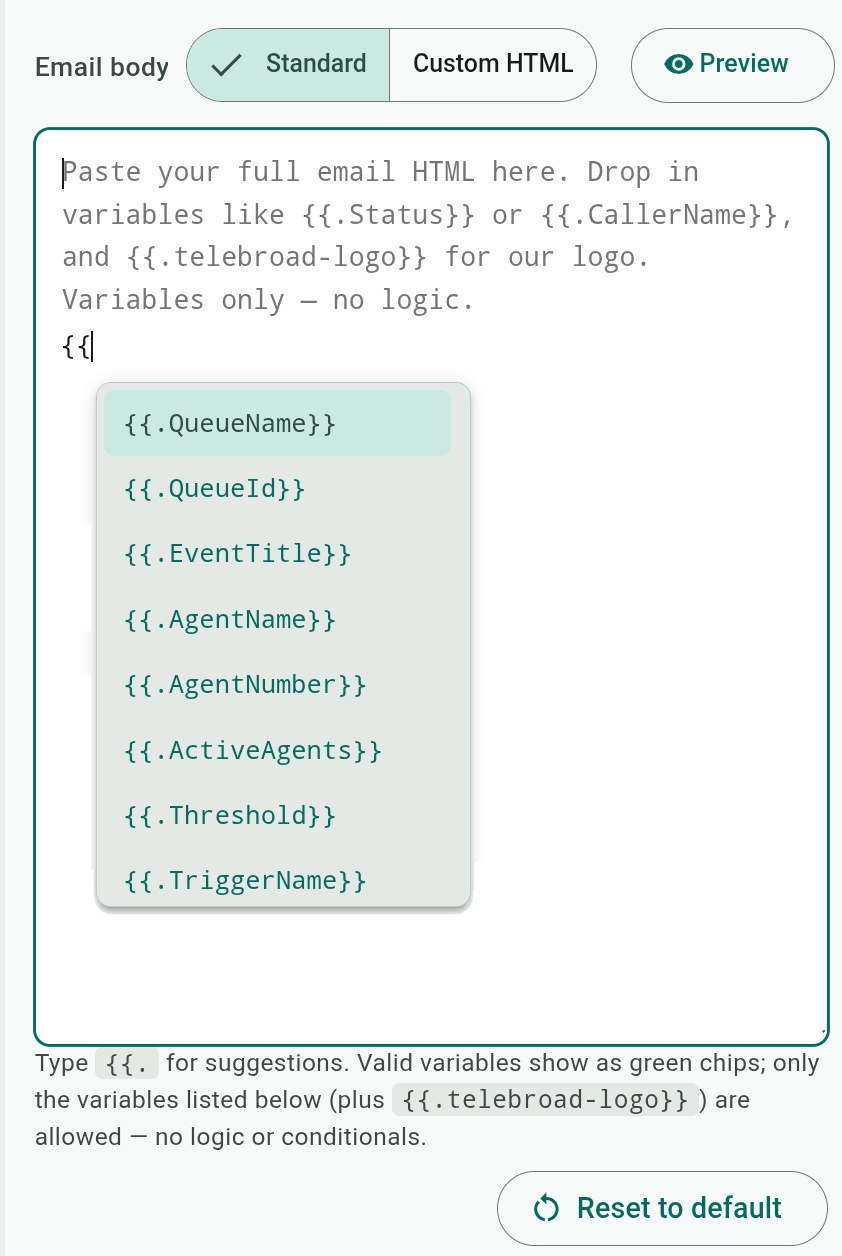
SMS Notifications
For SMS notifications, start by selecting an SMS-enabled number in the From Number field to deliver the SMS messages from.
You can add one or more recipients in the To Numbers field. Adding multiple recipients will automatically send the message with MMS format and pricing!
For the content of the SMS Message, select a pre-defined Standard message, or create your own Custom text message.
A custom message may include variables that are dynamically replaced by relevant details of the call and triggered events. These variables are enclosed in double curly brackets, and typing {{ will show the list of variables available for the trigger (see specific triggers below for details of their available variables).
Pricing for SMS and MMS Messages
You can send the message as a text-only SMS message (just text, no emojis) or as an MMS message. MMS messages can have emojis, but other media is not supported. Notifications to multiple recipients are automatically sent as MMS.
SMS messages are charged based on their number of segments, starting at 0.1 cent ($0.001) per segment. MMS messages are charged at a flat rate of 0.15 cents ($0.0015) per message, regardless of segments or length. The cost of sending one alert (for each recipient) will be calculated and displayed for your convenience.
Segments and SMS pricing are expanded upon in this article (but note the rates discussed in it are for SMS campaigns and not for SMS notifications).

Webhook Notifications
Webhook notifications allow you to generate simplified API requests and have an external app or server process their data to perform relevant actions. Webhooks are explained in more detail in this article discussing webhook integrations.
- Webhook URL: The web address of the external server that will handle the API request.
- Method: The communication method to handle the payload.
- The Post method is the most common and will send the payload data to the receiving server.
- The Put method updates resources on the receiving server.
Both of these carry their data in the body of the request. - The Get method, however, appends the data to the URL as a query string and is less secure because the data is visible. Its data size is limited by the URL length, and it is suitable for simpler notifications.
- The Post method is the most common and will send the payload data to the receiving server.
- Headers: You can add these additional value-pairs (Header and Value), as needed, to the API request to inform the receiving server about authentication or other parameters.
The choice of authentication header would depend on the receiving app or server.- Bearer Token and X-API-Key: Are both unique strings of characters that authenticate the request and give it access to the server.
- Basic Auth: A simple Username/Password combination that authenticates the request and gives it access to the server.
- Custom Header: Any additional custom values you want to send with the request.
- Bearer Token and X-API-Key: Are both unique strings of characters that authenticate the request and give it access to the server.
- Compress payload (gzip): If the external server or app supports it, you can toggle this on to have the sent data compressed using the lossless gzip format. This reduces bandwidth usage and improves delivery speed. However, it is also considered less secure and should not be used with sensitive data.
Webhook parameters: The parameters sent by the webhook request to the external server depend on the alert type. The Example Request box shows these as both JSON and CURL format. The formatting also depends on the selected webhook communication method.
Each kind of trigger has different webhook parameters. See specific triggers below for details.
SFTP Upload Notification
SFTP is a secure file transfer protocol for sending encrypted files. It lets you upload alert data as a JSON file to a remote SFTP server and offers in-app key generation to authorize the connection.
The content of the uploaded JSON file depends on the alert type it triggers. It is identical to the webhook payload notification with the same parameters. See specific triggers below for details.
- Host: The URL address of the remote SFTP server.
- Port: A port is an endpoint on the server that directs traffic to a software application or service on the server. For the SFTP protocol, the default port number is 22.
- Username: The name of the user with access privileges to the remote server.
- Remote Path: The directory on the remote server where the alert data files will be uploaded.
Note that the remote directory must already exist! The alert will not create it, but will be written straight into it - Credentials: There are three kinds of authentication methods to provide secure login access to the remote server.
Multiple credentials can be configured to accomodate different methods or for backup credentials.
for different user credentials. She system will try these one at a time going going from the top of the credentials list. Use the handles in credential boxes to rearrange the list. Most servers disconnect after about six failures.- Password: Self-explanatory. Request it from the server's administrator.
- Paste private key: This lets you authenticate by copying and pasting the text from a PEM file (with a .pem extension). A PEM file is a Base64-encrypted text document that contains certificates and private keys for establishing a secure connection with the server. It is either provided by the hosting provider or generated when you set up a server.
Make sure to copy and paste the entire content of the PEM file.
You may need to provide the Key Passphrase for your PEM file if it was created with one. The passphrase is an extra layer of security that prevents unauthorized access. Even if someone gets hold of the PEM file, they will not be able to access the server without the passphrase. - Generate Keypair: This method uses two linked files for security. When you save the SFPT notification, the system will generate a public key (akin to a door) and a private key (akin to a key that unlocks this door).
You download or copy the public key and upload or paste it into the relevant server's security configuration (or have the server's administrator add it to the server).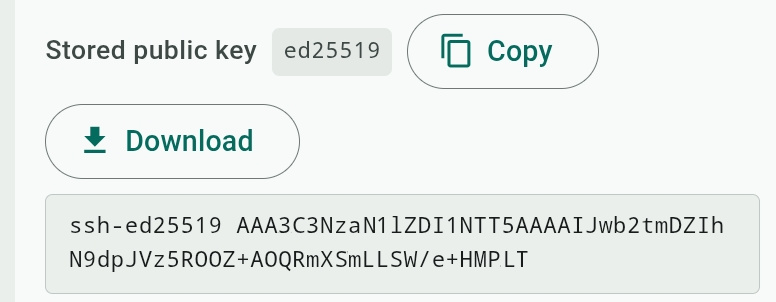
The private key remains secure and hidden in the Admin Center and will unlock the public key when the SFPT upload notification requests access to the server.
- Password: Self-explanatory. Request it from the server's administrator.
- Filename Template: This field lets you set the name of the uploaded data file using the Go template variables. See specific triggers below for details of their available variables.
The default name if you leave the field blank is: {{.Timestamp}}-{{.AlertType}}-{{.NotificationID}}-{{.EventID}}.json. So this will become, for example, the file name 20260528-143022-huntgroup_activity-1111-6778.json.
Note that files with the same name get overwritten. To avoid this make sure to include the {{.NotificationID}} variable in the name.- {{.Timestamp}}: The time that the alert was triggered, given in UTC time format of YYYYMMDD-HH:MM:SS. For example, 20260728-150405 shows that the alert was triggered at 3:04:15PM on July 28, 2026.
- {{.AlertType}}: The type of alert that triggered the notificaion – queue_activity, call_history, sip_registration, huntgroup_activity.
- {{.NotificationID}}: A unique system ID appended to the end of the generated filename, making it unique and ensuring repeated deliveries don’t overwrite each other. For example, a notification ID 6778 in the file name i20260528-143022-huntgroup_activity-1111-6778.json
- {{.EventID}}: A system ID for the triggering event. Depending on the alert type, this can be a Call ID (for call history alert), a user name (for SIP registration alert), a queue ID (for queue activity), or a hunt group ID (for hunt group activity).
- {{.Timestamp}}: The time that the alert was triggered, given in UTC time format of YYYYMMDD-HH:MM:SS. For example, 20260728-150405 shows that the alert was triggered at 3:04:15PM on July 28, 2026.
- Host Key (optional): A host key is a security measure that protects your connection from being diverted to an unintended server. When the alert tries to connect to the server, it will verify the host key details with the server and send the data only if it matches.
You can obtain this key from the server's administrator and paste it into the field.
Alert Triggers
Triggers define events for which the system sends alerts. Each type of alert has its own triggers and parameters.
Call History Triggers
You can create three kinds of call history triggers:
- Call History: Includes all calls and phone numbers for the account.
- User History: Only includes calls where a user is the endpoint for dialed or received calls. For example, if a caller hung up when greeted by the main IVR the call is not counted as a user history event since it did not involve a user.
- Group History: Includes only calls routed to or from hunt groups or call queues.
Call History Trigger Filters
Configure the Call History trigger by selecting values from a list of filters. Any time a call matches all the checked filter criteria, an alert will be triggered and notifications will be sent.
The available filters include Phone Numbers, Users lines (for users with two or more lines you can select specific lines), Extensions, Queues, Hunt Groups, Directions (Incoming, Outgoing, or Internal), Tags (tag filters are covered in this call history report article), Call Duration, and Time of Day. Click the  button for Month of year, Day of month, and Day of week filters. The Group Calls trigger also has a Wait Duration filter.
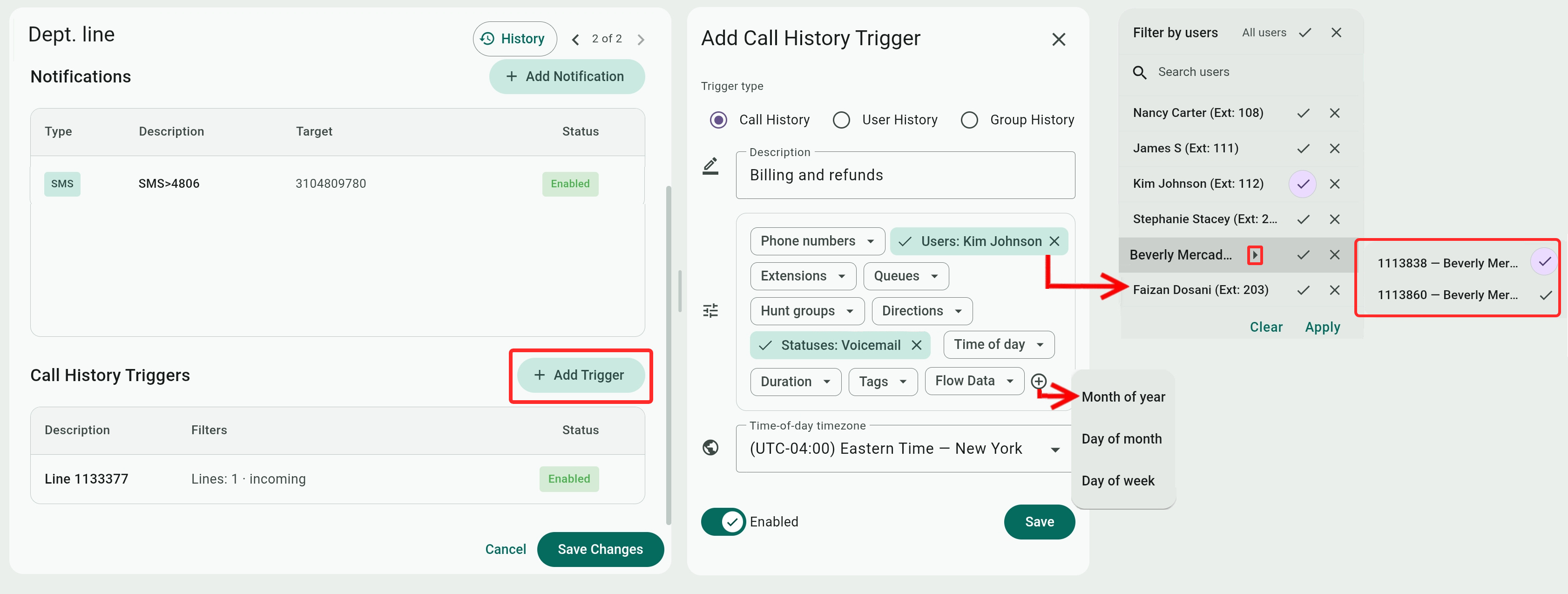
If you use the Time of day filter, you should set the correct time zone from the Time-of-day timezone menu.
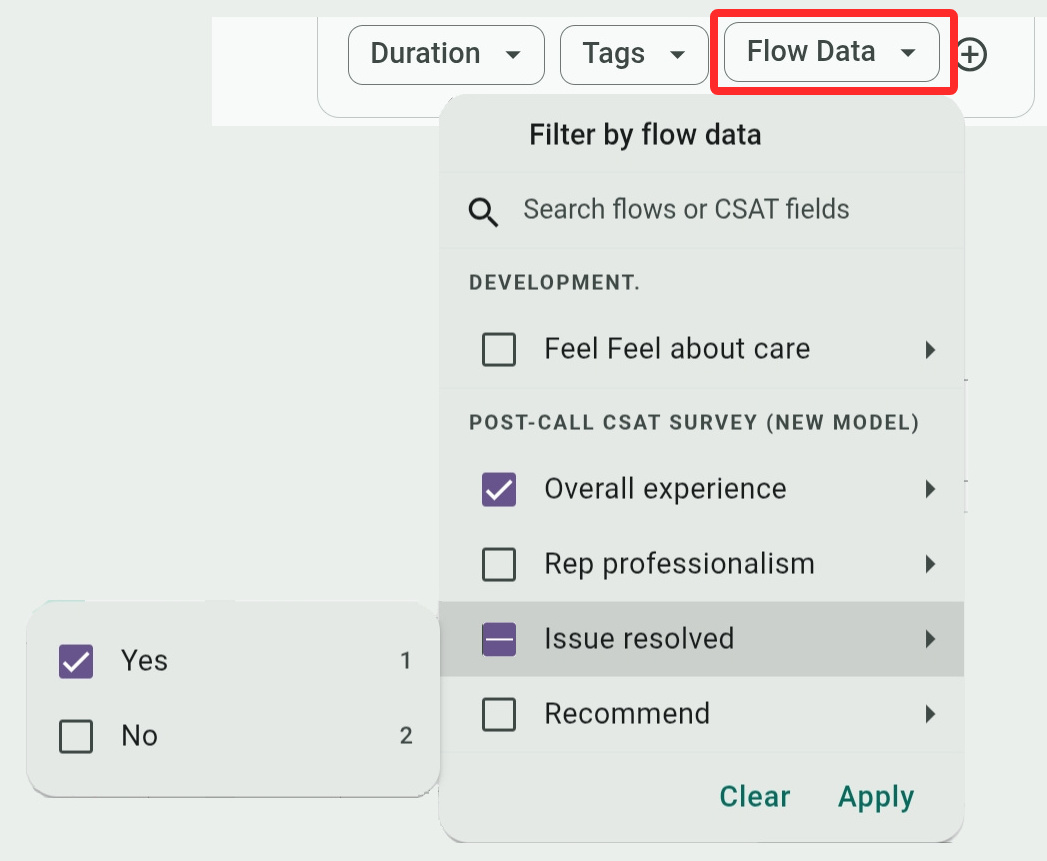
The Flow Data filter has CSAT (Customer Satisfaction) survey scores for data captured with DTMF key input in the Flows advanced call routing voice feature.
The filter lists CSAT surveys for all the Flows steps that collected DTMF as a rating and have their CSAT option enabled. The possible selections are grouped under the name of each Flow and depend on the configuration and values assigned to each survey. You can learn more about using Flows here.
The Statuses filter has different values depending on the trigger.
- For Call History, you can have Answered, Missed, or Voicemail values.
These values show the status of the entire call.
The Missed status does not apply to Users or Group History. - For Users History, you can have Answered, Voicemail, Answered by Other (agents), (agent line was) Busy, No Answer, Cancelled (by the caller while the call was ringing), and Others (like line congestion, failed dialling, unavailable channel when user's phone is offline or signed out, or any other unknown errors on the switch or any side of the call).
These values show the status of a single call segment where a user was involved (so it doesn't count when a caller just deals with system features like an IVR menu, a Dial by Name directory, etc.) - For Group History, you can have Answered, Abandoned (the caller hung up while waiting for an agent), and Exit values.
The values refer to the latest group the call passed through that triggered the alert.
An Exit status happens when the call was routed out of the group or queue under certain conditions (like too many calls holding) or when the caller dials *.
Call History SMS/Email Notification Variables and Webhook/SFTP Upload Parameters
The following variables can be used for including and delivering call history details. For SMS and email notifications, use the Go template format – as in {{.CallD}}. For webhooks and SFTP Upload, use the quotation marks format – as in "callId".
Email subject and body have the same variables, except that the body field also has a {{.telebroad-logo}} variable.
- "event" (webhook/SFTP only): The call history event that triggered the email notification. This combines the direction and status of the call — "incoming.answered".
- {{.CallID}}/"callId": A unique system ID assigned to the call.
- {{.Direction}}/"direction": The direction of the call — incoming, outgoing, or internal.
For webhooks, the values are in, out, or int. - {{.Status}}: The eventual status of the call for email and SMS template variables.
This works like the Statuses filter and the possible values depending on the type of call history trigger selected:- If Call History is selected, you can have Answered, Missed, and Voicemail values.
- If Groups is selected, you can have Answered, Abandoned, and Exit values.
- If Users is selected, you can have Answered, Answered by Other, Voicemail, Busy, No Answer, Cancelled, and Other values.
- If Call History is selected, you can have Answered, Missed, and Voicemail values.
- "status" (webhook/SFTP only): The eventual status of the call.
The parameter has numerical values and it works differently than the {{.Status}} SMS/email template variable.
The following values are sent for all three types of call history triggers (Call History, Groups, Users):- A value of -1 means a missed call.
- A value of 0 means the call reached a voicemail.
- A value of 1 or higher means an answered call.
The value also indicates how many users were involved with the call. For example, a value of 3 means the call was routed or forwarded to 3 user lines who answered it.
Your webhook script should therefore check for values of 1 or more and not just if status=1. - Any other values (like "Answered by other") do not apply to the "status" parameter and are only available for filtering or for the email template variable.
- A value of -1 means a missed call.
- {{.CallerName}}/"callerName": The name of the caller who placed the call.
- {{.CallerNumber}}: The phone number of the caller who placed the call.
- {{.CalledName}}/"calledName": The name of the called party.
- {{.CalledNumber}}: The phone number of the called party.
- {{.Duration}}/"duration": The duration of the call, counted in seconds.
- {{.TriggerName}}: The name of the trigger as it appears in its Trigger Description field. If the trigger is unnamed, the filter summary is used instead.
For webhooks, this is sent as two parameters – "triggerId": 42, "description": "Missed customer call", - {{.TriggerFilters}}/"triggerFilters": A human-readable summary of the filters that were matched when the alert was triggered.
- {{.StartTime}}/"startTime": The time that the call started, given in a UTC time format (for example, "2026-05-11T22:15:20Z").
- {{.EndTime}}/"endTime": The time that the call ended, given in UTC time format.
- {.AlertName}}/"alertName": The name of the alert that triggered the notification.
- {{.AlertId}}/"alertId": A system ID of the alert that triggered the notification.
- {{.TriggerId}}/"triggerId": A system ID of the trigger that sent the notification.
- "abandoned" (webhook/SFTP only): A true or false value to indicate if the call was abandoned (hung up by the caller) in Group History triggers.
- "timestamp" (webhook/SFTP only): The time the alert was triggered, provided in UNIX time format.
AI Deep Call Intelligence Triggers
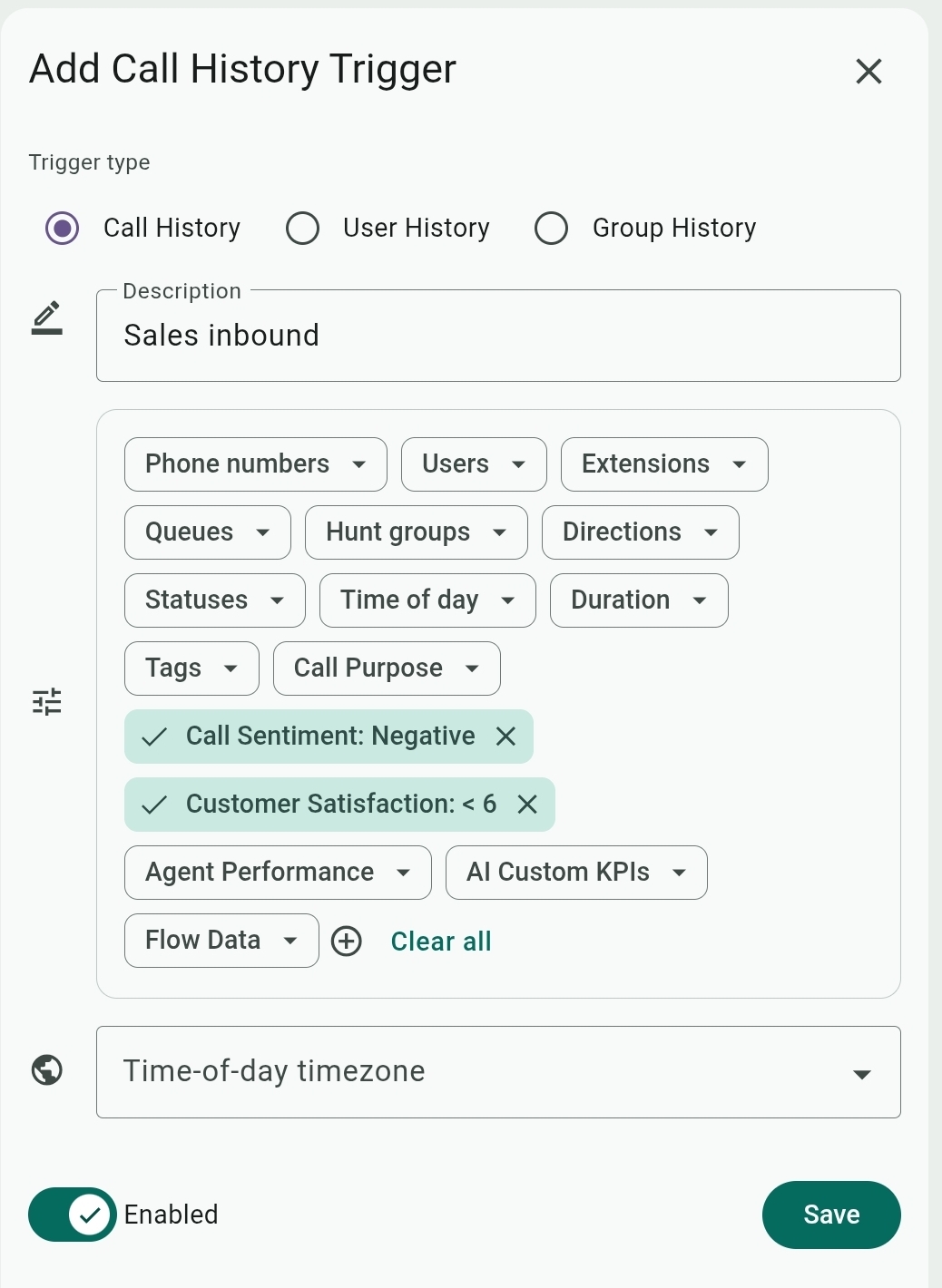
The AI Deep Call Intelligence triggers work similarly to the Call History triggers with the same options and a choice of Call History, User History, and Group History trigger type.
The main differences are some additional AI Call Intelligence filters to set matching calls that will trigger the alert.
The additional filters include:
- For Tags there are three additional filters to find calls that Contain Transcript, or where the AI figured that an Action (is) Required or Urgent Action Required.
- Call Purpose: The intent of the call as determined by the AI, based on categories defined in the AI Call Intelligence Prompts settings on the Account page.
- Call Sentiment: The general tone of conversation between the caller and the agent – Negative, Neutral, or Positive.
- Customer Satisfaction: A 1-10 grade for how a customer feels about the handling of their call and issues.
- Agent Performance: A 1-10 grade of how an agent handled the customer call and issues.
- AI Custom KPIs: These are defined as AI prompts in the AI Call Intelligence Prompts settings for tracking and reporting just about any topic, issue, or metrics appearing in call transcripts.
AI Deep Call Intelligence SMS/Email Notification Variables and Webhook/SFTP Upload Parameters
Most of the variables/paramaters are the same as the Call History triggers, described in the previous section.
There are, however, additional AI Call Intelligence specific variables/paramaters:
- {{.AICallPurpose}}/"callPurpose": The intent of the call as determined by the AI.
- {{.AICallSentiment}}/"callSentiment": The general tone of conversation between the caller and the agent – Negative, Neutral, or Positive.
- {{.AISatisfaction}}/"customerSatisfactionScore": A 1-10 score for how a customer feels about the handling of their call and issues.
- {{.AIPerformance}}/"agentPerformanceScore": A 1-10 grade of how an agent handled the customer call and issues.
- {{.AIActionRequired}}/"actionRequired": A true or false value indicating if a follow-up action is required for the call.
- {{.AIUrgentAction}}/"urgentActionRequired": A true or false value indicating if an urgent follow-up action is required for the call.
- "urgentActionRequiredDescription" (webhook/SFTP only): An AI description of the urgency of the call.
- "summary" (webhook/SFTP only): A short 1-2 sentence summary of the call by the AI.
- "agentName" (webhook/SFTP only): The name of the Agent that handled the call.
- "agentSpeaker" (webhook/SFTP only): Indicates the agent in a transcript conversation. For example, 1 indicates that the agent is "speaker 1" in the conversation.
- "transcription": (webhook/SFTP only) An array containing the entire transcription for the call, with parameters for indicating the speakers (like "speaker": 0) and the "text" they spoke.
SIP Registration Triggers
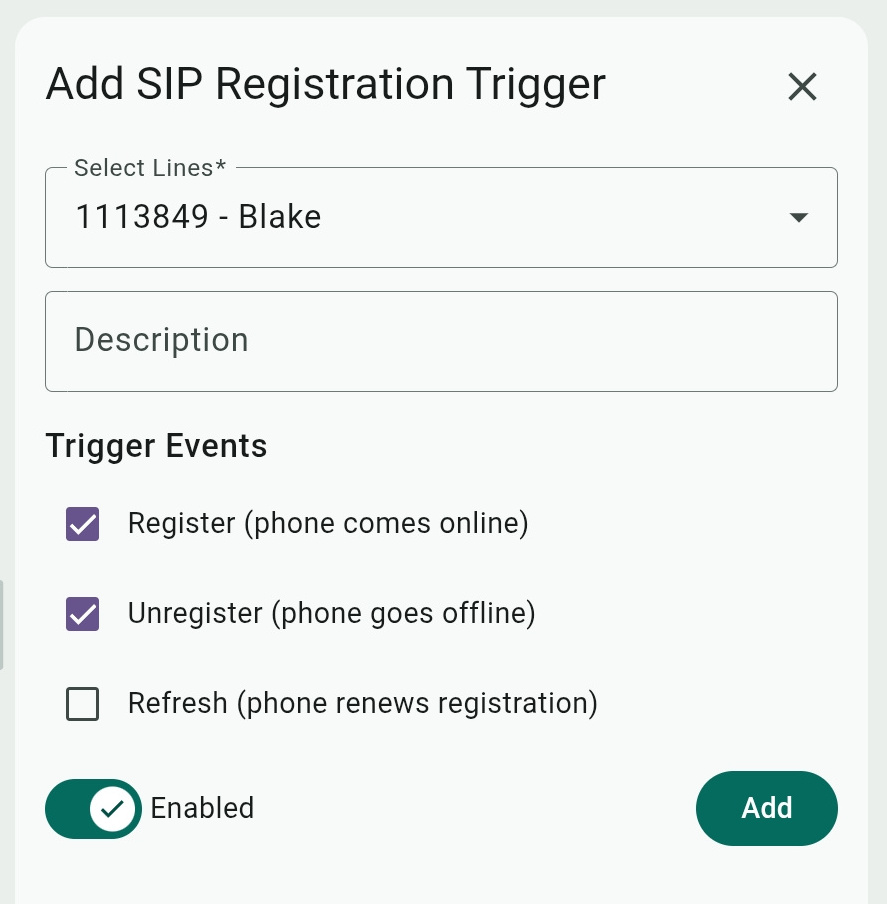
Select the triggering Line(s) for the alert and select whether the alert gets sent when the line Register (phone comes online), when the line Unregister (phone goes offline), or when the line Refresh (phone renews registration).
SIP Registration Email/SMS Notification Variables and Webhook/SFTP Upload Parameters
The following variables can be used for including and delivering triggered SIP registration details. For SMS and email notifications, use the Go template format – as in {{.Action}}. For webhooks and SFTP Upload, use the quotation marks format – as in "event".
Email subject and body have the same variables, except that the body field also has a {{.telebroad-logo}} variable.
- {{.LineNumber}}/"username": The user's line or extension that triggered the SIP registration alert.
- {{.Action}}/"event": The SIP event that triggered the notification for when the user registered, unregistered, or refreshed the registration of their phone line.
- {{.Contact}}/"contact": The SIP address of the user's line that triggered the registration event, for example sip:1586@12.4.20.5:5260.
- {{.Device}}/"userAgent": The client device of the user where the SIP registration event occurred — a physical phone, TeleConsole app, or another softphone app.
- {{.IpAddress}}: The IP address of the user's device that triggered the alert.
- {{.Socket}}/"socket": The combination of IP address and a port number of the user device where the SIP registration event occurred.
- {{.Expires}}/"expires": SIP registrations have a validity time limit set by the server and automatically expire. The variable shows this expiration time, in seconds, when a user registers or refreshes their registration.
The client device normally re-registers before the expiration to expand the registration seamlessly, and this will not trigger the alert.
If the user unregisters, the variable will have a 0 value. - "received" (webhook/SFTP only): The server address and port where the registration request was received.
- "udp:10.0.0.5:5060" (webhook/SFTP only): The UDP address of the user's line. UDP is a network transport protocol that works in conjunction with the SIP protocol to deliver data packets of VoIP communication. Usually this is identical to the user's line SIP address as provided in the "contact" parameter.
- "state" (webhook/SFTP only): The parameter is not yet operational and always has a 0 value.
- "lastModified" (webhook/SFTP only): The last time registration was established or was refreshed.
- "timestamp" (webhook/SFTP only): The time the alert was triggered, provided in UNIX time format.
Queue/Hunt Group Activity Triggers
Select the triggering Queue or Hunt Group and specific agents to monitor in the queue/hunt group (or you can monitor all agents).
For the triggering event, select to trigger when an agent signs in or signs out to the queue/hunt group, or when the number of agents falls below a certain threshold.
You can also set the time when the trigger is active with the From, To, and Time Zone values. This can prevent triggering the alert on times when agents are off work.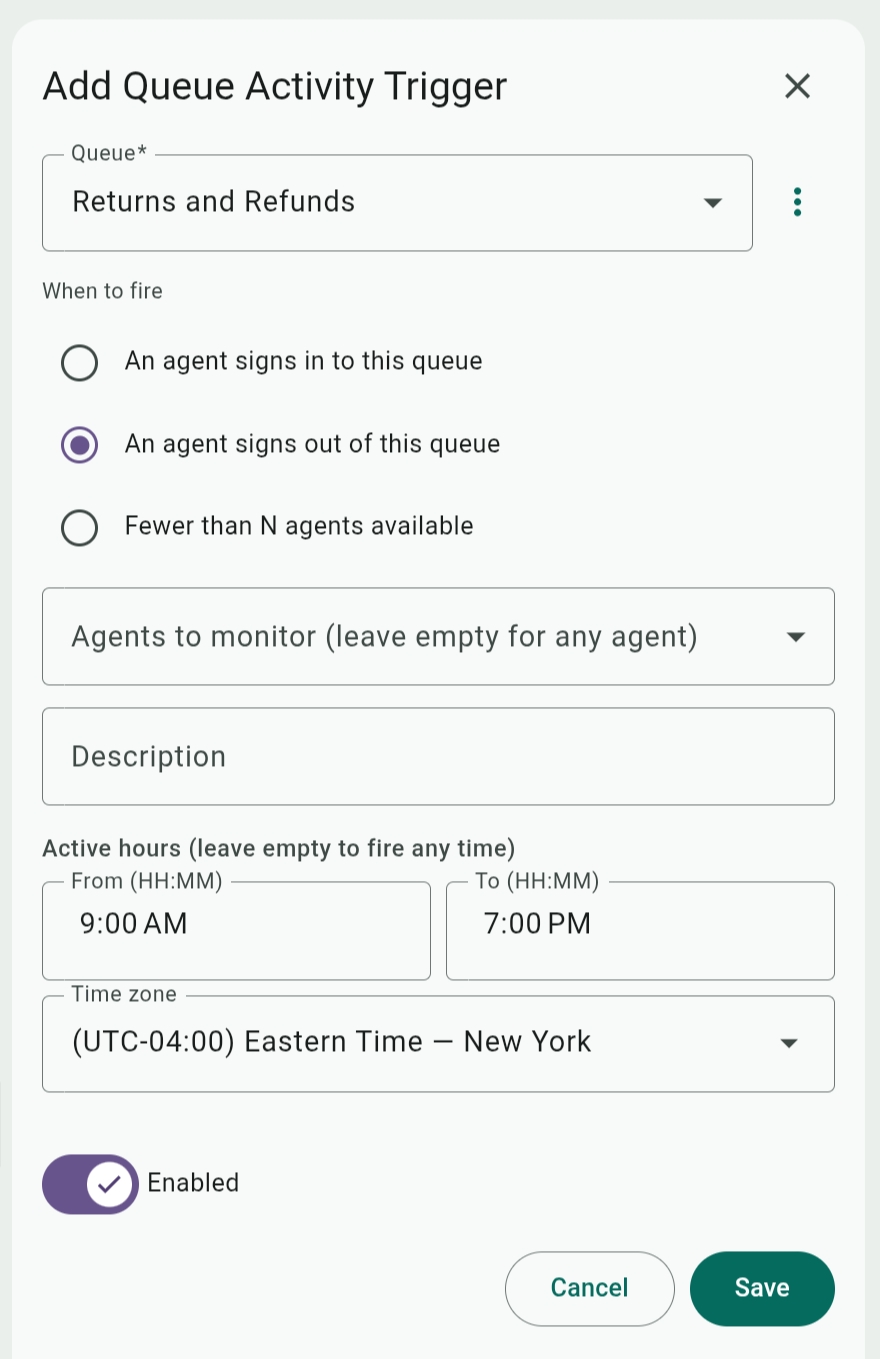
Queue/Hunt Group SMS/Email Notification Variables and Webhook /SFTP Upload Parameters
The following variables can be used for including and delivering triggered queue/hunt group activity details. For SMS and email notifications, use the Go template format – as in {{.QueueID}}). For webhooks and SFTP Upload, use the quotation marks format – as in "queueId".
Email subject and body have the same variables, except that the body field also has a {{.telebroad-logo}} variable.
- {{.QueueID}}/{{.HuntgroupID}} and "queueId"/"huntgroupId": A system ID of the queue or hunt group that triggered the email notification.
- {{.QueueName}}/{{.HuntgroupName}} and "queueName"/"huntgroupName": The name of the queue or hunt group that triggered the email notification.
- {{.EventTitle}}/"eventTitle" The event that triggered the notification, like "Agent Logged In" or the queue or hunt group is "Low On Agents", etc.
For webhooks, there is also an "event" parameter that has the same information but a different format ("agent_login"). - {{.AgentName}}: The name of the agent who signed in or out.
Currently, the "agentName" parameter for webhook/SFTP Upload notifications remains blank. The "agentLine" parameter can be used instead to identify agents by their extensions. - {{.AgentNumber}/"agentLine": The line or extension of the agent who signed in or out.
- "agentUserId" (webhook/SFTP only): A system ID of the agent who signed in or out.
- {{.ActiveAgents}}/"activeAgents": For the "Fewer-than-N-agents-available" trigger, the current active-agent count.
- {{.Threshold}}/"threshold": For the "Fewer-than-N-agents-available" trigger, the value in the "Alert when active agents fall below" field (the minimum threshold to trigger the alert).
- {{.TriggerName}}: The name of the trigger (from its Description field) and a system ID assigned to it.
For webhooks/SFPT uploads, this is sent as two separate parameters – "triggerId": 24, "description": "Sales coverage". - "alertId" (webhook/SFTP only): A system ID for the alert.
- "nsqId" (webhook/SFTP only): NSQ is a messaging platform that handles background tasks and server management in SIP communication.
The nsqId parameter references the queue/hunt group event that triggered the alert. It is used purely for tracing the sign-in/sign-out events in the system logs. However, it is not used by any feature in the phone system.
The nsqId also appears in email alerts as a "Reference ID" row linked to the alert's history page, and in the last line of SMS alerts as "Reference ID: <id>". - {{.EventTime}}/"timestamp": The time the alert was triggered, provided in
UNIX time format.
SMS Triggers
Not to be confused with the SMS notifications, the SMS trigger sends notifications for users' SMS activity (you can actually send SMS notifications for SMS activity).
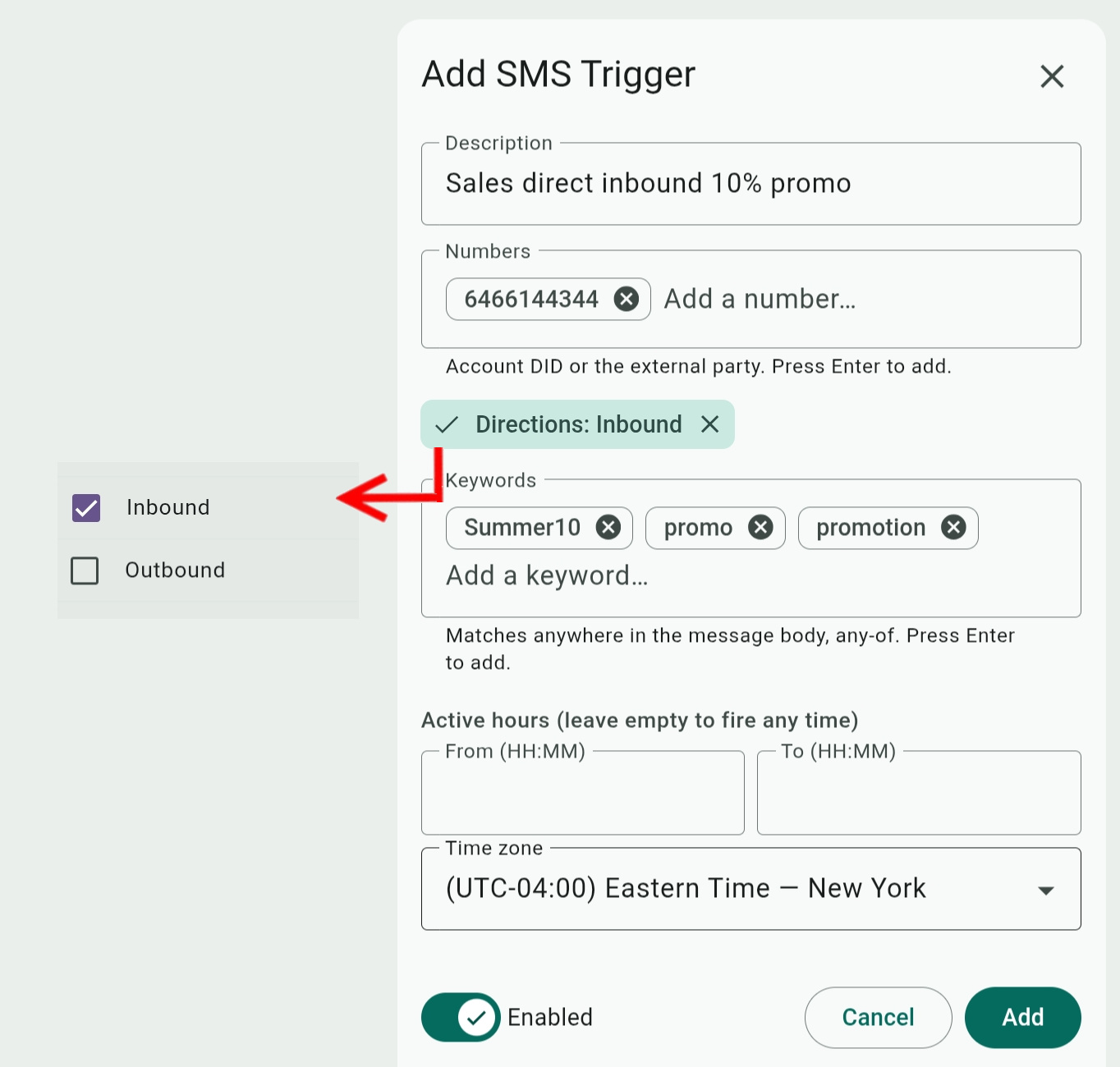
You need to enter the phone Numbers the system will monitor for SMS messages. These can be either SMS-enabled phone numbers on your account or external numbers.
The alert can be triggered for any message from these numbers or for messages with specific Keywords.
Since external numbers can only be monitored for received messages, you would set the Direction option for received (Inbound) SMS messages from external contacts. Messages sent by account users with system SMS-enabled numbers can be monitored for both Inbound and Outbound activity.
Use the From, To, and Time Zone options to set a schedule for when the trigger is active. The trigger will be active at all times if you leave these fields empty.
SMS Trigger SMS/Email Notification Variables and Webhook/SFTP Upload Parameters
The following variables can be used for including and delivering triggered SMS message details. For SMS and email notifications, use the Go template format – as in {{.Direction}}. For webhooks and SFTP Upload, use the quotation marks format – as in "direction".
Email subject and body have the same variables, except that the body field also has a {{.telebroad-logo}} variable.
- {{.EventTitle}}/"event": The event that triggered the alert. This can be "Received SMS" or "Sent SMS" for email/SMS variables. For webhook or SFTP upload it is "sms.received" "sms.sent"
- {{.Direction}}/"direction": The direction of the SMS message that triggered the alert. For email/SMS variables "inbound" or "outbound". For webhook or SFTP upload "incoming" or "outgoing".
- {{.FromNumber}}/"from": The phone number of the sender.
- {.ToNumber}}/"to": The phone number of the recipient.
- {{.Message}}/"message": The text of the message (the message body).
- {{.TriggerName}}: The name of the trigger (from its Description field) and a system ID assigned to it.
For webhooks/SFPT uploads, this is sent as two separate parameters – "triggerId": 15, "description": "Inbound sales SMS line". - {{.EventTime}}/"time": The time the alert was triggered, provided in UNIX time format.
- "messageUuid" (webhook/SFTP only): A unique global ID number given to the message that can be used across multiple platforms so it can be tracked and have its status confirmed as delivered or read.
- "sms_id" (webhook/SFTP only): Similar to the Uuid, this number is much shorter and is assigned by the carrier or messaging gateway. While the Uuid is unique globally, an SMS ID may only be unique within the carrier's system or supported regions.
- "trigger_filters" (webhook/SFTP only): The SMS phone numbers that triggered the alert.
Alerts History
The history page shows a report of all the triggering events of the alert. It can be accessed by selecting the alert and clicking the History button or by selecting View History from the alert's mini-menu on the main page.

The results can be filtered by Date Range, Channel (the notification channel like SMS, email, webhook, or SMTP upload), Status (Failed or Success to deliver the alert), a system Call ID, and the recipient's SMS phone number or Email address.
The system Call IDs are clickable and will open the Call Details panel on the Call History page to show the call's journey and any recordings or AI insights.
For SIP Registration alerts, there is also a Phone/Extension (phone lines) filter. For Call History alerts, there is also an Entity filter (the same as the trigger's description).
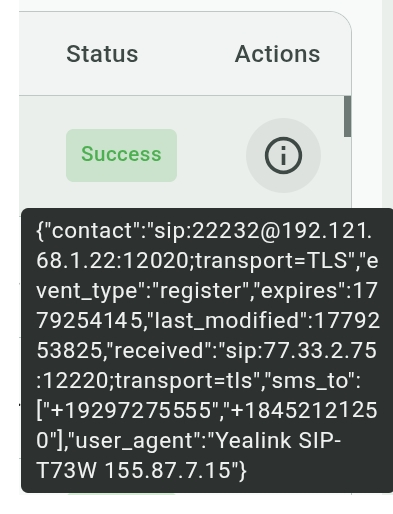
You can click the  icon of a Failed status record for details and the reason for the failure.

Click the  icon of a record to see the full API action that the system used for generating the alert.