Usage and Access
The Smart Callback feature can reconnect callers with an agent they already know. When a call comes in, the system checks if the caller spoke with an agent recently and offers to route them to that agent by dialing a digit, saving both the agent and the caller valuable time.
The feature is accessed from the side navigation menu under Voice Features>Smart Callbacks. It lists existing Smart Callback setups by Name and Description. Clicking  on the Starred column will add a Smart Callback setup to the home page Starred Features panel for fast access.
Smart Callbacks can be deleted by checking them and clicking  , but be aware that this cannot be undone.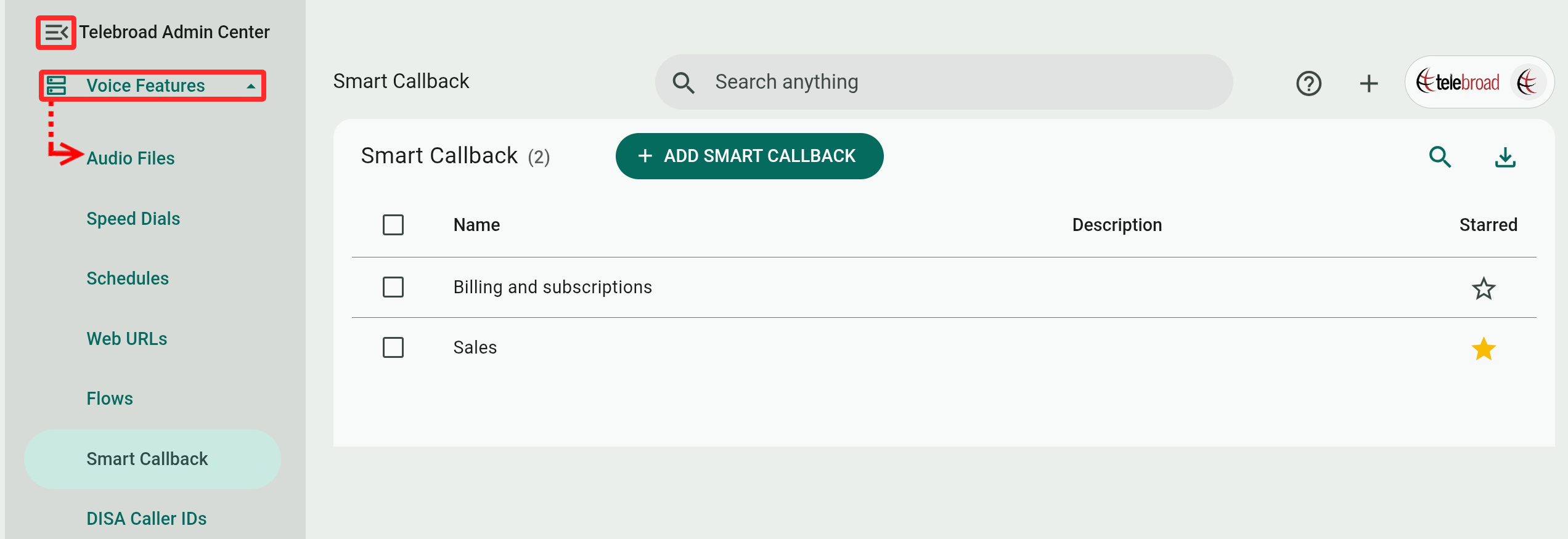
Smart Callbacks Settings
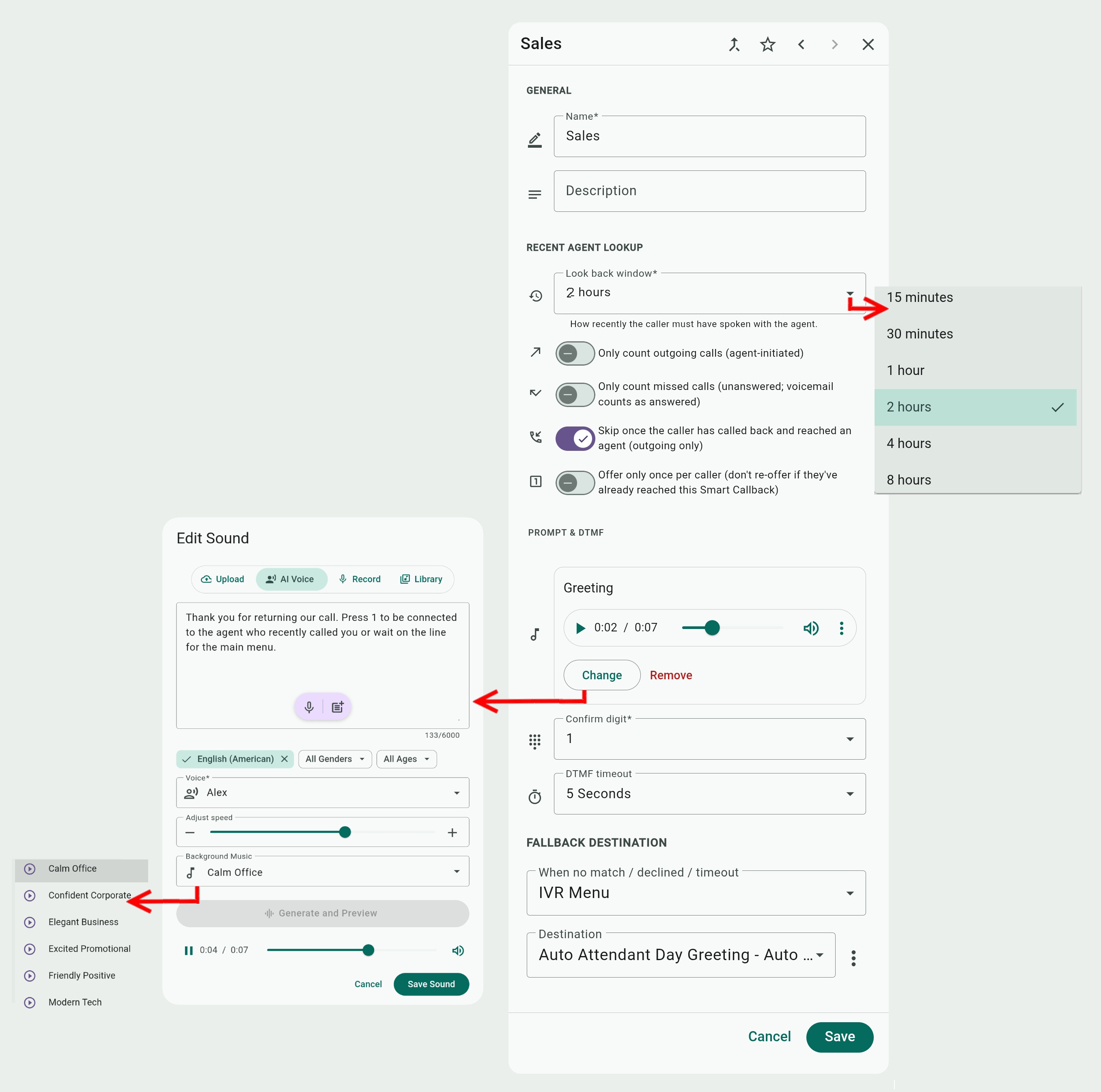
Click ADD SMART CALLBACK or select an existing smart callback setup to see and modify its settings:
- Name/Description: Self-explanatory. The description is optional.
- Look back window: Select a time, from 15 minutes up to 24 hours, in which the callback is active. In other words, the caller and the agent need to have spoken within this time frame to have the smart callback feature offer to reconnect them.
- The four lookup filter toggles let you limit how the system looks for matching caller and agent interactions within the look-back time window–
- Only count outgoing calls (agent-initiated): Enable this to have smart callback reconnection only for calls initiated by agents. If callers first called agents (within the look-back window), smart callbacks will not match them to an agent.
- Only count missed calls (unanswered; voicemail counts as answered): Enable this to have a smart callback reconnection only for missed calls, where either the agent or the caller did not answer.
Voicemails do count as answered calls, so this option only applies to calls that rang and got hung up before going to voicemail. - Skip once the caller has called back and reached an agent (outgoing only): When enabled, this prevents rematching callers that already spoke with an agent.
In other words, it will prevent repeated reconnections within the look-back time window, only reconnecting the caller and agent once and then routing the caller to the fallback destination. It applies only for outgoing calls when an agent is the one who initiated the call. - Offer only per caller (don't re-offer if they've already reached this Smart Callback): This makes the system reconnect callers to the agent only once per lookback window. This means the system will stop offering smart call back after the caller has successfully reconnected with the agent. It applies only for outgoing calls when an agent is the one who initiated the call.
- Only count outgoing calls (agent-initiated): Enable this to have smart callback reconnection only for calls initiated by agents. If callers first called agents (within the look-back window), smart callbacks will not match them to an agent.
- Greeting: You can Upload, Record, generate with AI Voice, or select an existing greeting from the Library. The greeting should inform the caller that the system can reconnect them with the agent they recently spoke with and what digit they need to press to confirm the reconnection.
For AI Voice, use to dictate the greeting and the
  button for saving and managing greeting text templates. You can also select a Background Music for the AI to mix with the spoken text for a more lively delivery.
 - Confirm digit: Select the digit that the caller needs to dial on their phone to confirm that they wish to be reconnected to the agent they recently spoke with.
Make sure to tell the caller about this digit in the greeting. - DTMF timeout: Select the number of seconds the system will wait for the caller to dial the confirmation digit.
- Fallback Destination: Select an alternative routing destination (an IVR menu in the example) for the call if the system cannot find a match (the caller and the agent did not recently speak), the caller declines the reconnection, or if the caller does not press the confirm digit within the DTMF timeout limit.
Routing Calls via the Smart Callback Feature
Once you configure a smart callback setup, you need to route calls to it to make it work. You can route calls via phone numbers, extensions, user lines, IVR menus, queues, and any other routable phone system sources.
Routing Calls via a Phone Number
To apply smart callback to all inbound calls, you would want to set the routing for your main number.
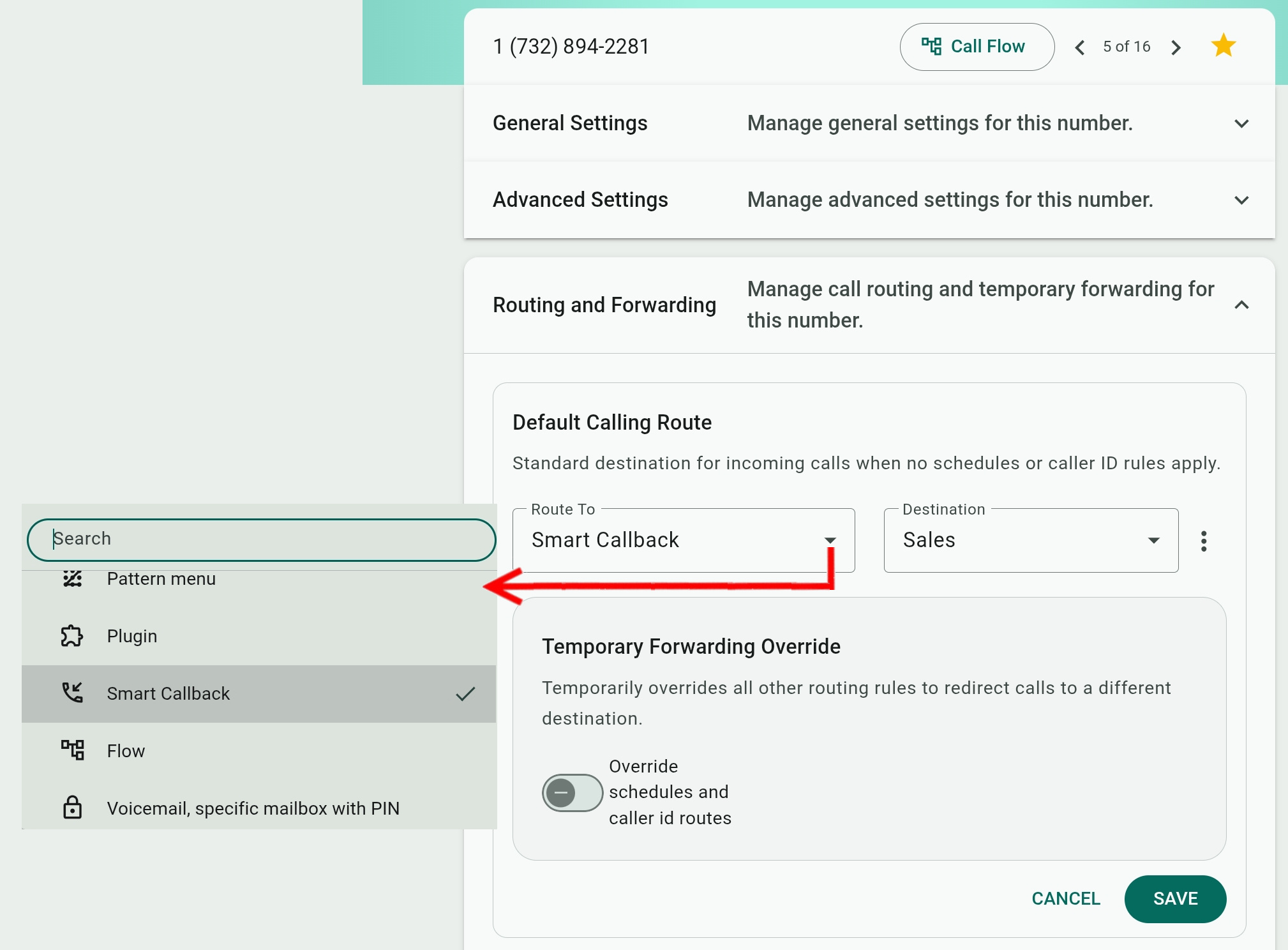
- Select the number from Admin Center Menu>Phone Numbers.
- Expand the Routing and Forwarding options.
- For the Default Calling route, select Smart Callback in the Route To field.
- For the Destination field, select the relevant callback setup by name.
Active Routing Sources for Smart Callback
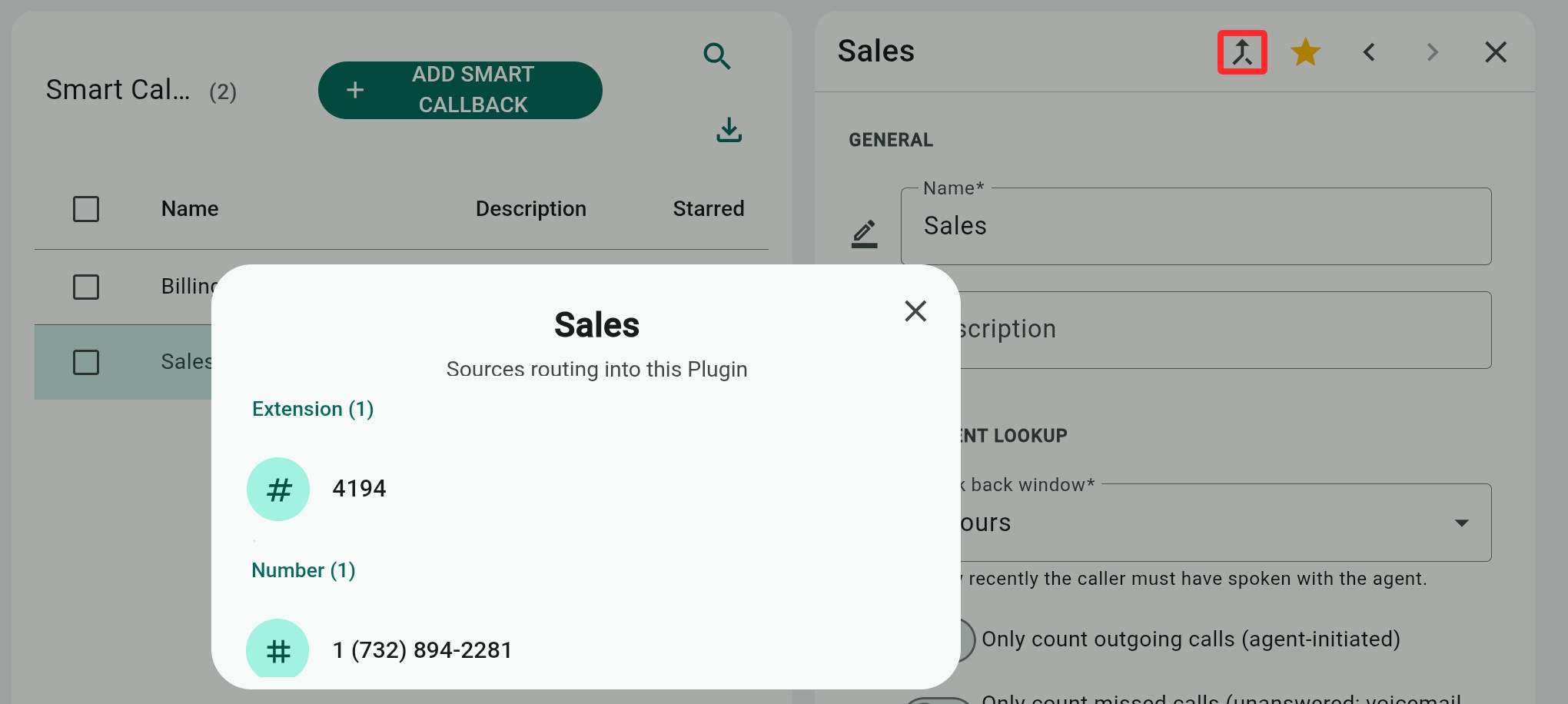
You can select any smart callback setup and click  to examine what phone system sources are routing calls to it. Clicking a source will take you to its page for quick editing and modifications.