
The Calls Screen
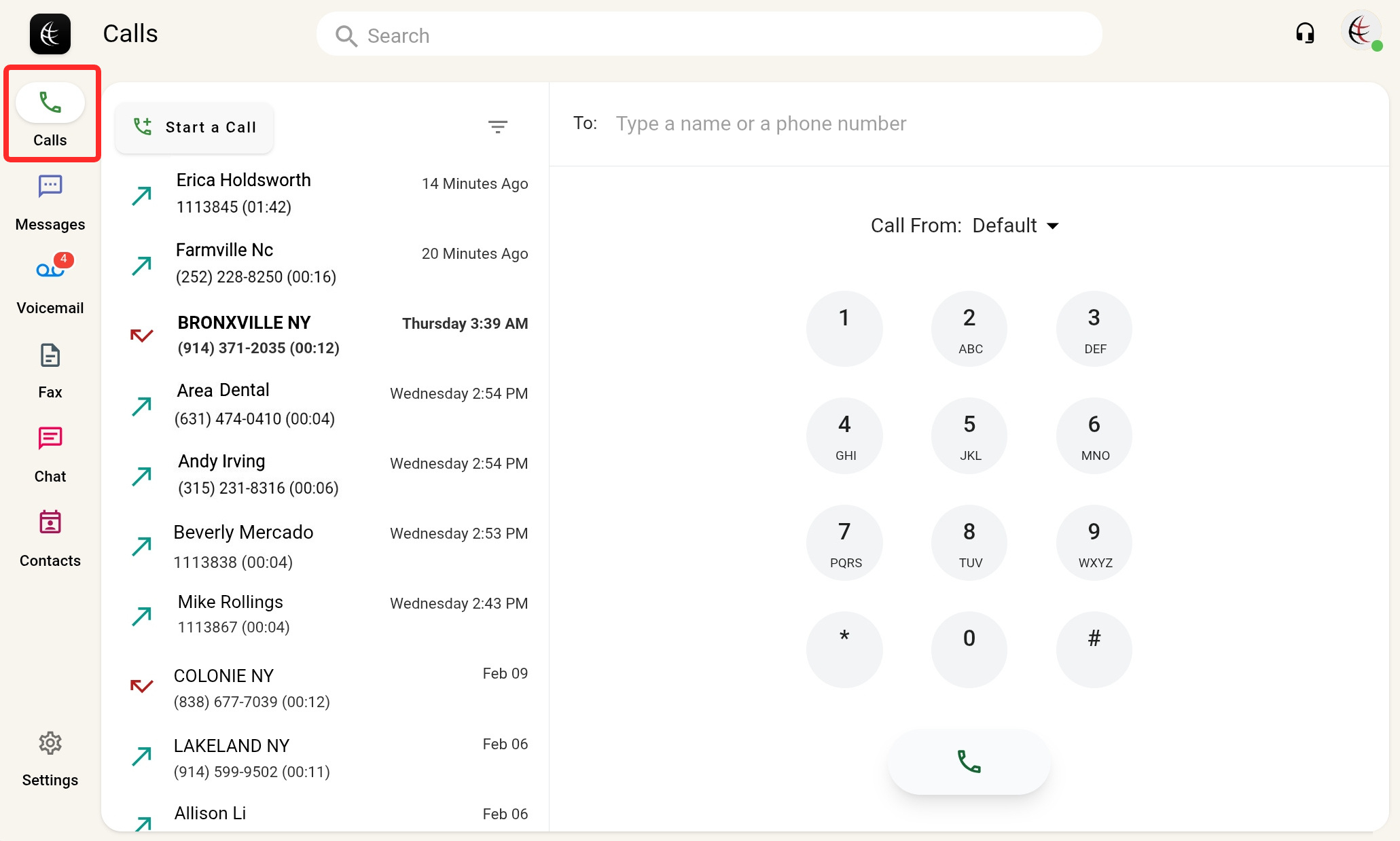
Click  on the side menu or press Control+D on your keyboard to access the Calls Screen.
The screen has two panels:
- The left panel displays a Calls Log, discussed in the article you are currently reading.
- The right panel displays either a selected call log details or a keypad to make calls or call/conference options (discussed here) for active calls. It may also display integration options, if your account is enrolled in any, which are explained in this article.
The Calls Log
The Calls Log, on the left panel, shows a chronological list of internal and external calls for your active phone line.
Types of Calls
Each call log record lists the phone number and name of the caller (if available), the time the call was placed, its duration (missed or busy calls have a zero duration), and an indication of one of three types of calls:
- Incoming calls are marked with a green left-pointing arrow –
 .
. - Outgoing calls are marked with a green right-pointing arrow –
 .
. - Missed calls that you did not pick up are marked with a red left-pointing arrow –
 .
.
Filtering Calls
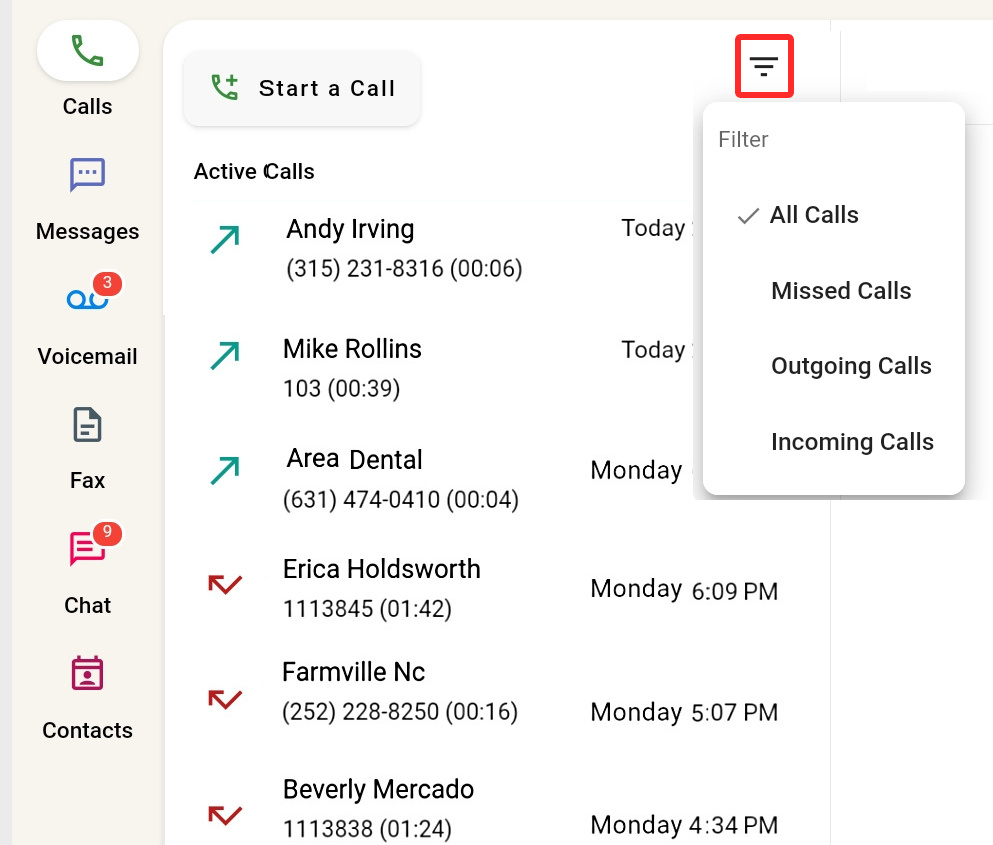
Click  to filter what type of calls are shown in the log – Missed Calls, Outgoing Calls, Incoming Calls, or All Calls.
If you can't find some call log records, make sure they are not being filtered out by your selection here. You can always select All Calls or use the global search feature to find them.
Active Calls
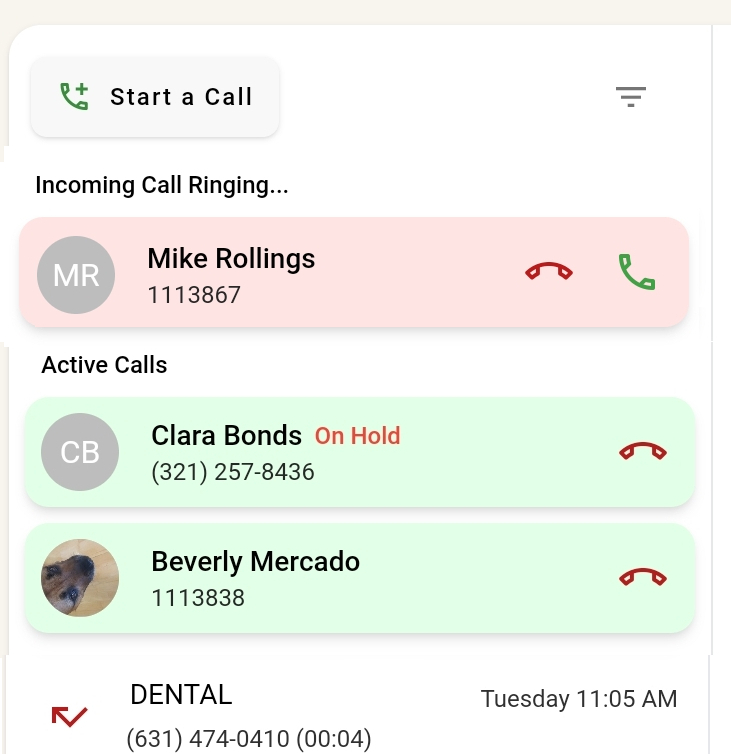
Active calls including dialed, received, ringing, held, and conference calls, are pinned to the top of the Calls Log panel.
Call Info, Transcript, and AI Insights
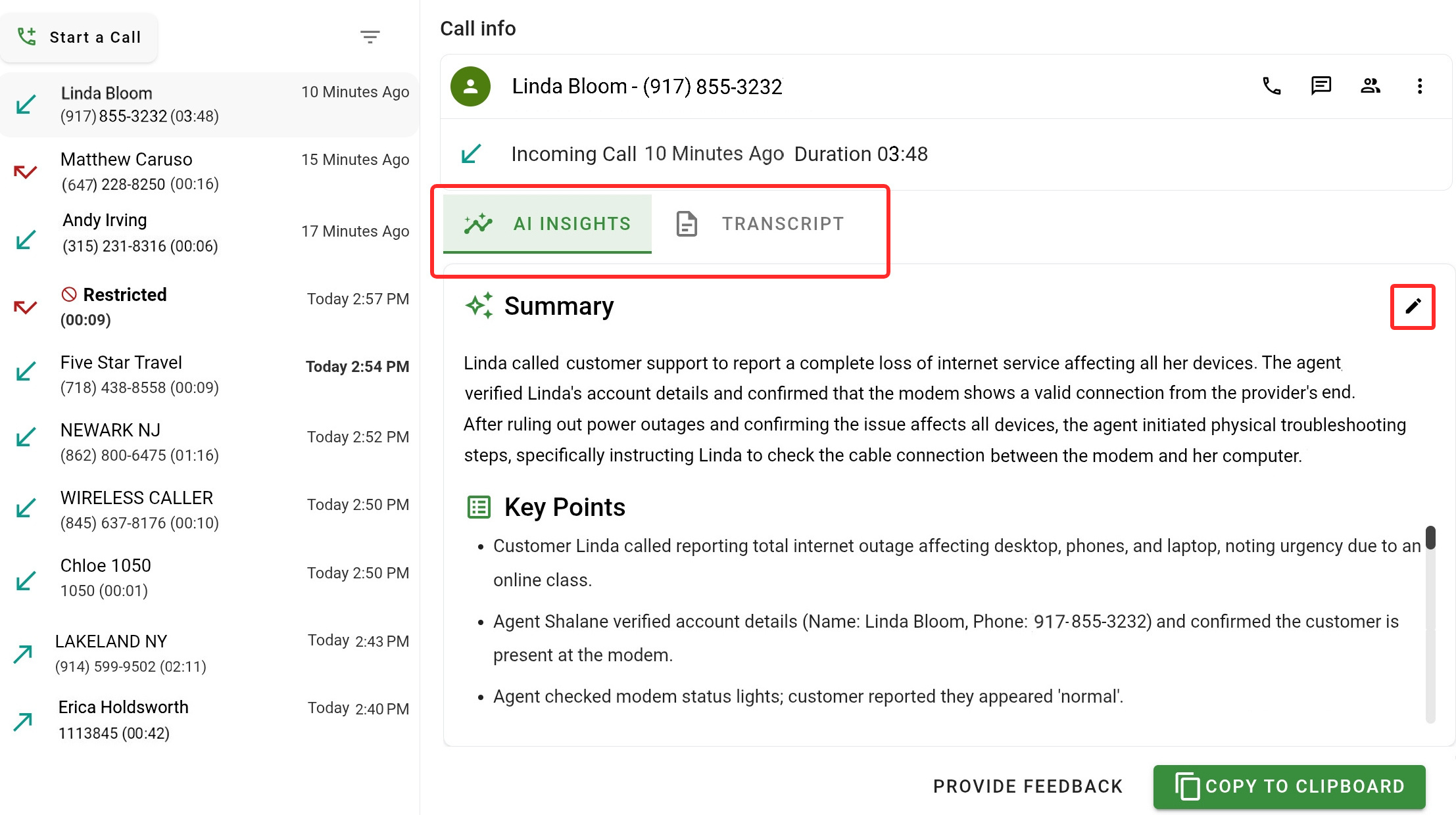
Clicking a call log record displays its call info. The call info has exactly the same details already included in the call log record, but is easier to read.
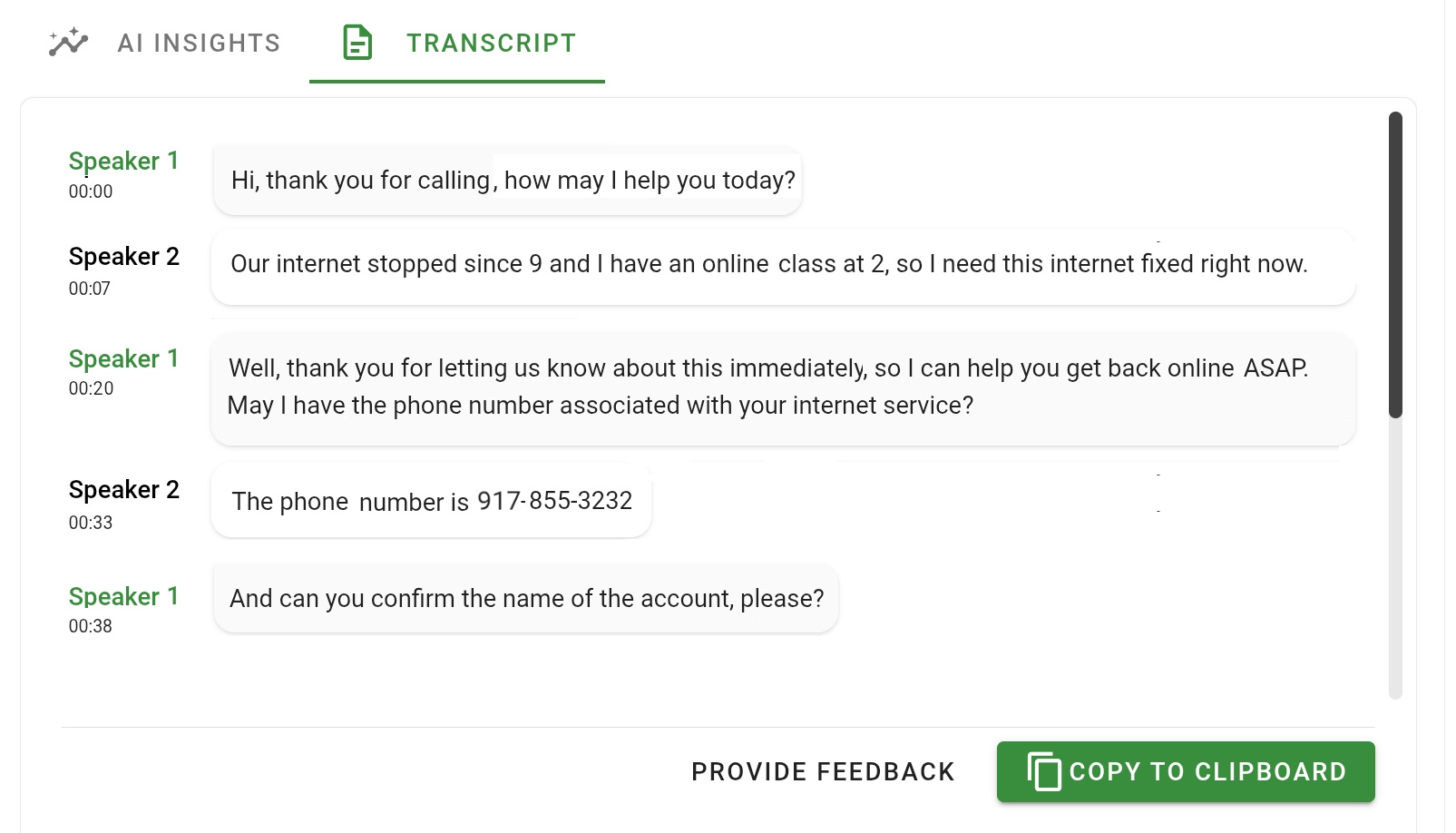
If your line has an active subscription to AI transcripts and insights, and if call recordings are enabled for it (these are all managed by your system administrator from the Admin Center), you will see two tabs:
AI Insights: This tab shows a call Summary and Key Points for the call that the AI composed by analyzing the call transcript. The summary can be edited by clicking  .
.
Call transcripts: This tab shows a transcript for the call that is automatically generated by AI-optimized speech recognition.
The numbers under each speaker indicate a time code for when they spoke the transcribed section, with the first section always starting at "00:00".
 Call Log Options
Select a call log for the following call options: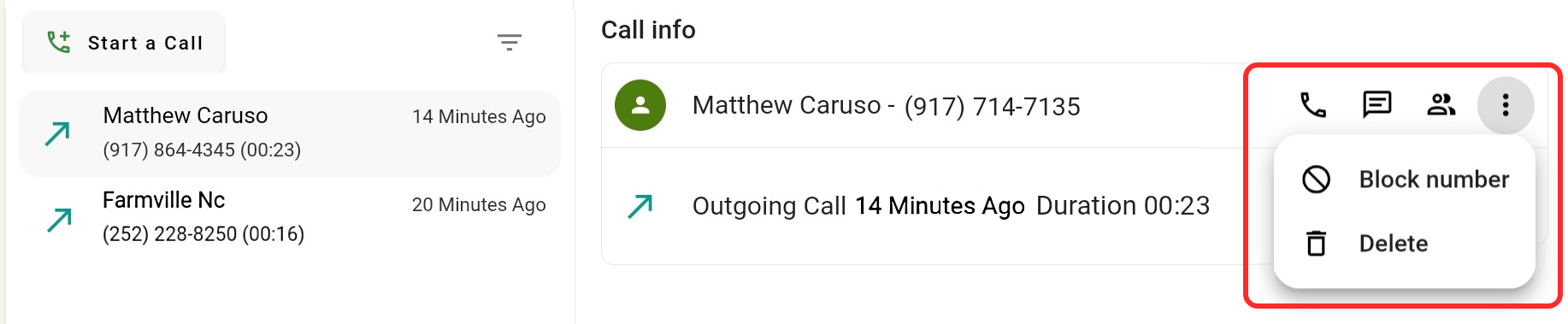
 to place a call to the person who called you or whom you called.
The keypad screen will open with the other party's number automatically inserted in the call recipient's field. to message the person who called you or whom you called.
The other party's number will be automatically inserted in the To: field of the new conversation screen. You should make sure this number can actually receive text messages (the TeleConsole has no way to verify this for you!)
Note that messaging is not available for internal contacts, but you can direct chat with them instead. for contact options for the other call log party.
- If the other party's phone number already exists in your contacts, this will open their details in the contacts screen.
- If the other party's phone number does not exist in your contacts, you can – Create new contact with their details or Add (them) to existing contact. Creating new contacts is discussed here.

- If the other party's phone number already exists in your contacts, this will open their details in the contacts screen.
- Select
 and –
and –- Delete (
 ) to delete the call log record.
 - Block number (
 ) to automatically reject calls from anyone you don't want to receive calls from. The number will be added to the Blocked Numbers List that is accessible in the Calls Settings and can also be managed there.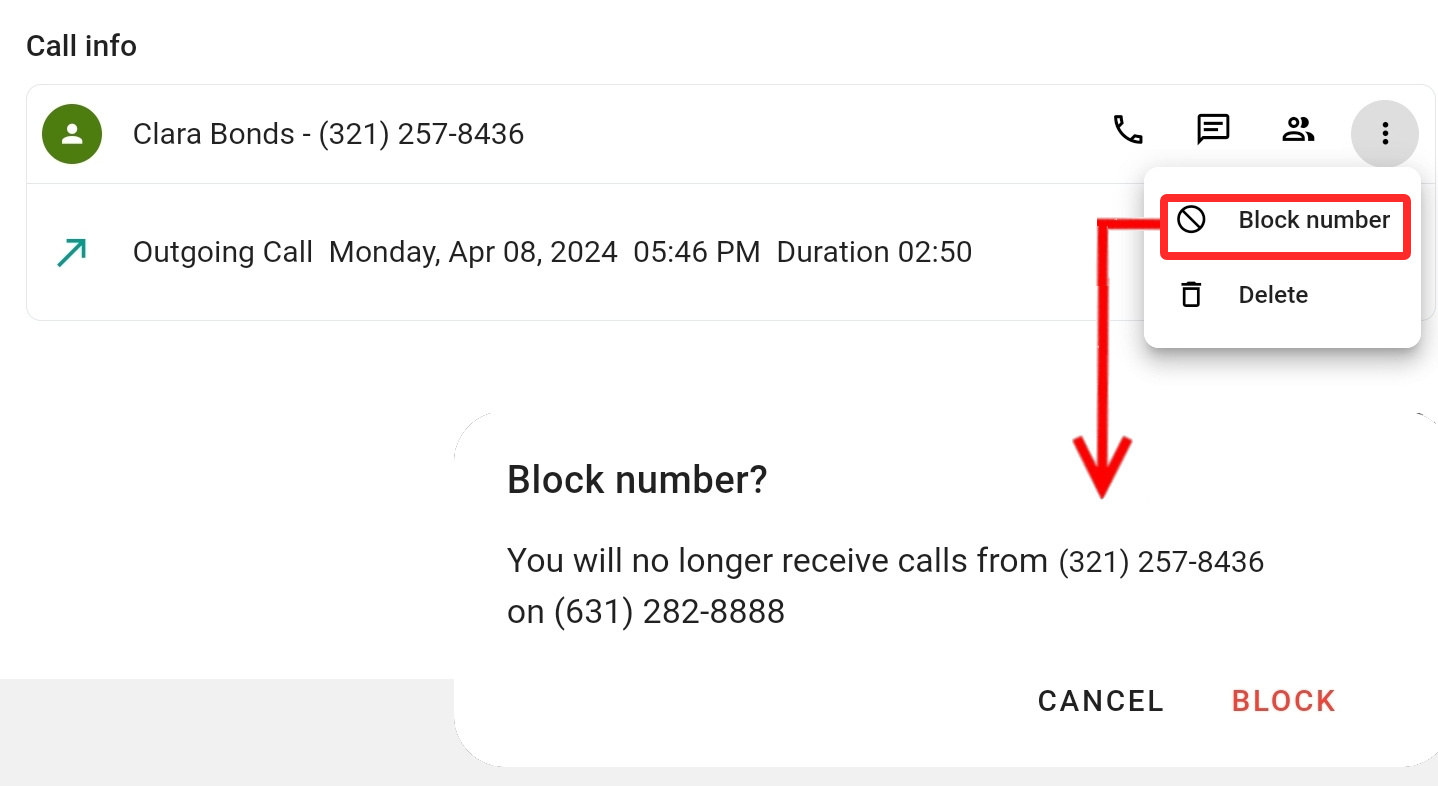
Blocking only works on incoming calls from external numbers and is applied per phone line. To completely block an unwanted number, you need to block it on all of your lines.
Blocked numbers are marked with .
.
If a number is already blocked, you will see the option to Unblock number or you can remove it from the Blocked Numbers list in the Calls Settings.
The Admin Center's Lines and Devices advanced settings can be used to block callers who hide their caller ID with the Block Calls without Caller ID option. You need to be an administrator or be assigned an Admin Center role that allows access to this feature.
- Delete (
Using Telebroad Integrations
Telebroad integrations allow you to cross-reference phone numbers and other details with other platforms and applications. Currently, HHAeXchange, Hubspot, and Salesforce are supported.
Integrations are configured by an administrator from the Admin Center and are available to users, who were granted intergation access, directly in the TeleConsole.
To use an integration, you simply need to make or receive a call or view a call log record.
An integration button will automatically show in an additional panel on the right. Clicking it will expand the integration window to show details, links, and options for the integration.
